Why the selfie preview looks like a mirror
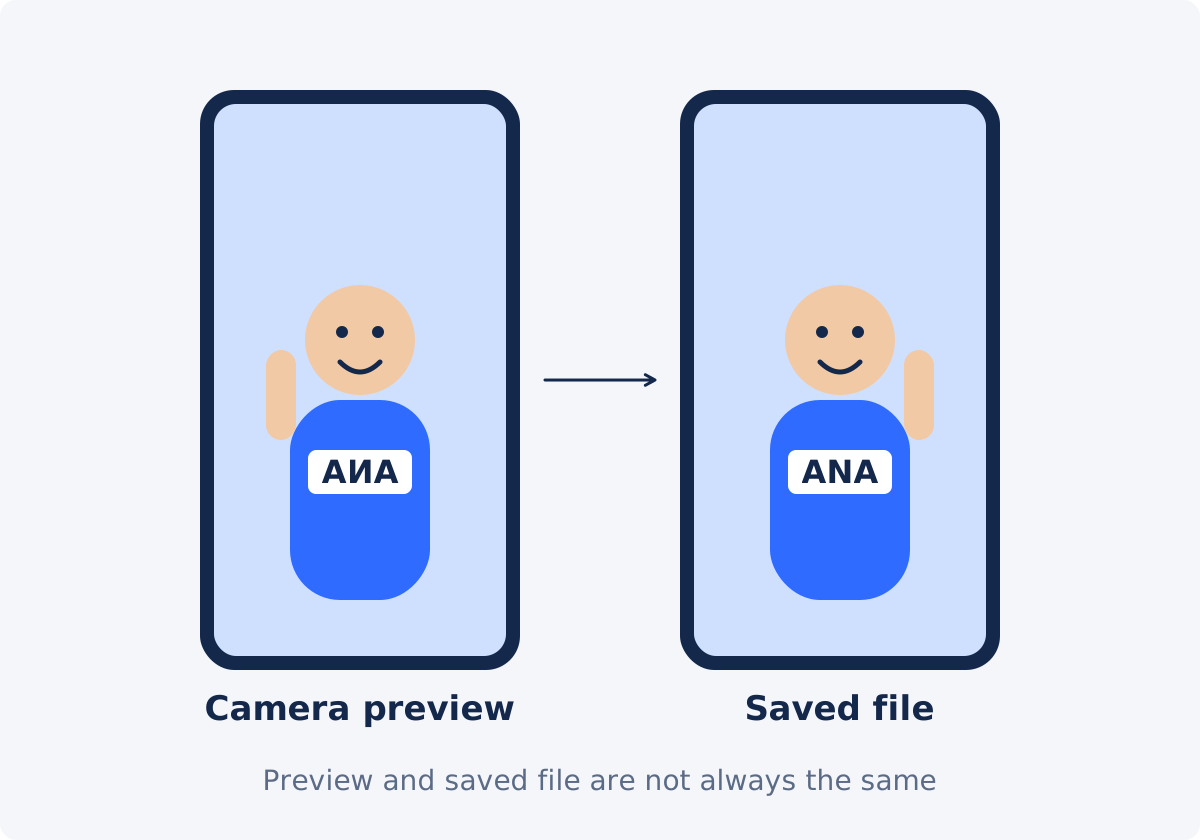
When you look at a front camera preview, you are using the phone as a mirror. You raise your right hand, and the hand on the right side of the screen goes up. That feels natural, because it matches every mirror you have ever used. If the preview were not mirrored, moving left would make your image move right, and framing yourself would be disorienting.
So camera apps commonly mirror the live preview. A mirror image is a picture with left and right swapped. It is how you see yourself, and it is the opposite of how other people see you.
The saved recording is a separate matter. An app may save the video exactly as the preview looked, mirrored. Or it may save the true, unmirrored view, which is how a person standing in front of you would see you. Some camera apps offer a setting for this, often described as mirroring the front camera, and third-party apps, such as social and video-call apps, make their own choices. Behavior can also change with software updates. There is no rule that holds for all iPhone or all Android apps, so the only reliable answer comes from the file itself.
Check the saved file in more than one player
- Locate the saved file. Use the file in your gallery or files app, not the preview inside the app that recorded it.
- Copy it to a computer if you can, and open it in a standard video player.
- Open it in a second player or on a second device. Some apps display their own recordings mirrored, even when the file is not. Two independent players that agree settle the question.
- Pause on a frame with a clear clue: lettering, a logo, a clock, a product label.
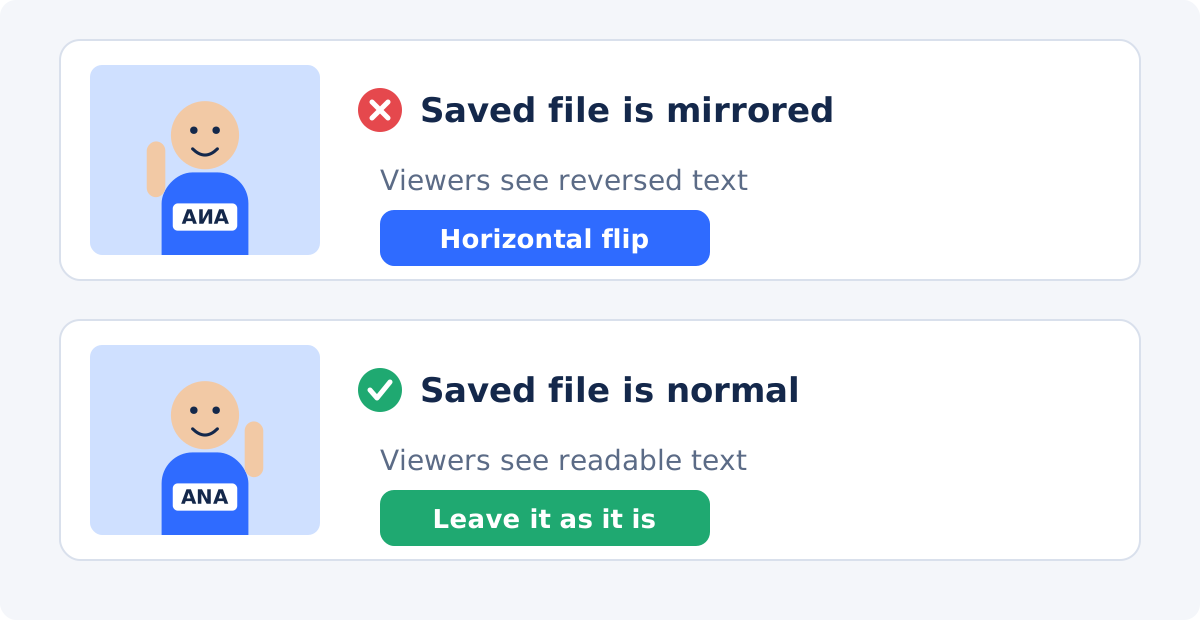
- Decide. Readable text means the file is fine. Reversed text means the file is mirrored.
If you have nothing with text in the shot, record a five-second test with a book cover or a piece of paper with a word on it, using the same app and settings. It tells you how that app saves files from now on.
Signs that you need a horizontal flip
- Text on clothing, packaging, posters, or screens reads backward in the saved file.
- A logo looks wrong, or its lettering is reversed.
- You demonstrate something with your right hand, and the video shows the left.
- You point "to the right" or "to the link on the left," and the gesture goes the wrong way for the viewer.
- A product is shown with its label, buttons, or ports on the wrong side.
- Sign language, handwriting, instrument playing, or a sports technique appears with the wrong hand.
- The clip will be cut together with back-camera footage of the same scene, and the two do not match.
How to flip the video in Deus.Video
With the Flip Video tool, you can mirror the video horizontally and check the result before you process it.
- Upload the saved selfie video. Common inputs include MP4, MOV, AVI, WebM, and MKV.
- Note the starting state. The Original preset is selected, both toggles are off, and the Flip Video button is inactive, with a note asking you to select at least one direction.
- Click Horizontal, or switch on the Horizontal flip toggle, described in the panel as "Mirror left and right."
- Check the live preview. The label in the corner of the preview shows the selected reflection. Text should now be readable.
- Play the clip and pause where labels, gestures, or products are visible.
- Click Flip Video and wait for processing to finish.
- Download the result, or continue editing it in the full editor.
- Open the download in a regular player and run the checks in the next section.
The tool produces a new processed file. Your upload is not modified. Frame size, duration, and sound stay the same, and because the video is encoded again, which is called re-encoding, file size and fine detail may differ slightly.

What to verify: text, logos, labels, gestures, handedness
- Embedded text. Anything that was part of the scene when you recorded: shirt prints, book covers, whiteboards, screens, street signs. After the flip, all of it should read normally.
- Logos. Brand marks on clothing, devices, and packaging. A reversed logo is an easy thing for viewers, and brand owners, to notice.
- Product labels. In a review or an unboxing, check the front of the pack, the buttons, the ports, and any printed instructions.
- Gestures. If you say "swipe left" or "on my right," make sure the gesture matches the viewer's point of view.
- Handedness. Writing, drawing, playing guitar, applying makeup, a tennis stroke, a knitting tutorial. In instructional content, the hand matters.
- Anything added later. If captions, stickers, or a watermark were already burned into the file, a flip reverses them. Flip a clean version, and add them again afterward.

When to keep the mirror look
Unmirroring is not an obligation. There are good reasons to leave a mirrored file alone.
- Nothing in the shot has a direction. A talking head against a plain wall looks fine either way, and viewers cannot tell.
- You prefer the face you know. Faces are slightly asymmetrical, and you are used to your mirror image. Many creators feel the unmirrored version looks "off," even though it is what everyone else sees. Either is acceptable. Consistency across your videos matters more than which one you pick.
- Following along. In dance, fitness, and some craft tutorials, a mirrored instructor is easier to follow: when the instructor moves to the viewer's right, the viewer moves right too. Here the mirror is a feature.
- A deliberate style. Mirroring can change the direction of a look or a movement to suit your layout.
The rule of thumb: if text, logos, or handedness are visible and matter, unmirror. If not, choose the look you prefer, and stick with it.
Device and app variability
Be careful with advice that says "phones always do X." What you get depends on several layers, each of which can differ.
- the phone's built-in camera app and its settings;
- whether you recorded inside another app, such as a social, messaging, or meeting app;
- the version of the operating system and of the app;
- how the app you watch the video in chooses to display it.
If a consistent result matters to you, look for a front camera mirroring option in your camera settings, read the current help pages for your device or app, and confirm with a short test recording that contains text. This guide does not make claims about specific phone models, because such details change.
What you see, what viewers see, and what to do
| What you see | What viewers see | What to do |
|---|---|---|
| Mirrored preview while recording; saved file has readable text | A normal, correct picture | Nothing. The file is already unmirrored |
| Saved file shows reversed text in two different players | Backward lettering and swapped sides | Horizontal flip |
| Saved file looks mirrored in the recording app only | Depends on the file, not on that app | Check in a regular player before deciding |
| Mirrored file, no text, no direction-sensitive action | A picture that looks natural | Your choice. Keep it, or flip for consistency |
| Mirrored tutorial where you use your right hand | A left-handed demonstration | Horizontal flip, unless viewers are meant to mirror you |
| Mirrored dance or workout follow-along | An instructor who moves like their reflection | Often keep it. Mention it if directions are spoken |
| Mirrored file with captions already burned in | Readable captions over mirrored footage | Flip a version without captions, then add them again |
| Video is sideways or upside down | A turned picture | Rotate, not flip |
For a turned picture, use Rotate Video. If you need to add captions or titles after flipping, the full Deus.Video editor keeps text as a separate layer over the video.
Conclusion
A front camera preview is a mirror, and the saved file may or may not be one. Check the file in a regular player, look for text and handedness, and flip horizontally only when the file is really mirrored and the mirroring matters. Then verify labels, logos, and gestures in the download. If nothing in the shot has a direction, the mirrored look is yours to keep.
Does the lettering in your selfie clip read backward? Open the Flip Video tool, choose Horizontal, and check the preview before you download.
Frequently asked questions
Why does my selfie video look different from what I saw while recording?
The preview was probably mirrored, and the saved file was not, or the other way around. Apps commonly mirror the live preview, so it behaves like a mirror, and then handle the saved file according to their own settings.
Do all phones save front camera video mirrored?
No. It varies with the device, the app used for recording, its settings, and the software version. Check your own saved file, and look for a front camera mirroring option in your camera settings.
Which version shows how other people see me?
The unmirrored one. It matches the view of a person standing in front of you. The mirrored version matches what you see in a mirror, which is why it feels more familiar to you.
Will flipping fix the backward text on my shirt?
Yes, if the saved file is mirrored. A horizontal flip reverses the whole frame, so text that was part of the scene reads normally again. Text that was added to the video afterward will be reversed by the same flip.
Does flipping change the sound or the length?
No. A flip changes only the picture. Duration, playback order, and audio stay the same. The file is encoded again, so its size may differ a little.
Can I stop my phone from mirroring selfie videos?
Often, yes. Many camera apps include a setting that controls whether front camera recordings are saved mirrored. Its name and location differ between devices and versions, so check the current help pages for your phone or app, and confirm with a test clip.


