
Which turn you need
Rotating turns the whole frame around its center. Nothing is mirrored, cropped, or resized; the picture is simply presented at a different angle.
- Sideways picture: the sky is on the left or the right, and people lie on their side. You need a quarter turn, 90 degrees, one way or the other.
- Upside-down picture: the sky is at the bottom, and people hang from the top. You need a half turn, 180 degrees. Direction does not matter, because a half turn ends in the same place either way.
- Slightly tilted picture: the horizon leans a few degrees. That is not an orientation problem; it needs a custom angle, and it produces empty corners, which is covered at the end of this guide.
How to tell the direction before processing
Look at the sideways preview and find the top of the scene: a ceiling, the sky, the top of a head. Then ask which way that top has to move to reach the top of the frame.
- If the top of the scene is on the left, turn the picture clockwise, which is Right 90°.
- If the top of the scene is on the right, turn it counterclockwise, which is Left 90°.
Clockwise means the direction a clock's hands move. Counterclockwise is the opposite. If you get it wrong, the preview shows the picture upside down instead of upright, and you simply click the other preset. The preview updates immediately, so guessing costs nothing.
Rotate left, rotate right, and 180°
Left 90° and Right 90° are the two quarter turns. They produce different results from the same sideways source: one gives an upright picture, the other an upside-down one. Turn 180° is a half turn, and it is the fix for a recording made with the camera held upside down. Applying Right 90° twice gives the same picture as Turn 180°, but there is no reason to process a file twice when one preset does it in a single pass; every pass re-encodes the video.
In the Rotation angle field, the presets appear as numbers: Right 90° is 90, Turn 180° is 180, and Left 90° is 270. Positive angles rotate clockwise, and 270 clockwise is the same as 90 counterclockwise. Reset 0° returns the preview to the source orientation.

How to fix the video in Deus.Video
With the tool, you can fix a sideways video in a few clicks.
- Upload the video. Common inputs include MP4, MOV, AVI, WebM, and MKV.
- Look at the preview and find the top of the scene.
- Click Left 90° or Right 90° for a sideways picture, or Turn 180° for an upside-down one.
- Check the preview. The picture should be upright. If it is upside down, click the other quarter-turn preset.
- Read Current status. It shows the angle and the resulting orientation, Portrait or Landscape.
- Click Rotate Video and wait for processing.
- Download the result, or continue in the full editor.
The source file is not changed. The result is a newly processed file, so its size and fine detail can differ slightly from the original. The audio is carried over unchanged, and the output keeps the format of the upload.

Checking the preview: text, faces, and horizon
Before you process, play the preview once and look at three things.
- Text. Any sign, caption, or label should read left to right, right side up. Text is the fastest check, because it has one correct orientation.
- Faces. Eyes above mouths. A quarter turn in the wrong direction leaves them on their side.
- Horizon and gravity. The horizon should be level, water should be at the bottom, and things should fall down. Hanging objects and standing people confirm the orientation even in a scene without text.
A rotation turns text along with the picture, so text that was readable before is readable after. If the text is mirrored, the problem is not orientation; that needs Flip Video, not a turn.
Why a video looks fine on one device and sideways on another
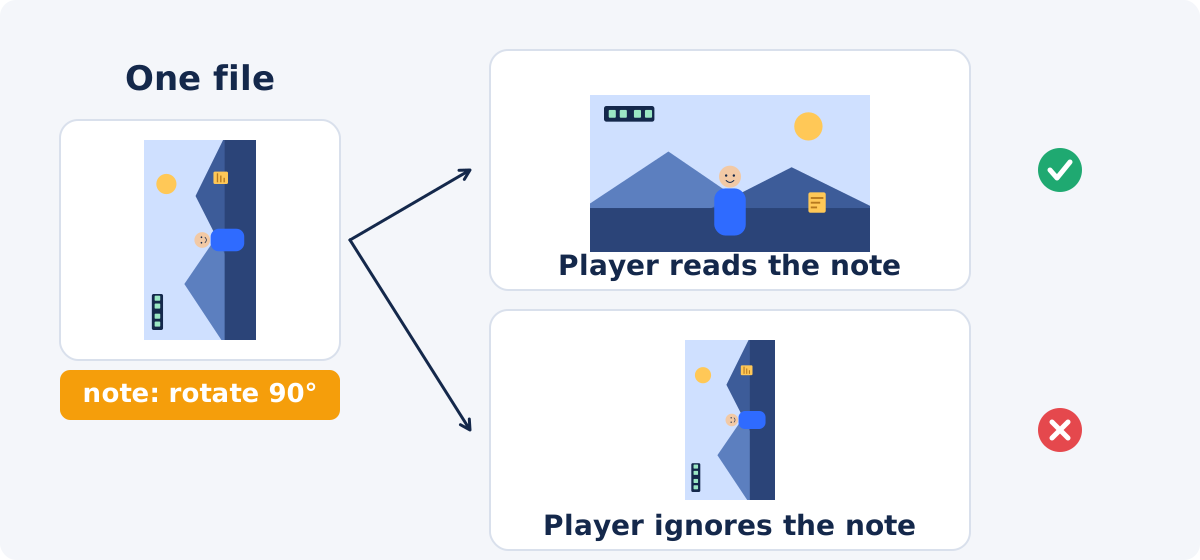
Phones often record the picture in the sensor's own orientation and add a small note to the file, called orientation metadata, that says how the video should be displayed. A player that reads the note turns the picture as it plays. A player, a website, or an editing program that ignores the note shows the picture as it was stored, which is sideways.
That is why a clip looks correct on the phone that recorded it and appears rotated after it is uploaded somewhere else. The file did not change on the way. Two programs simply disagreed about the note.
When the problem is orientation metadata
A quick test tells you which case you have. Open the file in two different players, or on two devices.
- Sideways in both. The picture itself is stored sideways. Rotate the file.
- Upright in one, sideways in the other. The picture is stored one way and a note says to display it another way. The disagreement will follow the file wherever the note is ignored.
In both cases, processing the file in the rotation tool produces a video whose picture is stored upright, so it displays the same way everywhere. Rotate it so that the preview looks right, then process. If the preview already shows the clip upright and you only see it sideways in one particular place, that place is ignoring the note, and processing the file with the preview left at 0° gives you a copy that no longer depends on it.
Checklist before download and publishing
- The preview shows the scene upright, with readable text and a level horizon.
- Current status shows the orientation you expect, Portrait or Landscape.
- You processed the original recording, not a copy that had already been rotated or exported elsewhere.
- After download, play the file in a second player to confirm it is upright there too.
- Check the dimensions in the file's properties. A quarter turn swaps width and height, so a 1920 × 1080 clip becomes 1080 × 1920.
- Listen for the audio, which should be present and in sync.
- Keep the original file.
Tilted footage and custom angles
A horizon that leans a few degrees is straightened with a custom angle rather than a preset. Type the angle into the Rotation angle field, positive for clockwise, and check the preview. A turn that is not a multiple of 90 degrees leaves the picture as a tilted rectangle inside a larger frame, with empty black corners, and the tool does not crop those corners for you. To remove them, crop the result afterward with Crop Video, or straighten the clip on a canvas in the full Deus.Video editor, where the Angle property turns a clip by any value and the canvas edges hide what falls outside.
Conclusion
Sideways means a quarter turn, upside down means a half turn, and the preview tells you which quarter turn is the right one. Rotate the original file once, confirm text, faces, and horizon in the preview, and check the download on a second device. If the clip looked correct on one device and wrong on another, the rotated file fixes that as well, because the orientation is now stored in the picture rather than in a note that some players ignore.
Have a clip that opens on its side? Open the Rotate Video tool, choose the quarter turn that makes the preview upright, and download the corrected file.
Frequently asked questions
Which way do I rotate a sideways video?
Find the top of the scene in the preview. If it is on the left, use Right 90° (clockwise). If it is on the right, use Left 90° (counterclockwise). If the preview comes out upside down, use the other preset.
How do I fix an upside-down video?
Use Turn 180°. A half turn brings the top of the picture back to the top, and the direction does not matter.
Why does my video look fine on my phone but sideways elsewhere?
The phone stored the picture sideways and added a note about how to display it. Your phone reads the note; the other program ignores it. Processing the file in the rotation tool stores the upright picture itself, so it looks the same everywhere.
Does rotating change the video quality or the sound?
The sound is carried over unchanged. The picture is processed into a new file, so its size and fine detail can differ slightly from the source. Rotate the original once rather than rotating a copy that was already exported.
Will the video become vertical after a 90° turn?
Yes, if it was horizontal. A quarter turn swaps the width and height, so a 1920 × 1080 clip becomes 1080 × 1920. A 180° turn keeps the frame shape.
Can I straighten a slightly tilted video?
Yes, by typing a custom angle. The result has empty corners, because the tilted picture no longer fills a rectangle, so plan to crop it afterward or finish it on a canvas in the full editor.


