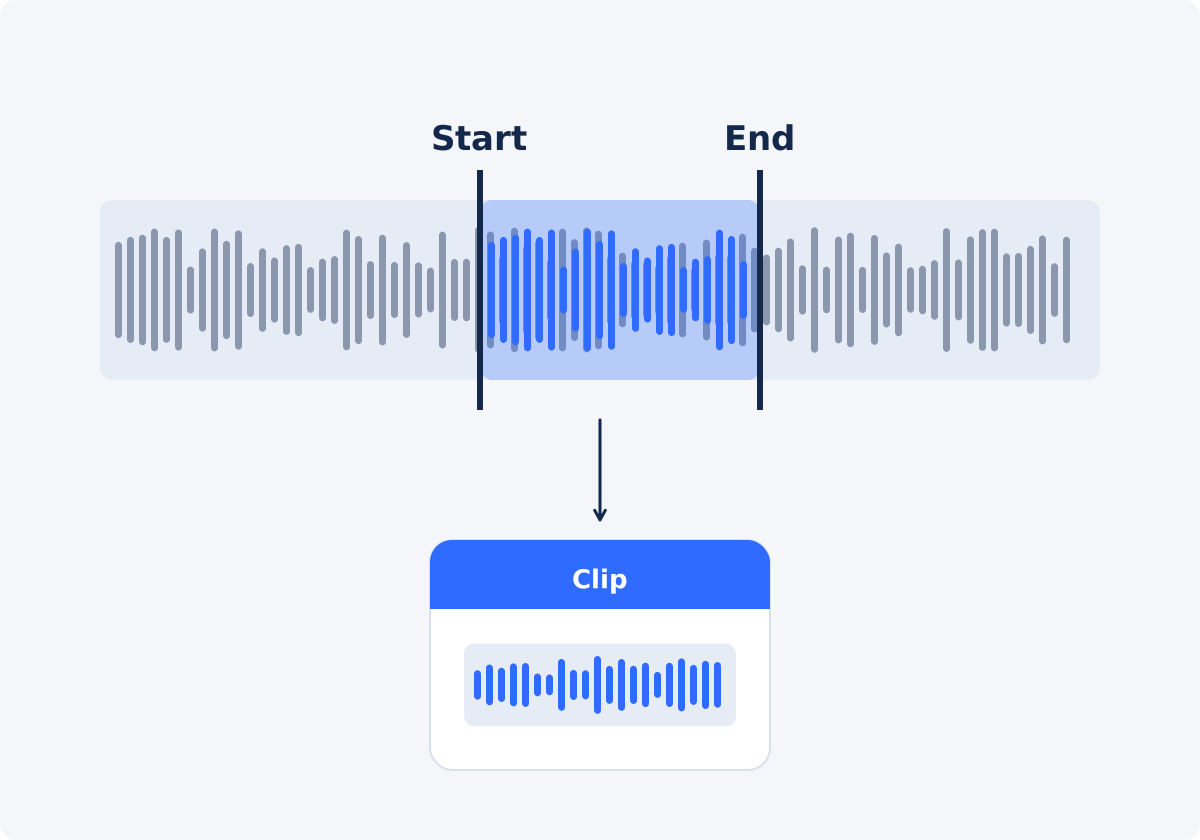
When a selected range is better than the full soundtrack
The soundtrack is the audio stored inside the video file. A time range is a section of it, defined by a start time and an end time. Extracting a range makes sense when most of the recording is irrelevant to what you need.
- A quote. One answer from a 50-minute interview, for an article, a social post, or a podcast segment.
- One piece of music. A single song from a recorded concert, or one take from a rehearsal video.
- A sound effect or ambience. A door slam, a crowd cheer, ten clean seconds of rain.
- A section of a lecture or webinar. The Q&A, or the one topic you need to review.
- A sample for a transcription test. Two minutes of a long recording, to check how well a service copes before you send the whole file.
A range produces a smaller file, saves upload and processing time in later steps, and spares you from opening an audio editor just to trim. If you need most of the recording, or you are not yet sure which parts matter, extract the complete soundtrack and cut later.
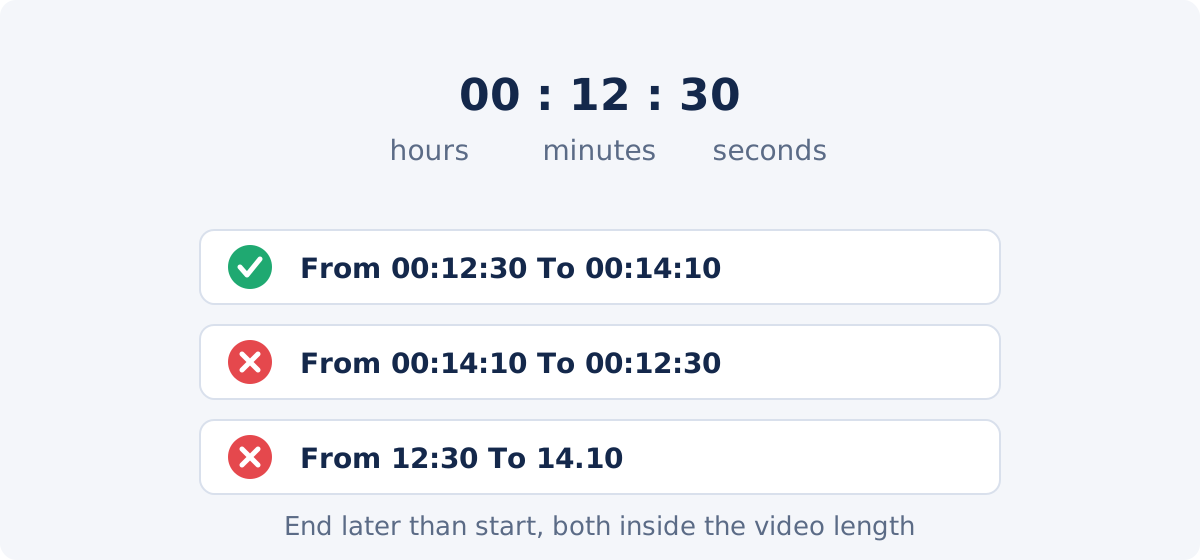
The timestamp format: hh:mm:ss
The tool takes timestamps as hours, minutes, and seconds, separated by colons, with two digits each.
- 00:00:45 is forty-five seconds into the video.
- 00:12:30 is twelve minutes and thirty seconds.
- 01:05:00 is one hour and five minutes.
The hours part is always there, even for short videos, so a point ninety seconds in is 00:01:30, not 1:30 or 90. Media players often show only minutes and seconds for short clips. Add the leading 00: when you copy the time across.
Two rules: end after start, both inside the video
The tool validates what you enter. The timestamps have to match the hh:mm:ss pattern, and the end has to be later than the start. Swapped values, such as 00:14:10 to 00:12:30, are rejected.
Both values also have to lie within the duration of the source video. If the video is 00:23:40 long, an end of 00:25:00 asks for sound that does not exist. Check the video's total length in your player before you start, and if the section you want runs to the very end, consider using the last second of the video as the end time.
How to extract a time range in Deus.Video
With the Extract Audio tool, you can extract a selected audio range from an uploaded video.
- Find your times first. Play the video in any player and write down where the section starts and ends, along with the total length.
- Add padding. Move the start a little earlier and the end a little later. The next sections explain how much.
- Upload one video file. Common inputs include MP4, MOV, AVI, WebM, and MKV.
- Choose the Output format: MP3 for a small, widely playable clip, or WAV if you will edit the clip further.
- Set Extraction mode to Selected time range. Two fields appear: Timestamp from (hh:mm:ss) and Timestamp to (hh:mm:ss).
- Enter both timestamps.
- Click Extract audio from video and wait for processing to finish.
- Preview the clip in the player that appears, with attention to its first and last second, then click Download result. Use Reset if the timestamps need adjusting.
The selection is made with timestamps only. There is no waveform view to drag across, and the tool is not designed for frame-accurate or sample-accurate cuts.

Leave a small margin around speech, music, and effects
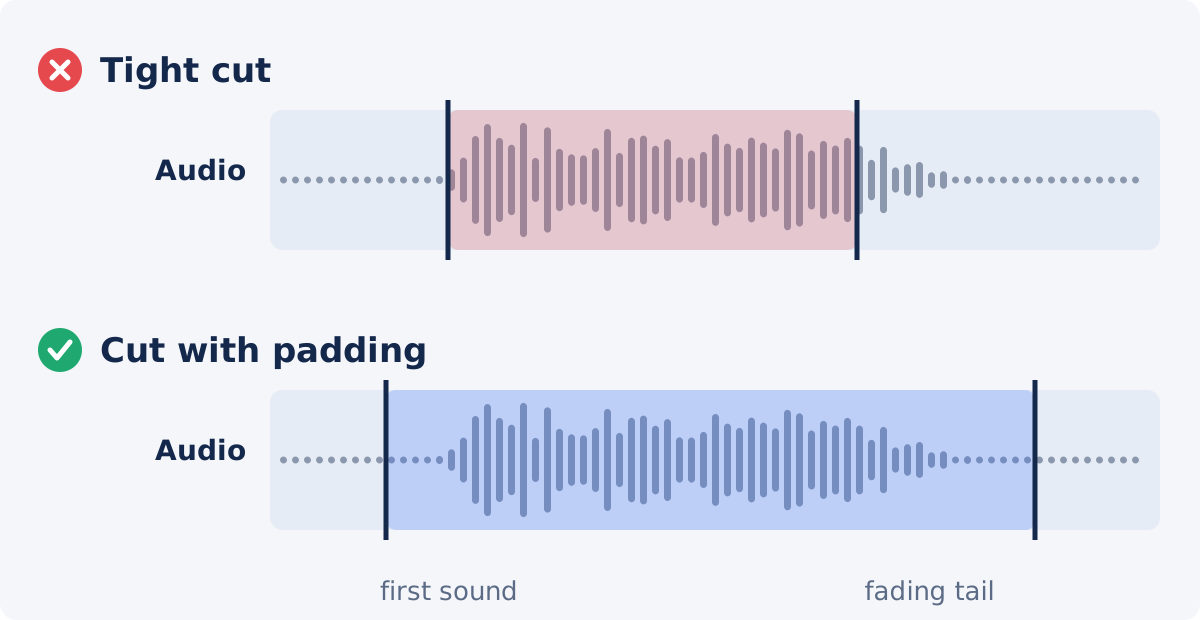
Padding is extra time before and after the part you care about. It is cheap insurance. If the clip comes out a second too long, you lose nothing. If it comes out a fraction too short, you have to do the job again.
- Speech. Start a second or two before the first word and end a second or two after the last. People take a breath before they speak and trail off afterward, and both make a quote sound natural.
- Music. Start before the first note, or on a clear phrase boundary. End well after the last note, because the sound keeps ringing.
- Sound effects. Start a second early. For the end, wait until the sound has fully died away, which takes longer than it seems.
Player clocks round the time they display, so the moment you noted as 00:12:30 may really be 00:12:30.7. That is one more reason to pad. If the final piece needs precise edges, take a generous range here and do the fine trim in an audio editor, where you can see the waveform.
Why tight cuts damage the sound
Clipped phonemes
A phoneme is a single speech sound. Many words begin with very short, quiet sounds, such as the "h" in "hello," the "s" in "so," or the burst of a "p" or "t." A start time that lands a fraction late removes that sound, and "hello" becomes "ello." Listeners notice at once, even if they cannot say what is wrong.
Cut notes
A note has an attack, which is its beginning, and a decay, which is its fade. Cutting into the attack makes the note sound like it was switched on. Cutting the decay makes it stop unnaturally.
Lost reverb tails
In any room, sound continues to bounce around after the source stops. That lingering sound is the reverb tail. In a hall or a church, it can last several seconds. End the range too early and the tail is chopped, which is one of the most recognizable signs of a careless edit.
Abrupt edges
An extracted range begins and ends as a hard cut, without a fade. If the cut lands in the middle of continuous sound, such as applause, traffic, or music, the clip starts and stops abruptly. Place the edges in quieter moments when you can. If you need fades, add them in an audio editor, or use the fade setting when you add the clip to a video.
Suggested padding by content type
| Content type | Suggested padding | What to check |
|---|---|---|
| Single spoken sentence or quote | About 1–2 seconds before and after | First consonant and last syllable are complete |
| Interview answer | From the end of the question to a second or two after the answer | No fragment of the interviewer's next question |
| Song or musical piece | A few seconds before the first note; after the final note has faded completely | Attack of the first note; end of the reverb |
| Short sound effect | About 1 second before; until the sound has died away | The tail is not chopped |
| Ambient sound | Generous; pick a steady stretch | No sudden voices, bumps, or handling noise at the edges |
| Lecture section | From the pause before the topic to the pause after it | The clip starts and ends on complete sentences |
| Applause or crowd reaction | Several seconds after the peak | The clip does not end at full loudness |
These are starting points in whole seconds, which is the smallest step the timestamp fields accept. They are not precise editing values.
Preview and download checklist
- Play the first two seconds. Is the first sound complete?
- Play the last two seconds. Does the clip end on silence or on a natural fade, not mid-word?
- Check the duration. It should roughly equal the end time minus the start time.
- Listen for the right content. It is easy to be a minute off when copying times.
- Listen once on headphones for distortion or noise.
- If the edges are wrong, adjust the timestamps by a second or two and extract again from the same video.
- Give the downloaded file a name that says what it is, such as "interview-answer-budget-00-12-30.mp3."
Conclusion
Extracting a time range is quick: two timestamps in hh:mm:ss, end after start, both inside the video. The quality of the clip depends on where those timestamps fall. Note your times, widen them by a second or two, prefer quiet moments for the edges, and listen to the beginning and the end of the result. For exact cuts and fades, take a generous range and finish in an editor.
Know which section you need? You can extract audio from a video online, enter the two timestamps, and preview the clip before downloading it.
Frequently asked questions
Can I select the range by dragging on a waveform?
No. The standalone tool uses typed timestamps in hh:mm:ss format. There is no waveform view. Find the times in a media player first, write them down together with the total length of the video, and add a second or two of padding on each side.
What happens if my end time is earlier than my start time?
The tool validates the input and will not accept it. The end has to be later than the start, and both need the hh:mm:ss format.
How precise is the cut?
Timestamps are entered in hours, minutes, and seconds, and the smallest step is one second, so think in seconds, not frames or samples. For precise edges, extract a slightly longer range and trim it in an audio editor.
Can I extract several ranges at once?
Each run produces one range. For several clips, repeat the extraction with different timestamps, always from the original video. If the sections are close together, it can be quicker to extract one longer range that covers them all and split it in an audio editor.
Does extracting a range shorten my video?
No. The video file is not changed, and it keeps its full length and its sound. You get a separate audio clip. To shorten the video itself, use a trimming tool.
Should the clip be MP3 or WAV?
MP3 for listening, sharing, and transcription uploads. WAV if the clip will be edited or mixed further. For projects that combine the clip with video, text, and subtitles, the full Deus.Video editor is the place to continue.


