Shortening vs. extracting
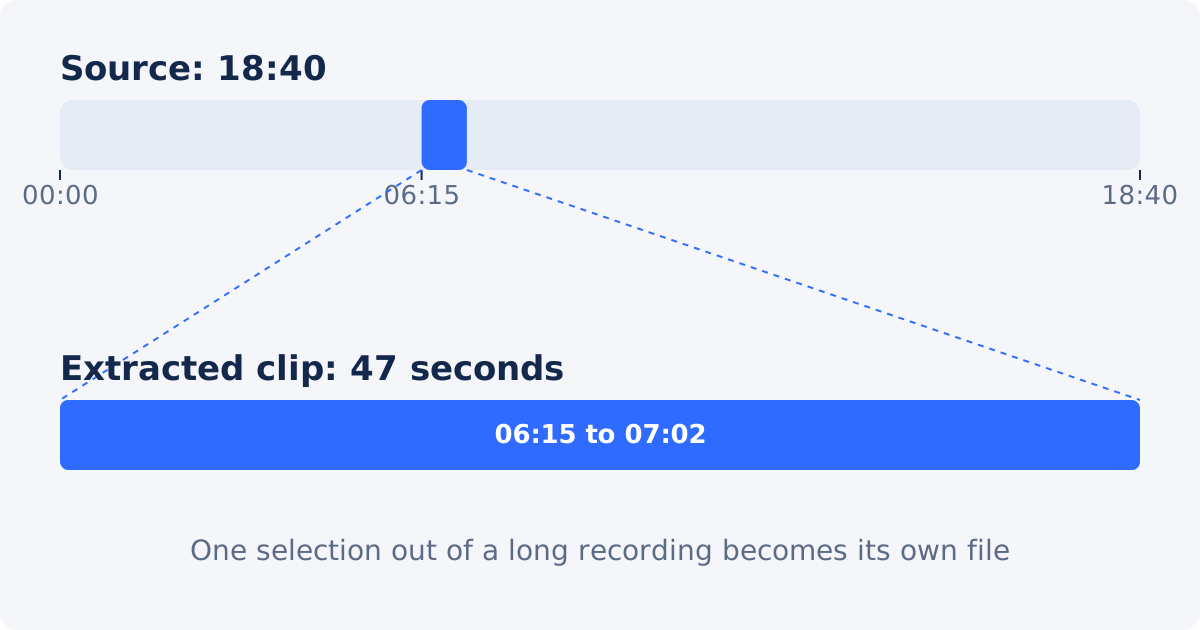
Shortening a video means cutting a little from the beginning and the end to remove setup and dead time; most of the recording stays. Extracting a clip means keeping a small part and discarding most of the recording. The mechanics are identical, one Start and one End, but the care goes into different places. When you shorten, the exact frame matters less. When you extract, the clip has to stand on its own, so where it begins and ends decides whether a viewer understands it without the rest of the video.
A worked example runs through this guide. The source is an 18:40 interview. The moment worth sharing is one answer, from 06:15 to 07:02. The extracted clip is 47 seconds long.
Finding the exact start
The start of a clip should give the viewer enough context to understand the first thing that happens, and no more.
- Scrub to the moment by dragging the timeline slider and watching the picture, then play from a few seconds earlier.
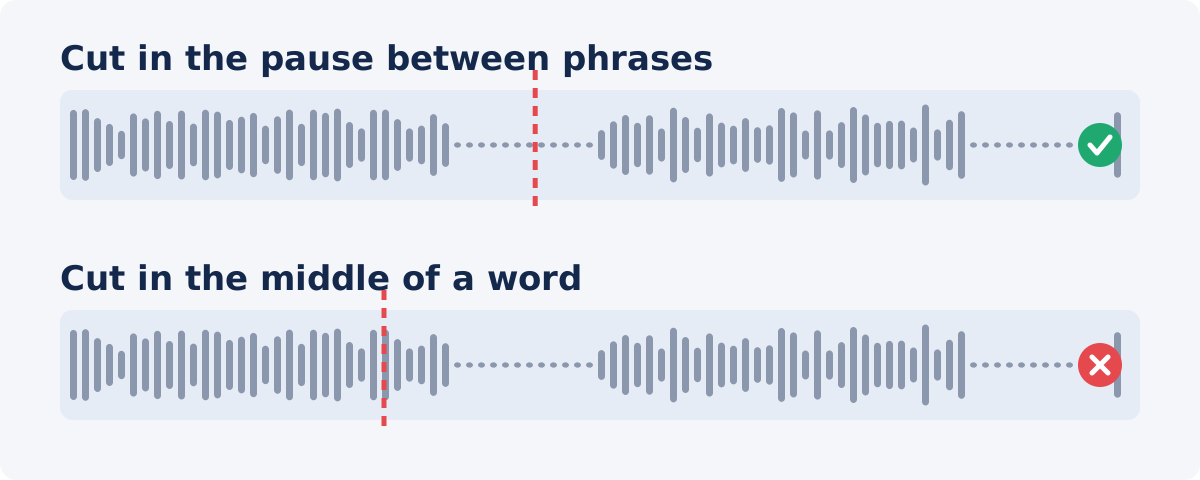
- For speech, start in the pause before the first word, not on the word. Half a second of silence before the question, or before the answer if the question is not needed, reads as a natural beginning.
- For action, start before the action begins to develop, so the viewer sees the setup: the wind-up, not just the throw.
- For a presentation, start where the topic is introduced, often as a slide changes, so the clip has a heading.
- Write down the time in the format the tool accepts: 06:15 for six minutes fifteen seconds, or 375 for the same moment in seconds.
In the example, the interviewer finishes the question at 06:13 and the speaker begins at 06:16. Starting at 06:15 keeps a beat of silence and none of the question.
Finding the exact end
The end should close the thought. Cutting on the last word feels abrupt; cutting after the next thought has begun feels careless.
- For speech, end in the pause after the complete sentence, before the speaker draws breath for the next one.
- For action, include the reaction: the ball landing, the celebration, the moment the room responds.
- For a demo, end when the result is visible on screen, not when the narrator stops talking.
- Leave a short tail, half a second or so, so the last frame is not the first frame of something else.
In the example, the answer ends at 07:01 and the interviewer starts the next question at 07:03. Ending at 07:02 closes the answer with a breath of silence.
Timestamps and timeline handles
The tool offers two ways to set the range, and they work together.
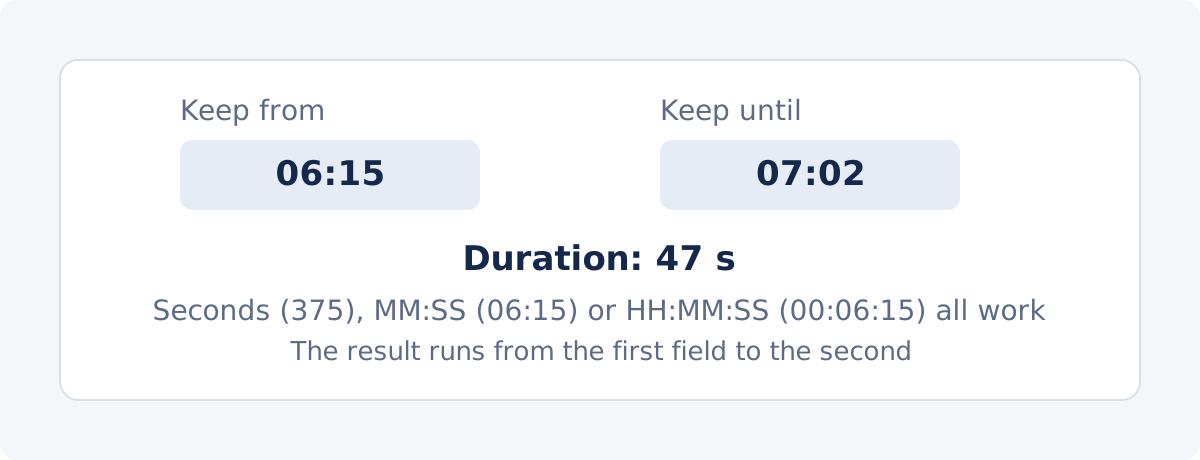
Typed timestamps. The Keep from and Keep until fields accept seconds, MM:SS, or HH:MM:SS. Typing is the precise method: 06:15 and 07:02 give the range to the second, and decimals give fractions. Use it when you have worked out the times by scrubbing.
Timeline handles. The bar under the player has a handle at each end of the selection. Dragging a handle moves that boundary while the picture updates, which is the quick way to get close. On a long video, the bar represents many minutes, so a small drag is a big jump; type the exact value afterward.
Either way, the Selected clip panel shows the Start, End, and Duration that will be processed, so you can confirm the numbers before you commit.
Previewing the selected range
Press Play and the tool plays the selected fragment, not the whole file. Watch the beginning for context and the end for a clean close. Then drag the slider to the last second and watch the ending again; endings are where most extracted clips go wrong. If a boundary is off, nudge the field by a second or a fraction and play again. Two or three passes is normal.

Examples
Interview answer
Start in the pause before the answer, or before the question if the answer does not make sense without it. End after the complete sentence. Check that the speaker's first and last words are whole, and that a nod or a laugh at the end is included if it belongs to the answer.
Sports highlight
Start before the play develops, so the viewer sees where the players are. End after the reaction, whether that is a celebration, a replay, or the crowd. Check that the clip does not open on a cut from the broadcast, which looks like a mistake.
Webinar excerpt
Start when the slide for the topic appears, or when the presenter says its name. End when the presenter concludes the point, usually just before the next slide. Check that the slide and the narration agree: a clip that opens on the previous slide while the presenter introduces the next is confusing.
Product demo
Start before the feature appears on screen, with the narrator's lead-in. End when the result of the action is visible, even if that is a second after the narration stops. Check that the cursor or the hands are in a sensible position at both ends and that voice and picture stay together.
| Source type | Suggested start point | Suggested end point | What to check |
|---|---|---|---|
| Interview | Before the speaker begins | After the complete answer | Speech not cut mid-word |
| Webinar | Before the topic introduction | After the conclusion | Slides and audio align |
| Sports video | Before the action develops | After the reaction | Context is not missing |
| Product demo | Before the feature appears | After the result is visible | Hands and narration remain synchronized |
Extracting the clip in Deus.Video
Use the tool to select the part of your video to keep and save it as a separate file.
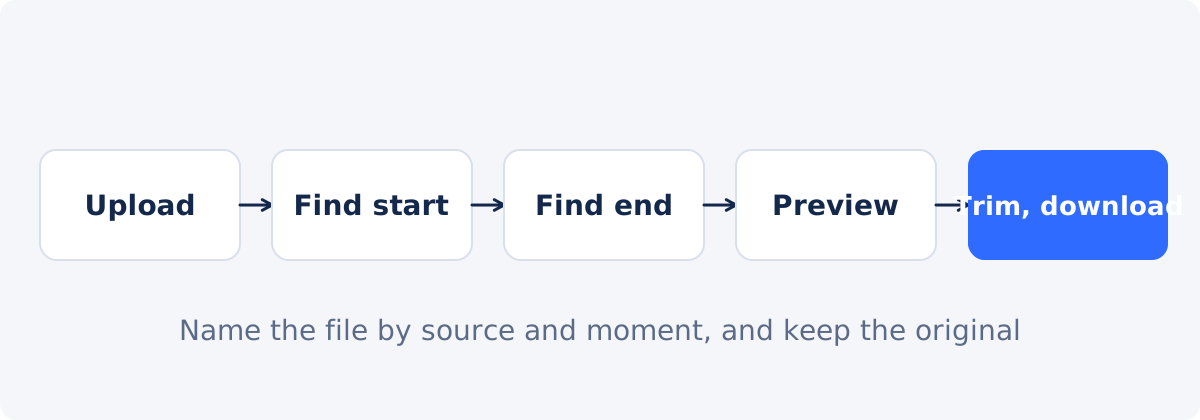
- Upload the long video. MP4, MOV, AVI, WebM, MKV, and other common formats are accepted; if the browser cannot play the format, the tool prepares a compatible preview.
- Scrub to the moment and note the start and end times.
- Type Keep from as 06:15, and Keep until as 07:02, or drag the handles close and then type.
- Read Selected clip: Start 06:15, End 07:02, Duration 0:47.
- Press Play and check both ends.
- Click Trim Video, wait for processing, and download the 47-second file, or open it in the full editor.
The result is a newly processed file. The picture is re-encoded and the audio is copied, so the cut is accurate to the frame and the sound is unchanged; the source file stays as it was.
Naming and storing extracted clips
A clip separated from its source loses its context, so put the context in the name. A pattern such as interview-jones-2026-09-schedule-answer-0615-0702.mp4 records the source, the subject, and the time range, which makes it possible to find the moment in the original again. Keep the extracted clips next to the source in a folder for that recording, and keep the source. If a clip needs a different boundary later, it comes from the source, not from the clip.
Several highlights from one video
The trimmer keeps one range per run. For several highlights, run it once per highlight from the same upload, changing the fields each time, and download each result. Note the ranges as you go so that the clips do not overlap by accident. If the highlights should end up in one video, one after another, join the exported files with Merge Videos, or assemble them in the full editor, which also lets you add titles between them and export once.
Conclusion
Extracting a clip is a trim with higher stakes at the edges. Find the start in the pause or the setup before the moment, find the end after the thought or the reaction is complete, type the exact times, and preview both ends. Name the file so it can be traced to the source, keep the source, and repeat the run for each further highlight.
Found the moment in a long recording? Use the online video trimmer to keep just that range, check the ends in the download, and share the clip.
Frequently asked questions
Is extracting a clip different from trimming?
Mechanically no: both keep one range between a start and an end. The difference is intent. Extracting keeps a small part of a long recording as its own file, so the boundaries need more care because the clip has to stand alone.
How precisely can I set the start and end?
The fields accept seconds, MM:SS, or HH:MM:SS, and decimals for fractions of a second. Because the picture is re-encoded, the cut lands on the frame you set rather than at the nearest keyframe.
Can I extract two moments in one go?
No. Each run keeps one continuous range. Run the tool once per moment from the same upload, and join the results with Merge Videos or in the full editor if they belong in one video.
The preview plays only part of the video. Is that normal?
Yes. The player previews the selected fragment so you can judge its beginning and end. Drag the handles or change the fields to preview a different range.
Does the extracted clip lose quality?
The picture is re-encoded once, which is usually not visible when the source is an original recording. The audio is copied unchanged. Extract from the original rather than from a downloaded copy where possible.
What is a good length for a shared clip?
Long enough to contain the complete thought or action with a beat of context on each side, and no longer. For most speech excerpts that is 20 seconds to a minute; for a sports moment, often under 20 seconds.
Sources
- Deus.Video, "Trim Video Online" tool page: https://deus.video/trim-video/ (accessed September 23, 2026)
- Deus.Video, "Merge Videos" tool page: https://deus.video/merge-videos/ (accessed September 23, 2026)
- Wikipedia, "Key frame" (video compression section), for why a re-encoding cut can start at any frame: https://en.wikipedia.org/wiki/Key_frame (accessed September 23, 2026)


