What extraction actually does
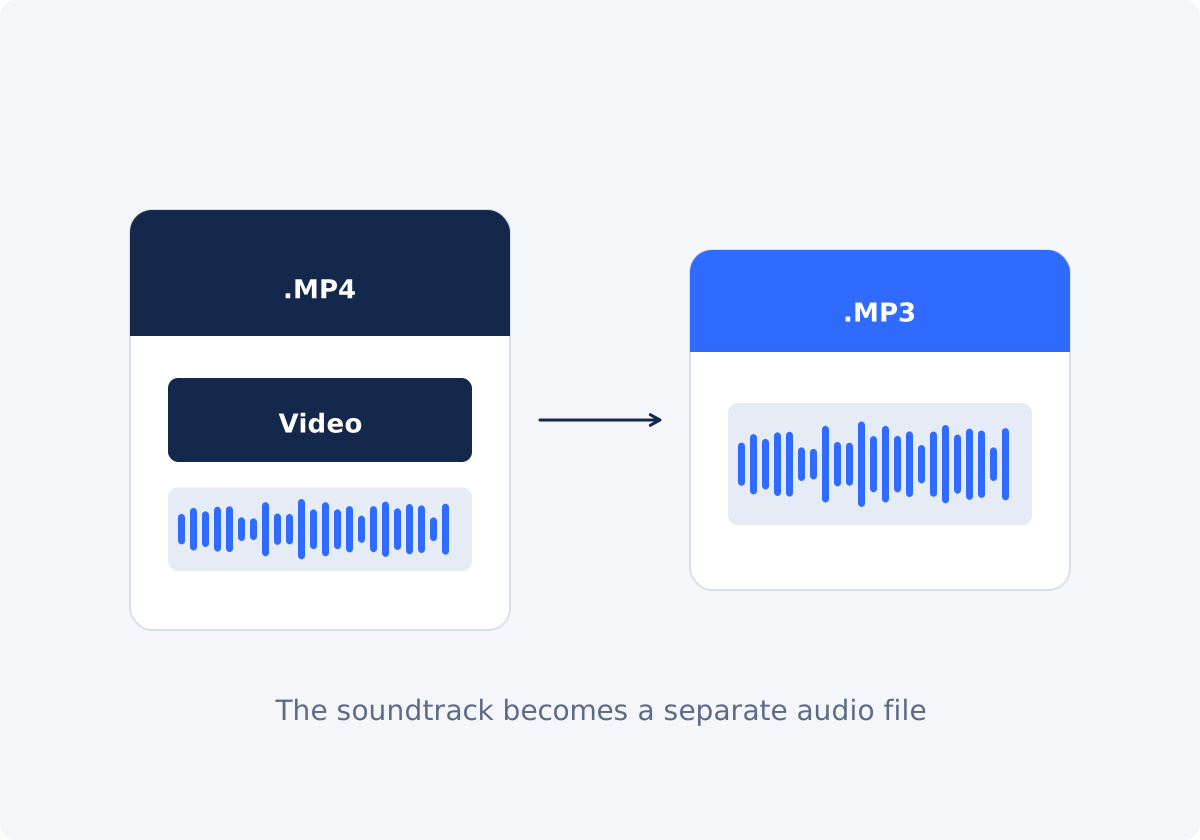
A video file is a container. A container is a file format, such as MP4 or MOV, that holds several streams together: the picture, one or more audio streams, and timing information. The audio stream is the soundtrack, meaning everything you hear when the video plays: speech, music, room sound, effects.
Extraction reads the soundtrack of the file you upload and writes it out as an audio file. With MP3 as the output, the sound is encoded with the MP3 codec. A codec is the method used to compress and decompress audio or video.
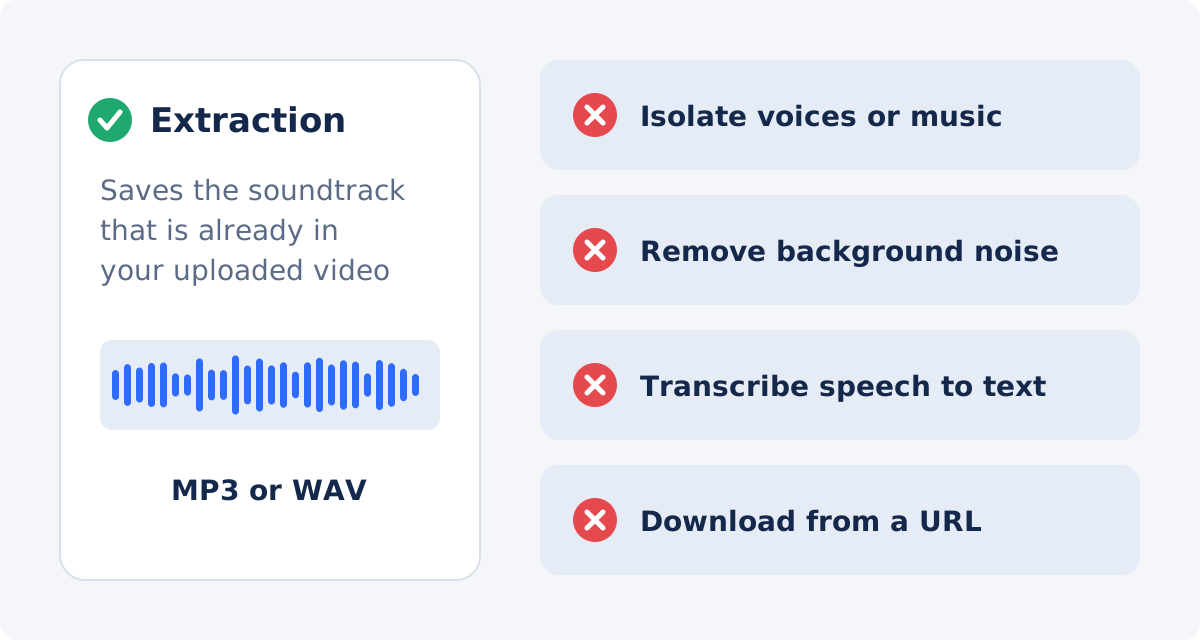
It helps to be clear about what extraction is not.
- It does not separate voices from music, or one speaker from another. Everything in the soundtrack stays mixed together.
- It does not remove noise, echo, or hum, and it does not enhance the sound.
- It does not turn speech into text. That is transcription, a different task.
- It does not take audio out of the video. Your original file keeps its sound. Creating a silent video is a separate operation, done with Remove Audio From Video.
- It works with a file you upload. It does not fetch video or audio from a web address.
How to extract audio from a video in Deus.Video
With the tool, you can extract audio from a video online and download it as MP3 or WAV.
- Upload one video file. Drag and drop it, or use the file picker. Common inputs include MP4, MOV, AVI, WebM, and MKV. Whether a particular file can be processed also depends on the codecs inside it.
- Set Output format to MP3. MP3 is selected by default. WAV is the other option.
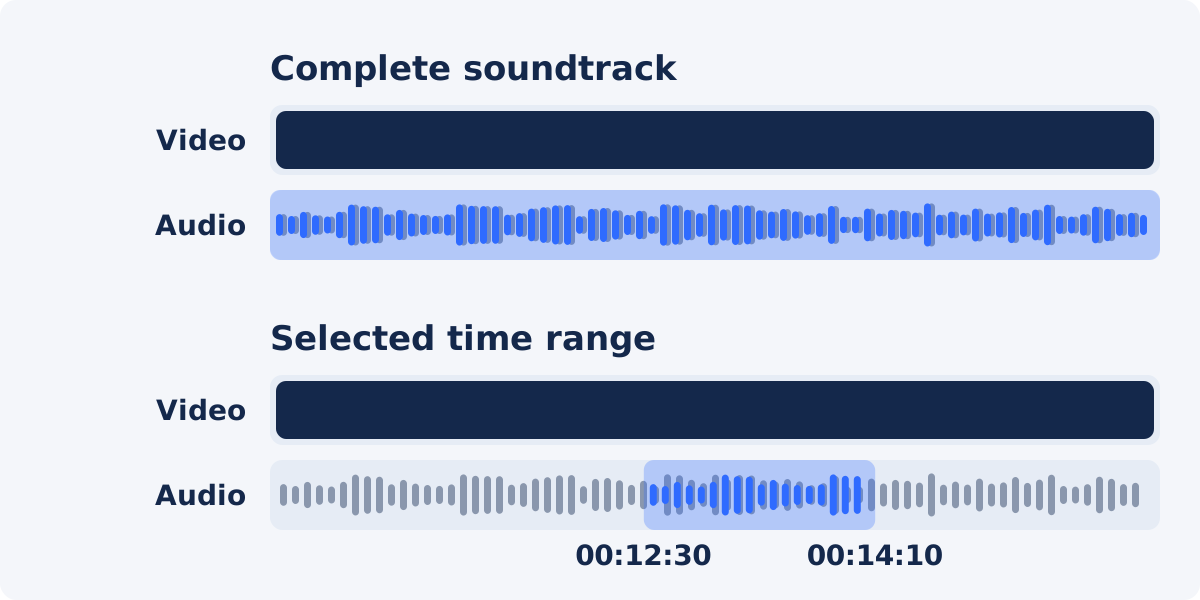
- Choose the Extraction mode. "Complete soundtrack" uses the whole audio duration. "Selected time range" shows two fields, Timestamp from and Timestamp to.
- For a range, enter the timestamps in hh:mm:ss format, for example 00:12:30 and 00:14:10. The end has to be later than the start, and both have to fall inside the video's length. The tool checks the format and the order.
- Click Extract audio from video and wait until processing finishes.
- Preview the processed audio. When the status reads "Done! Download your result below," an audio player appears on the page.
- Click Download result. You can also choose Use audio in Full Video Editor to continue there, or Reset to start over with another file or another setting.

Complete soundtrack or selected range?
Complete soundtrack is the right choice when you want everything: a full lecture to listen to later, a whole interview for a transcription workflow, a backup of the sound before you edit the video.
Selected time range is the right choice when only part of the recording matters: one answer from a long interview, a single song from a concert recording, a quote, a sound effect. A range gives you a smaller file and saves you from trimming the audio afterward.
When you choose a range, leave a little room at both ends. A second of extra sound before the first word and after the last one costs nothing, and it avoids a clipped syllable or a note that stops dead. Timestamps are entered as hh:mm:ss and work in whole seconds, so this mode is built for ranges measured in seconds, not for very fine cuts.
MP3 is compressed: what that means for size and quality
Compression means storing the sound with less data. MP3 uses lossy compression: it discards parts of the signal that listeners are less likely to notice. That is why MP3 files are small, typically about 1 to 1.5 MB per minute at common settings, and why nearly every phone, computer, car stereo, and app can play them.
There are two consequences to keep in mind.
- The MP3 is a new encode. The soundtrack in most videos is already compressed, often with a different codec. Turning it into MP3 compresses it a second time. For speech and everyday listening, the difference is usually hard to hear. For music with a lot of high-frequency detail, such as cymbals, strings, or applause, it can be audible.
- The source sets the ceiling. An MP3 cannot sound better than the audio in the video it came from. A noisy phone recording stays noisy.
The tool does not offer bitrate or sample-rate settings, and this guide does not promise a particular file size. If you plan to edit the audio further, WAV avoids adding another round of lossy compression at this stage, at the cost of a much larger file.
Preview the processed result
After processing, the tool shows a player with the extracted audio, along with a reminder to confirm its range and quality before downloading or reusing it. Use that preview as a real check.
- Listen to the first seconds and the last seconds, especially with a selected range.
- Jump to a loud passage and a quiet one.
- Confirm that the length is what you expected.
- Use headphones if you can. Laptop speakers hide hiss and distortion.

If the video had more than one audio stream, for instance two languages, check which one you received. Do not assume that a specific stream is selected for you.
Common use cases
Interview
Save the conversation as audio for note-taking, for a transcription service, or for an audio version of the piece. A selected range is handy for pulling one answer.
Lecture or webinar
An audio copy is easier to listen to while commuting and takes a fraction of the space. Use the complete soundtrack.
Your own music or performance
A rehearsal or a gig filmed on a phone can become an audio reference. For material you may mix or master later, consider WAV.
Narration
If the only copy of a voiceover lives inside an exported video, extraction recovers it as a file you can reuse, for example to add it to another video.
Ambient recording
Rain, a street, a café, a forest. The soundtrack of a casual clip can serve as background sound in another project.
Rights and permission
Extraction is a technical step. It does not change who owns the sound. If the video contains music, a broadcast, or a performance that you did not create, you may need permission to reuse or publish the audio, even if you were allowed to watch or keep the video. If it contains other people speaking, think about whether they agreed to be recorded and to the use you have in mind.
Material you created yourself, or have a license for, is the safe ground. This guide is not legal advice. When in doubt, check the license terms or ask the rights holder.
Which mode for which source
| Source | Goal | Suggested mode | What to verify |
|---|---|---|---|
| One-hour interview recording | Audio for notes or transcription | Complete soundtrack, MP3 | Speech is clear from start to finish; length matches the video |
| Long interview, one strong answer | A short quote | Selected time range, MP3 | First and last words are complete |
| Recorded lecture or webinar | Listen on the go | Complete soundtrack, MP3 | Volume is comfortable; no missing sections |
| Your own live performance | Reference, or later editing | Complete soundtrack; WAV if you will edit | Loud passages are not distorted |
| Exported video with your narration | Reuse the voiceover | Selected range around the narration | No cut-off breaths or words at the edges |
| Clip with ambient sound | Background sound for another project | Selected range of the cleanest part | No voices or music you do not have rights to |
| Video with two language tracks | One language as audio | Complete soundtrack | Which track ended up in the output |
Conclusion
Extracting audio creates a new audio file from the sound already in your video and leaves the video untouched. Choose MP3 for a small, widely playable file, take the complete soundtrack or a time range with some room at the edges, and listen to the processed result before you save it. Keep the original video, since it remains your highest-quality source, and make sure you have the right to use the sound.
Ready to pull the sound out of a clip? Open the Extract Audio tool, leave MP3 selected, and preview the result before you download it.
Frequently asked questions
Does extracting audio change the original video?
No. The tool creates a separate audio file. The video you uploaded keeps its picture and its sound. To make a silent video, use Remove Audio From Video.
Will the MP3 sound exactly like the video?
It will be very close for most listening, but not identical. MP3 is a lossy format, and the soundtrack is encoded again when it is saved. Music with fine high-frequency detail is where a difference is most likely to be heard.
Can I extract audio from a video link?
No. The tool works with a video file that you upload from your device. It does not download video or audio from a URL.
Can I get only the voice, without the background music?
No. Extraction saves the soundtrack as it is, with everything mixed together. Separating voices, music, or instruments is a different kind of processing that this tool does not perform.
How large will the MP3 be?
It depends on the length and on how the file is encoded, and the tool has no bitrate setting. As a rough guide, MP3 audio is often about 1 to 1.5 MB per minute. WAV files are many times larger.
What can I do with the file afterward?
Listen to it, send it to a transcription service, edit it in an audio program, or mix it into another video with Add Audio to Video. For projects that combine audio with clips, text, and subtitles, use the full Deus.Video editor.


