Fixed repeat count vs. target duration
A loop, in this context, is a clip played again from its start. The Loop Video tool makes one longer file by placing copies of your clip, or of a selected range, one after another. There are two ways to say how long that file should be.
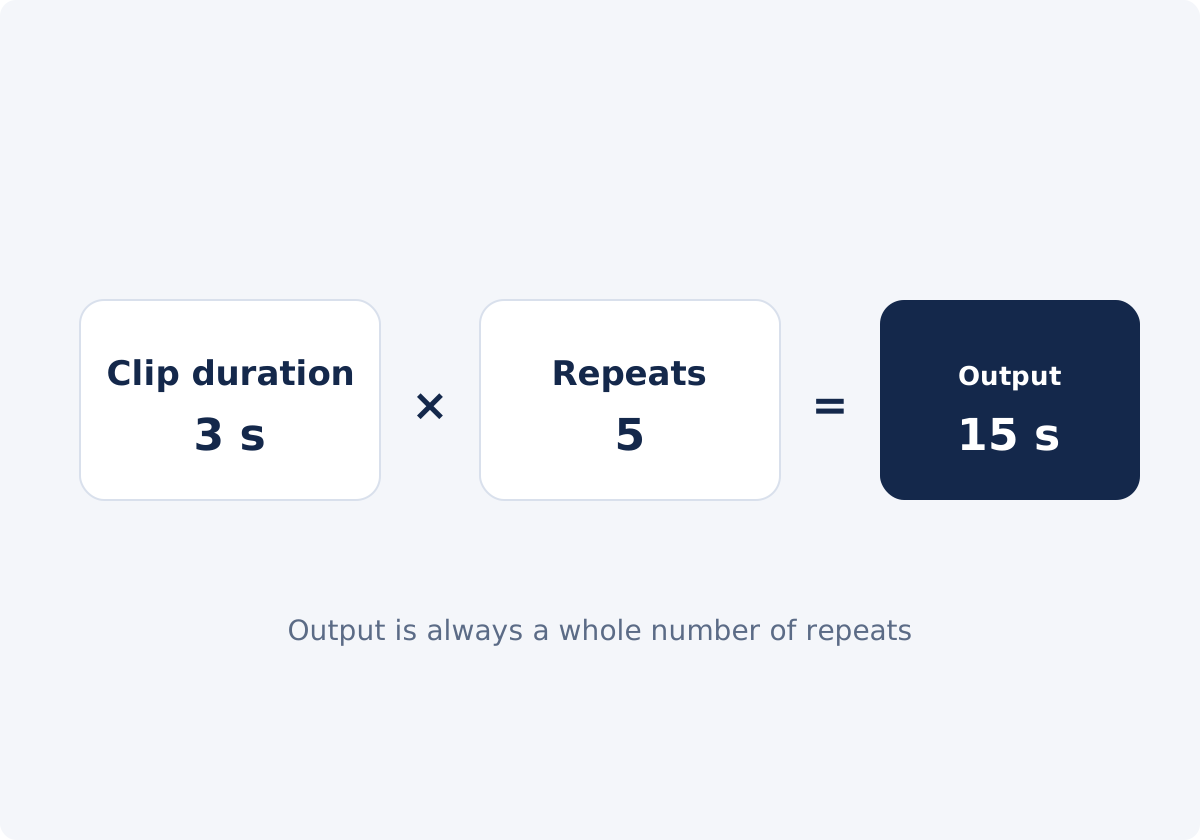
Repeat count is the number of copies in the output. You set it from 1 to 5. A count of 3 on a 4-second clip gives 12 seconds. You control the repetitions, and the duration follows.
Target duration is a length in seconds, up to 1,800, which is 30 minutes. The tool adds complete copies until that length is reached. You control the duration, approximately, and the number of copies follows. This mode is not limited to five copies, so it is the one to use for very short clips and long targets.
The quick presets map onto these modes: 2×, 3×, and 5× are repeat counts, and 10 sec, 15 sec, and 30 sec are target durations.
The formula: estimating the number of repeats
The arithmetic is simple enough to do in your head.
- Complete repeats = target duration ÷ clip length, rounded up.
- Output duration = clip length × complete repeats.
For a 4-second clip and a 30-second target: 30 ÷ 4 = 7.5, rounded up to 8 copies. The output is 4 × 8 = 32 seconds.
Real clips are rarely whole seconds. In one example from the tool, a clip of 20.05 seconds with a target of 50 seconds resolved to 3 repeats and an output of 1:00.16. Two copies would give about 40 seconds, which is short of the target, so a third complete copy is added.
You do not have to calculate this yourself. The Current status block shows the selected fragment, the resolved repeat count, and the approximate output duration before you process the file. The formula is useful for planning, and for understanding why the result is what it is.
Why the output can be longer than the target
In Target duration mode, the tool does not trim the final repetition. If it did, the video would end in the middle of the action, and a looped clip that stops mid-motion looks broken. So the output is the first whole multiple of the clip length that reaches the target.
The overshoot is always less than one clip length. With a 2-second clip, you are never more than 2 seconds over. With a 20-second clip, you can be almost 20 seconds over. Short clips hit targets closely, and long clips do not.
If the target divides evenly, the output matches it: a 5-second clip and a 30-second target give exactly six copies. When a hard maximum applies, such as "no longer than 15 seconds," aim under it. Lower the target until the resolved output in Current status falls below the limit, or use Repeat count with one copy fewer.
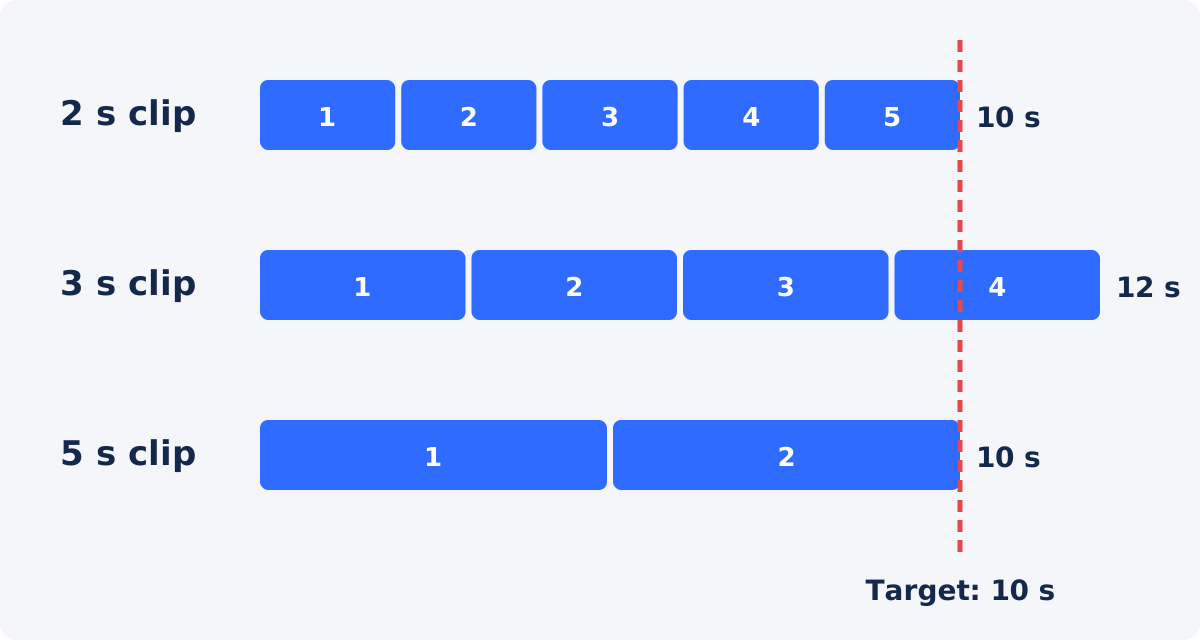
Examples for 2-, 3-, and 5-second clips
| Clip length | Target | Required complete repeats | Approximate output |
|---|---|---|---|
| 2 s | 10 s | 5 | 10 s |
| 2 s | 15 s | 8 | 16 s |
| 2 s | 30 s | 15 | 30 s |
| 3 s | 10 s | 4 | 12 s |
| 3 s | 15 s | 5 | 15 s |
| 3 s | 30 s | 10 | 30 s |
| 5 s | 10 s | 2 | 10 s |
| 5 s | 15 s | 3 | 15 s |
| 5 s | 30 s | 6 | 30 s |
| 4.5 s | 30 s | 7 | 31.5 s |
Outputs are approximate, because real clips are measured in fractions of a second, and a newly processed file can differ from the arithmetic by a few hundredths. Several rows need more than five copies. Those are possible only in Target duration mode, since Repeat count stops at five.
How to extend a clip in Deus.Video
With the Loop Video tool, you can extend a short clip with complete repeats and see the resulting length before processing.
- Upload one video. Common inputs include MP4, MOV, AVI, WebM, and MKV.
- Choose what to repeat. Keep the whole video, or set Start and End, or drag the range on the timeline, to repeat only a section. "Whole video" resets the selection.
- Click a preset, such as 10 sec, 15 sec, or 30 sec, or set Loop mode to "Target duration" yourself.
- Enter the Target duration in seconds. The field accepts values up to 1,800.
- Read Current status. Check the resolved Repeat count and the Output duration. If the output overshoots more than you can accept, adjust the target, or the range length.
- Decide on sound with "Include audio in loop."
- Press Play to watch the range restart, and adjust the endpoints if the join is rough.
- Click Loop video, wait for processing, and download the result, or continue in the full editor.
The output is a newly processed video file, not a playback setting attached to your original. Re-encoding, which means compressing the video again when it is saved, can change the file size or fine detail slightly, so review the download.

What to do about sound
With "Include audio in loop" selected, the sound of the clip repeats with every copy. For a two-second clip stretched to 30 seconds, that means the same two seconds of audio fifteen times.
- Ambient sound can tolerate this, though you may hear a small bump at each restart.
- Speech, music, and distinct noises become repetitive and distracting very quickly.
- The clean option is a silent loop. Clear the checkbox. Extended clips are often backgrounds, screen fillers, or social posts that play muted anyway.
- If the final video needs sound, add one continuous track afterward, such as music or narration that runs across all the repeats. The Add Audio to Video tool does that for a finished file, and it includes a fade setting.
The loop tool does not fade, normalize, or replace audio.
How to avoid a noticeable join
Every repeat adds a restart, and ten repeats means nine joins. If the join is visible, extending the clip multiplies the flaw.
- Use the range selection to cut the clip where its end resembles its beginning: the same pose, the same framing, the same light.
- Prefer footage with a steady camera and cyclical or ambient motion.
- Watch the restart several times in the preview before processing.
- If the clip has a clear one-way action, consider whether it should simply be shown two or three times with the cut visible, which is a legitimate look for demos and highlights.
- Consider the length of the range. A slightly longer selection needs fewer repeats, and fewer joins, to reach the same target.
The tool does not add crossfades or match endpoints automatically. The join looks exactly as it does in the preview.
When you need the editor: exact duration, fades, final trim
The standalone tool covers "make it at least this long." Some jobs need more control.
- An exact length. If the result must be precisely 15.0 seconds, make a version that overshoots, and cut the excess with Trim Video. Or build the loop in the full Deus.Video editor: place the clip several times in sequence on the timeline, and shorten the last copy. Expect the final copy to end mid-action, and hide that with a fade or a closing title.
- Audio fades or a music bed. In the editor, a separate audio track can run under all the repeats.
- Crossfades between copies, to soften the joins in ambient footage.
- Text, a logo, or an end card on top of the extended clip.
- A sequence of different loops, such as three products, each shown twice.

Conclusion
Extending a clip is division and rounding up: target divided by clip length gives the number of complete copies, and the output is that many clip lengths. Use Repeat count for up to five copies, and Target duration for anything longer, up to 1,800 seconds. Expect a small overshoot, read Current status before you process, make the sound decision on purpose, and check the join, since it will be repeated as many times as the clip.
Need a short clip to fill a longer slot? Open the Loop Video tool, choose Target duration, and check the resolved output before you process it.
Frequently asked questions
Can I make a video exactly 15 seconds long?
Only if 15 seconds is a whole multiple of your clip length. The tool uses complete copies, so a 3-second or a 5-second clip lands exactly on 15, and a 4-second clip gives 16. For an exact length otherwise, trim the result, or shorten the last copy in the full editor.
Why did the tool make my video longer than the target I entered?
Target duration adds complete repeats until the target is reached, and it never cuts the final copy partway. The output is the first whole multiple of the clip length at or above the target. The overshoot is always less than one clip length.
What is the longest video I can create this way?
The Target duration field accepts up to 1,800 seconds, which is 30 minutes. Because the output is built from complete copies, the final file can be slightly longer than the value you enter. Repeat count mode is limited to five copies.
How many times can a clip be repeated?
Up to five times in Repeat count mode. In Target duration mode, the count is whatever it takes to reach the requested length. A 2-second clip with a 60-second target resolves to 30 copies, for example. The resolved number is shown in Current status.
Will the extended video be larger?
Yes. It contains more seconds of video, so the file grows roughly in proportion to the number of copies. The result is also newly processed, so its size does not scale exactly with the original's.
Is looping better than slowing the clip down?
They do different jobs. Slowing a clip stretches the same motion over more time, which changes how it looks, and affects the sound. Looping keeps the natural speed, and shows the action again. For filling a time slot with a short moment, looping keeps the footage looking normal.


