What cropping changes
Cropping means selecting a rectangle inside the video frame and discarding everything outside it. The selected rectangle becomes the complete picture of the new video. It is a change to the picture area only. The duration stays the same, and nothing is shortened. Removing time from a video is trimming, which is a different operation.
Cropping is also different from zooming and resizing. A zoom enlarges part of the picture inside a frame that keeps its size. A resize changes the dimensions of the output or the canvas. Cropping does neither. It simply keeps fewer pixels. Our guide to crop vs. resize vs. zoom vs. remove black bars compares the four operations in detail.
Source resolution versus cropped resolution
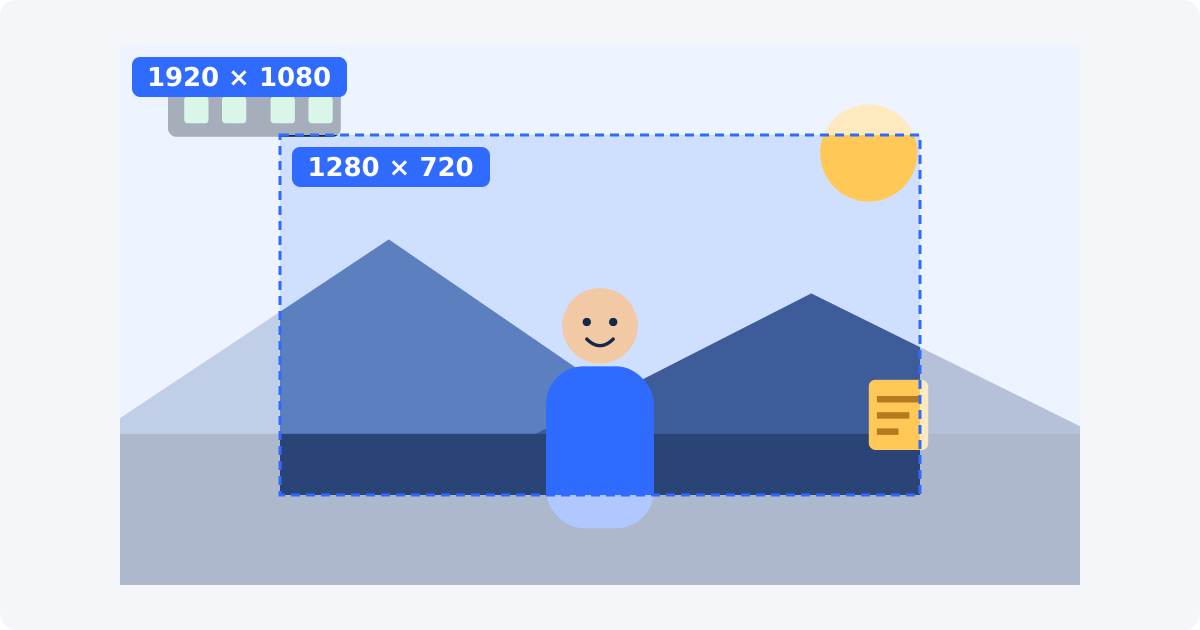
Resolution is the number of pixels in each frame, written as width × height. A Full HD source is 1920 × 1080, which is about 2.07 million pixels per frame.
Suppose you select the central 1280 × 720 area of that frame. The retained picture contains 1280 × 720 source pixels, about 0.92 million. That is 44% of the original pixel count, even though you kept two thirds of the width and two thirds of the height. Width and height shrink together, so the pixel count falls faster than either dimension suggests.
The cropped video does not remain 1920 × 1080. Its natural size is now 1280 × 720, because that is all the recorded picture there is.
Why a tight crop contains fewer recorded pixels
Every detail in a video is described by a limited number of pixels. A face that spans 300 pixels in the source still spans 300 pixels after a crop. Cropping does not add detail to it. What changes is how much of the frame it fills.
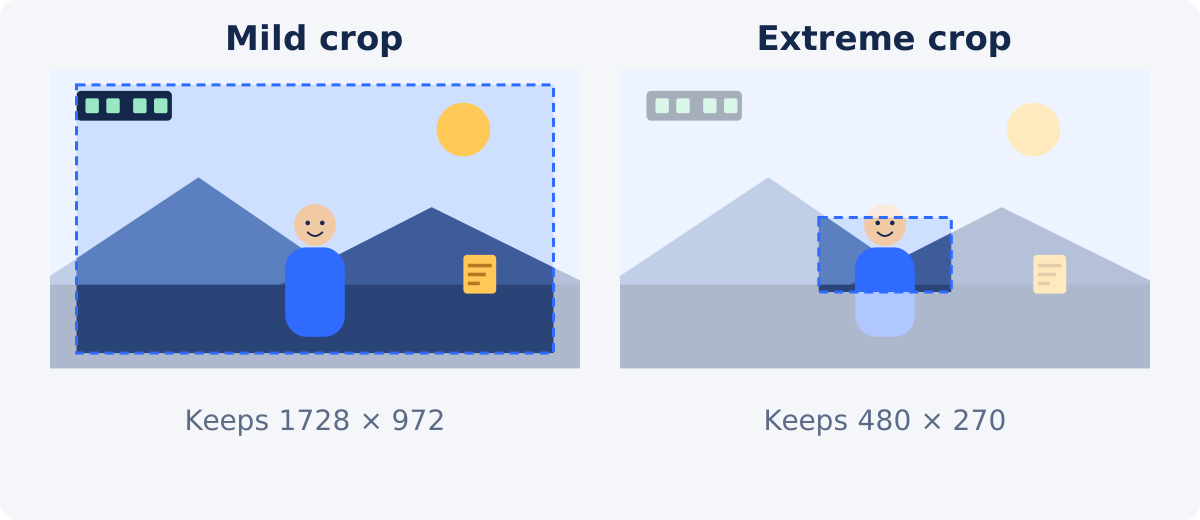
With a mild crop, that hardly matters. With a tight crop, the whole output is built from a small patch of the source. Cropping a 1920 × 1080 frame down to a 480 × 270 area leaves about 6% of the original pixels. Any softness, noise, or compression artifact that was invisible in the full frame now makes up a large share of the picture.
Cropping versus enlarging the cropped result
The crop itself does not blur anything. The softness people associate with cropping comes from what happens next: the smaller picture gets enlarged.
This happens in two ways. Sometimes the editor or the export settings scale the cropped picture back up to the original dimensions. More often, the player does it. A 1280 × 720 video shown full screen on a 1920 × 1080 display is stretched by 1.5 times in each direction. To fill the extra pixels, software estimates new values from the neighboring ones. This is called interpolation, and it produces smooth guesses, not recorded detail.
That is why exporting or displaying the 1280 × 720 crop at 1920 × 1080 cannot recreate what was removed. The file may report Full HD dimensions, but it still carries only the detail of the 1280 × 720 area. A larger export adds file size, not sharpness.

Cropping versus resizing
The two are often used together, which is why they get confused.
- Cropping chooses which part of the picture to keep. The kept pixels stay at their original scale, and the frame gets smaller.
- Resizing changes the output dimensions. The whole picture is scaled up or down to a new pixel size, or placed on a canvas of a different shape.
In quality terms, scaling down is safe and scaling up is not. If you crop a 4K source and then resize the result down to 1080p, the output can still be sharp. If you crop a 1080p source and resize the result up to 1080p again, you are enlarging. When you need specific output dimensions after a crop, Resize Video is the separate tool for that step.
How encoding and repeated exports affect quality
A cropped video has to be saved as a new file, which means it is encoded again. Encoding is the process of compressing video, and the common formats use lossy compression, which discards a little information each time to keep files small.
One careful export from a good source is rarely visible. The trouble starts with chains: a clip downloaded from a messenger, cropped, exported, uploaded, downloaded again, and cropped once more. Each step compresses the result of the previous one, and the losses add up. This is known as generation loss.
Two habits prevent most of it. Work from the original file, not from a copy that a platform or a chat app has already compressed. And plan your edits so the video is exported once, not after every change.

How to estimate the remaining source dimensions
You can predict the result before you crop.
- Find the source resolution in the file's properties, for example 1920 × 1080.
- Decide how much of the width and height you will keep. If you keep 75% of each, multiply: 1920 × 0.75 = 1440 and 1080 × 0.75 = 810.
- Compare the result with where the video will be shown. A 1440 × 810 picture viewed on phones is more than enough. The same picture on a 4K TV will be enlarged considerably.
- Work out the enlargement factor if the output must match a fixed size. Divide the target width by the retained width. For a 1920-wide target and 1280 retained pixels, that is 1.5 times. Up to roughly 1.2–1.5 times is often acceptable for general footage, but small text and fine patterns will show it sooner.
In the Crop Video tool, you do not have to calculate by hand. The panel shows the Selected source area, with its X and Y position and its width and height in source pixels, so you can read the retained dimensions directly.
Step-by-step workflow in Deus.Video
With the tool, you can select the area of the frame to keep and apply it to the whole clip.
- Upload the original video. Common inputs include MP4, MOV, AVI, WebM, and MKV. If your browser cannot display a format directly, the tool may prepare a compatible preview first.
- Choose an aspect-ratio preset or Custom. The presets are Custom, 1:1, 16:9, 9:16, 4:3, and 3:4. A preset locks the shape of the crop frame while you resize it.
- Drag and resize the crop frame over the part of the picture you want. You can also type the output width and height in source-video pixels.
- Keep the frame as large as the composition allows. Check the Selected source area values to see how many pixels you are retaining.
- Preview the complete video. One fixed crop area is applied from the first frame to the last, and it does not follow a moving subject.
- Click Crop Video and wait for processing to finish.
- Download the result, or continue editing it in the full editor.
- Inspect the file with the checklist below before you publish it.

Quality risk by situation
| Situation | Quality risk | Recommendation |
|---|---|---|
| Mild crop from a high-resolution source | Low | Keep the largest useful area |
| Tight crop from a 1080p source | Medium to high | Preview fine detail at full size |
| 4K source used for a 1080p project | More cropping flexibility | Keep output needs in mind |
| Several upload/export cycles | Compression can accumulate | Work from the original and export once |
| Clip downloaded from a messenger or social app | High, even with a mild crop | Find the original file before cropping |
| Screen recording with small interface text | Medium; text shows softness first | Crop moderately and check readability at viewing size |
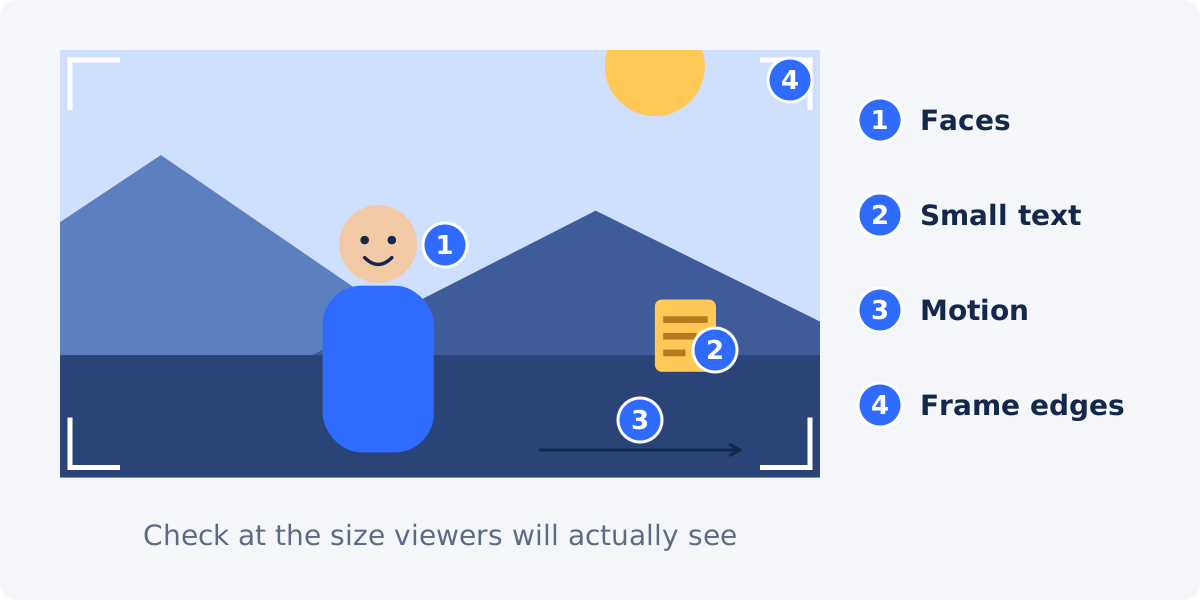
Preview checklist: faces, text, motion, and frame edges
- Faces. Look at eyes and hair. If they look smeared or waxy at the intended viewing size, the crop is too tight for this source.
- Text. Pause on captions, labels, and interface text. If you cannot read them comfortably, viewers will not either.
- Motion. Play the whole clip. Fast movement reveals compression problems, and it also reveals subjects that drift out of a fixed crop.
- Frame edges. Make sure nothing important touches the border, and that no sliver of an unwanted object remains at the edge.
- Viewing size. Judge the result on the largest screen your audience is likely to use. A crop that looks fine on a phone may look soft on a monitor.
When recording again is better than an extreme crop
Cropping is a repair tool. It works well for removing a distraction at the edge or tightening a loose shot. It works poorly as a substitute for getting closer.
- The subject fills less than about a quarter of the frame width, and the video will be watched on large screens.
- The important content is small text, a product detail, or a texture.
- The source is already low resolution or heavily compressed.
- You need several very different framings from the same shot.
In those cases, moving the camera closer, using optical zoom, or recording at a higher resolution gives a better result than any crop. If re-recording is impossible, accept a looser crop and a smaller subject in exchange for a cleaner picture.
Conclusion
Cropping does not damage pixels. It reduces how many of them you have. Quality problems appear when a small retained area is enlarged, or when the file is compressed again and again. Estimate the remaining dimensions before you commit, keep the crop as loose as the composition allows, export once from the original, and check the result at real viewing size.
When you are ready, crop an MP4 video with Deus.Video, read the retained pixel dimensions in the panel, and preview the whole clip before downloading.
Frequently asked questions
Does cropping a video reduce its resolution?
Yes. The cropped picture contains only the pixels inside the selected area, so its natural dimensions are smaller than the source. A 1920 × 1080 video cropped to its central 1280 × 720 area has 1280 × 720 pixels of recorded picture.
Can I crop a 1080p video and still have a 1080p video?
Only by enlarging the cropped picture back to 1920 × 1080. The file would report 1080p dimensions, but the detail would still be that of the smaller retained area, and it would look softer than true 1080p footage.
Is it better to crop or to zoom?
They retain the same source pixels for the same selected area. Cropping gives a smaller frame at the original pixel scale. Zooming keeps the frame size and enlarges the picture inside it. If the output size does not have to stay fixed, cropping avoids adding an enlargement step of your own.
Does cropping make the file smaller?
Often, because there are fewer pixels to encode, but it is not guaranteed. File size depends on how the new file is encoded. Cropping is not a reliable way to hit a size limit.
Why does my cropped video look blurry on a TV?
The TV is stretching a small picture to fill a large screen. The crop left fewer pixels, and the display has to invent the rest. Use a looser crop, or start from a higher-resolution source.
Does the tool guarantee identical quality to the source?
No. The video is processed and encoded again, so review the download. Starting from the original file and exporting once keeps the result as close to the source as the process allows.
Sources
- Wikipedia, "Digital zoom" – a crop enlarged to the original dimensions gains no optical resolution: https://en.wikipedia.org/wiki/Digital_zoom
- Wikipedia, "Generation loss" – quality loss from repeated lossy re-encoding: https://en.wikipedia.org/wiki/Generation_loss
- YouTube Help, "Video resolution & aspect ratios" – players scale video to the display: https://support.google.com/youtube/answer/6375112 (checked September 17, 2026)
- Deus.Video, Crop Video tool page – presets, pixel fields, selected source area, fixed crop for the complete video: https://deus.video/crop-video/ (checked September 21, 2026)


