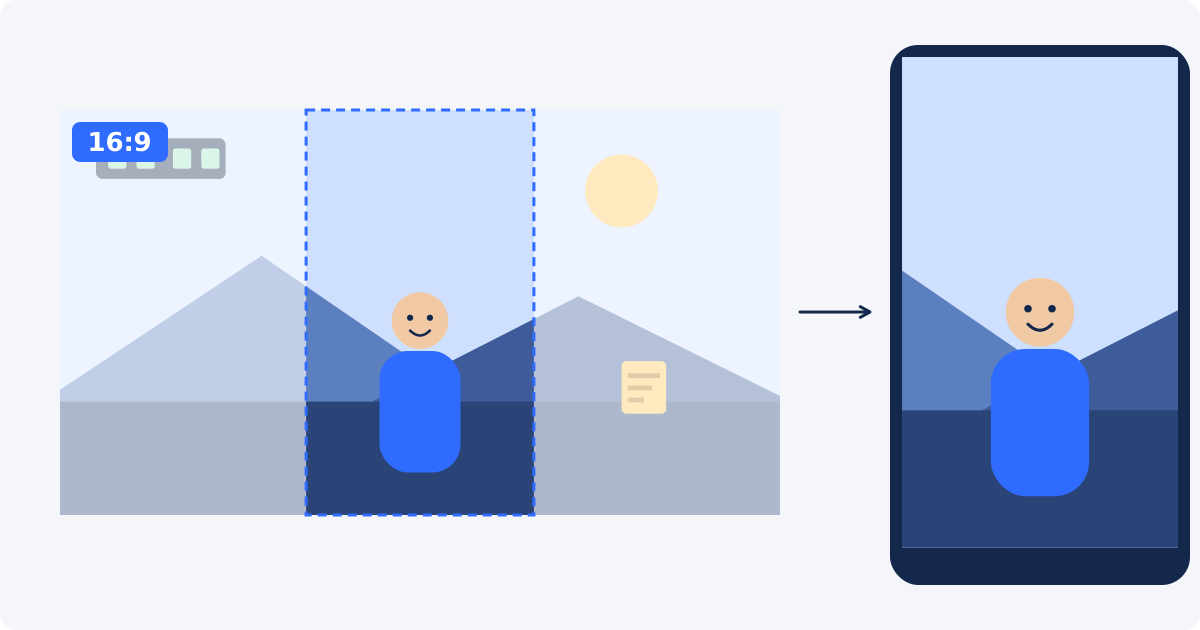
Why 16:9 and 9:16 cannot show the same picture
Aspect ratio is the relationship between the width and the height of a frame. A 16:9 frame is 16 units wide for every 9 units tall. A 9:16 frame is the same shape turned on its side.
Take a 1920 × 1080 source. A full-height 9:16 area inside it is 1080 pixels tall and about 608 pixels wide, because 1080 × 9 ÷ 16 = 607.5. That is 31.6% of the width. More than two thirds of the picture falls outside the crop.
No setting avoids this. A wide rectangle does not fit a tall one without removing something, shrinking something, or distorting something. Distortion is never the right answer, which leaves three honest strategies.
Three strategies
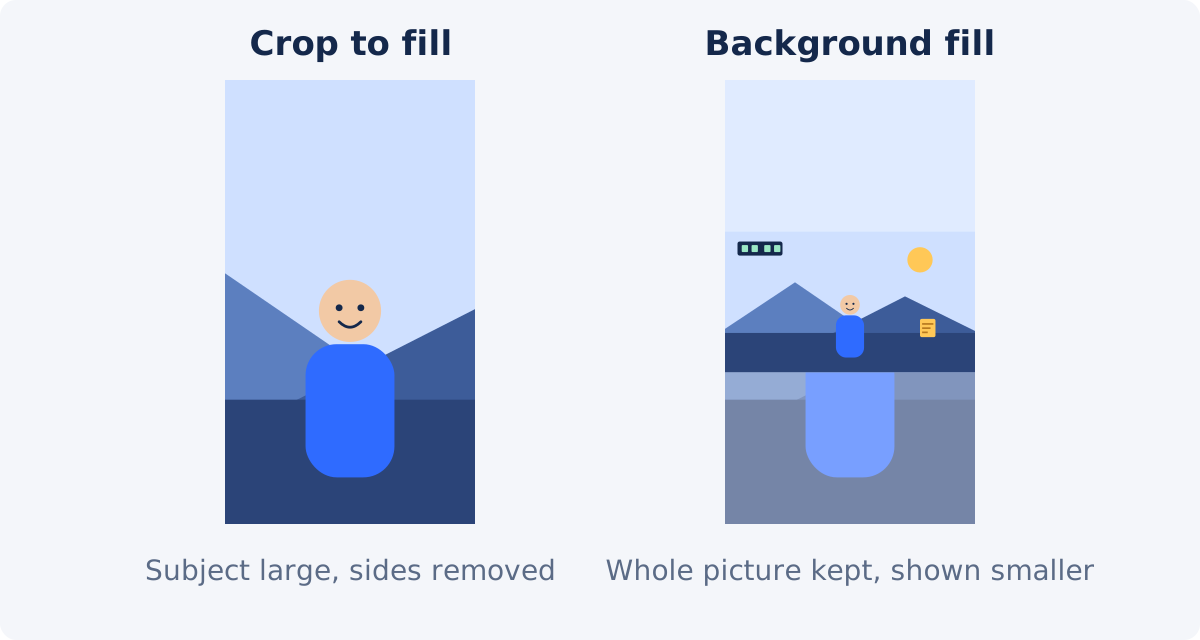
Crop to fill
Keep a 9:16 slice and remove the sides. The subject fills the phone screen, and the result looks native to vertical feeds. It works when the important content sits in one narrow region of the frame.
Keep the full image with background fill
Place the whole horizontal picture inside a vertical canvas and fill the space above and below it with a blurred copy of the video, a color, or a designed layout with a title and captions. Nothing is lost, but the picture is small. This is a canvas operation, not a crop, so it is done with Resize Video or in the full editor.
Re-edit or re-record
Some footage simply does not survive a vertical crop: a wide landscape, a group conversation, a sport played across the whole field. Cut separate vertical clips for each person or moment, or shoot a vertical version. When you know in advance that you need both orientations, frame the subject in the center of the horizontal shot and leave room around it.
How to choose the important vertical slice
- Find the subject's range. Scrub through the clip and note the leftmost and rightmost positions of whatever matters: a face, hands, a product.
- Check whether the range fits. If the subject's movement covers more than about a third of the frame width, a single fixed 9:16 crop cannot hold it.
- Look at what the edges will cut. A slice that slices through a second person's face or a line of text looks accidental. Move the frame until the borders fall on clean background.
- Leave space in the direction of movement or gaze. If the person looks or moves to the right, keep more room on the right.
- Remember on-screen text. Captions, lower thirds, and logos that were designed for the wide frame will usually be cut. Plan to add new ones afterward.
Step-by-step crop workflow
You can crop a video online with the Deus.Video tool, which applies one crop rectangle to the complete clip.
- Upload the horizontal video. MP4, MOV, AVI, WebM, and MKV are common inputs. If the browser cannot play a format directly, the tool may prepare a compatible preview.
- Select the 9:16 preset. It locks the shape of the crop frame, so resizing it keeps the vertical proportion.
- Drag the crop frame over the subject. The frame can be repositioned anywhere inside the source picture.
- Resize the frame if needed. Full height keeps the most pixels. A smaller frame makes the subject larger and the result lower in resolution. The Selected source area shows the retained width and height in source pixels.
- Play the complete video. The crop position stays fixed from the first frame to the last. It does not follow a moving subject.
- Adjust and replay until the subject stays inside the frame for the whole clip.
- Click Crop Video, wait for processing, and download the result, or continue editing it in the full editor.

Keeping a face or a product inside the frame
For a person, place the eyes in the upper third of the vertical frame and leave visible space above the head. A vertical frame is tall, so there is room for the torso and hands, which helps in explanatory videos. Do not center the face vertically. That leaves a large empty area above it.
For a product, center it horizontally and leave a margin on both sides. If hands bring the product in and out of the frame, size the crop for the widest moment, not for the resting position.
In both cases, check the first frame, the last frame, and the moment of greatest movement. Those three points catch most problems.
Two speakers or a wide group
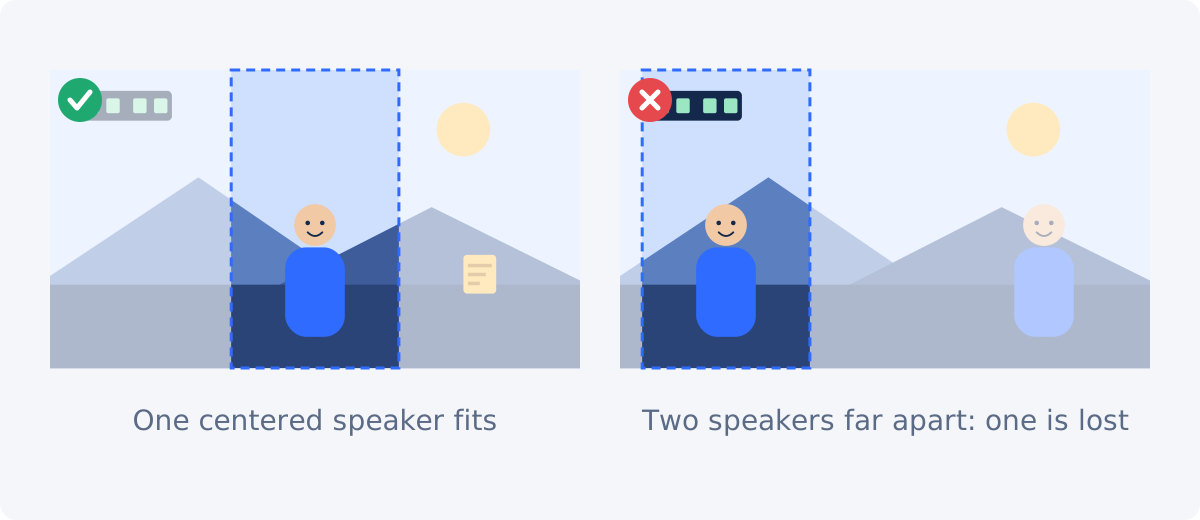
An interview with two people at opposite sides of a 16:9 frame is the classic failure. A 9:16 slice covers one of them. Placing the slice in the middle shows the empty space between them and the edges of two shoulders.
- Separate edits. Make one vertical clip for each speaker and cut between them. This takes editing, but each clip has a clear subject.
- Background fill. Keep both people visible in a small horizontal picture inside the vertical canvas.
- Stacked layout. In the full editor, place the two speakers one above the other in a vertical canvas, each cropped from the same source.
For a group of three or more, background fill or keeping the video horizontal is usually the realistic choice.
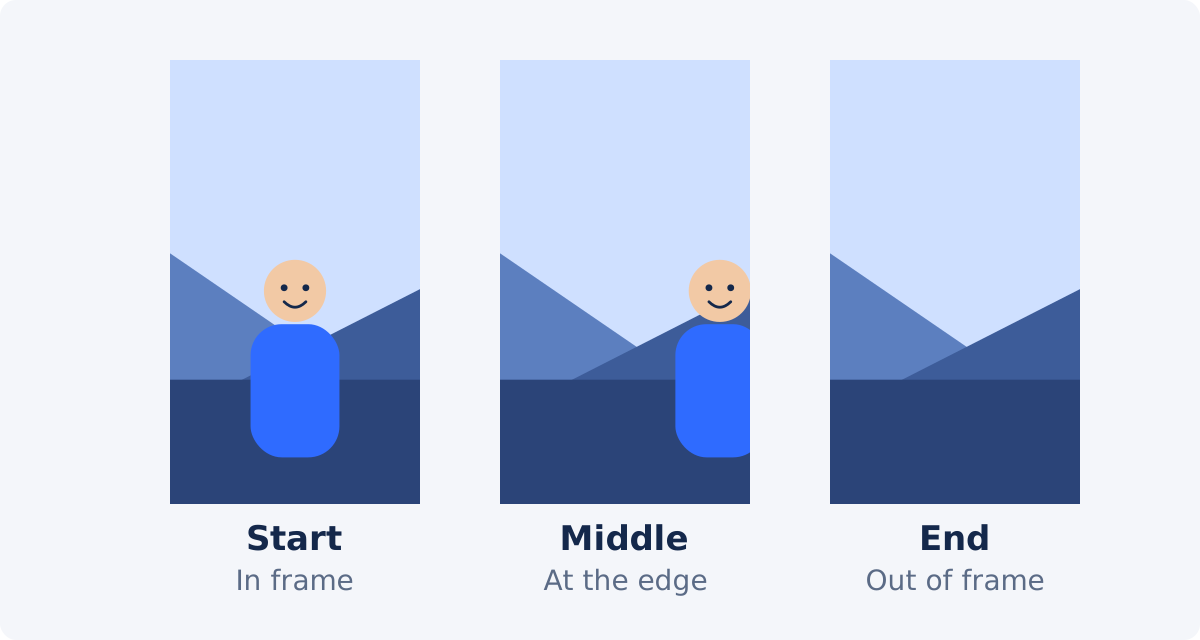
Why a fixed crop cannot follow a moving person
The standalone tool applies a single rectangle to the whole video. It does not detect people or objects, and it does not move the crop over time. If a presenter walks from the left of the stage to the right, a narrow vertical crop that is right at the start will show an empty stage later.
You have three ways to handle this. Use a wider crop with more margin, accepting a smaller subject. Split the clip into sections and crop each one with a different position. Or use the full Deus.Video editor, where the video's position inside a vertical canvas can be animated with keyframes, so the framing moves with the subject.
Interface overlays and safe visual areas
Short-form video apps draw their interface over the video. Typically there are action buttons along the right side, an account name and caption at the bottom, and navigation elements at the top. A face or a product placed under those elements is partly hidden, even though it is inside your crop.
The size of these areas is not fixed. It differs between apps, changes with updates, and can depend on the length of the caption. TikTok's advertising documentation, for example, states that its safe zone depends on the video dimension, the caption length, and any add-ons used. This guide does not give pixel margins, because any number would age quickly.
A dependable habit is to keep the subject in the central area of the vertical frame, slightly above the middle, and to keep important details away from the bottom edge and the right edge.

Check platform specifications before publishing
Selecting 9:16 gives you a vertical shape. It does not make the file fit every platform's rules. Each service publishes its own guidance on accepted aspect ratios, resolution, duration, and file size, and those rules change. YouTube Help, for instance, describes Shorts as square or vertical videos with a length limit, and TikTok's ad specifications recommend vertical 9:16 for in-feed placements.
Before an important upload, read the current help page for the platform, and do a test upload if you can. Look at how the app actually displays your video, including where its interface covers the picture.
Which treatment fits which source
| Source content | Recommended treatment | Reason |
|---|---|---|
| One centered speaker | 9:16 crop | Subject can remain visible |
| Two speakers far apart | Background fill or separate edits | A narrow crop may remove one speaker |
| Wide landscape | Background fill or keep horizontal | Cropping destroys important context |
| Product near one side | Repositioned 9:16 crop | The vertical slice can target the product |
| Fast moving subject | Wider crop or animated framing | A fixed crop may lose the subject |
| Screen recording with a wide interface | Crop to the active panel, or background fill | Text outside the slice is lost, and text inside must stay readable |
| Low-resolution or heavily compressed source | Full-height crop only, or background fill | A smaller crop area leaves too few pixels |
When Resize Video or the full editor is required
- Use Resize Video when the goal is a vertical canvas that contains the whole horizontal picture, or when the cropped result must match specific output dimensions.
- Use the full editor when the framing has to move over time, when two crops of the same source need to be stacked, when you want a blurred background, or when you need to add new captions and titles for the vertical version. In the editor, the project has a vertical canvas, the video is enlarged until it covers that canvas, and its position decides which slice is visible. That position can be keyframed.
- Use the standalone Crop Video tool when one fixed vertical slice works for the whole clip.
Keep resolution in mind as well. A full-height slice of a 1080p source is about 608 × 1080 pixels. On a phone that is usually fine. If a platform or a client requires 1080 × 1920, the slice has to be enlarged by nearly 1.8 times, and it will look softer than native vertical footage. A 4K source gives a slice of about 1215 × 2160, which needs no enlargement for a 1080 × 1920 output.
Conclusion
Turning horizontal footage into vertical is a framing decision before it is a technical one. Work out whether the subject fits in a third of the width. If it does, crop to 9:16, position the slice carefully, and preview the whole clip. If it does not, choose background fill, separate edits, or animated framing in the full editor. Then check the platform's current requirements and how its interface sits over your video.
If a single vertical slice works for your clip, use the online video cropper, select 9:16, and watch the full preview before you download.
Frequently asked questions
How much of a 16:9 video is kept in a 9:16 crop?
At full height, about 31.6% of the width. From a 1920 × 1080 source, that is roughly 608 × 1080 pixels. A smaller crop frame keeps even less.
Will the cropped video be 1080 × 1920?
Not from a 1080p horizontal source. The crop keeps the pixels inside the selected area, so a full-height slice is about 608 × 1080. Reaching 1080 × 1920 would require enlarging it, which softens the picture. A 4K source avoids that.
Can the tool follow a person who moves across the frame?
No. One fixed crop area is applied to the complete video, and the tool does not detect or track subjects. Use a wider crop, split the clip into sections, or animate the framing with keyframes in the full editor.
Can I keep the whole horizontal picture in a vertical video?
Yes, but not by cropping. Place the video on a vertical canvas with a background fill, using Resize Video or the full editor. The picture will be smaller, and nothing is cut.
Is 9:16 the right choice for every social platform?
It is the common full-screen vertical shape, but platforms set their own rules and change them. Check the current official guidance for aspect ratio, resolution, duration, and file size before you publish.
What happens to captions that were burned into the horizontal video?
They are part of the picture, so anything outside the vertical slice is cut off. Crop from a version without captions if you have one, and add new captions sized for the vertical frame.
Sources
- Wikipedia, "Aspect ratio (image)" – definition of aspect ratio and conversion between unequal ratios by cropping, padding or stretching: https://en.wikipedia.org/wiki/Aspect_ratio_(image)
- YouTube Help, "Upload YouTube Shorts" – square or vertical aspect ratio and length limit: https://support.google.com/youtube/answer/12779649?hl=en&co=GENIE.Platform%3DDesktop (checked September 18, 2026)
- TikTok Business Help Center, "TikTok Auction In-Feed Ads" – vertical 9:16 recommended; safe zone depends on dimension, caption length and add-ons: https://ads.tiktok.com/help/article/tiktok-auction-in-feed-ads?lang=en (checked September 18, 2026)
- YouTube Help, "Video resolution & aspect ratios" – player behavior for different aspect ratios: https://support.google.com/youtube/answer/6375112 (checked September 17, 2026)
- Deus.Video, Crop Video tool page – presets, fixed crop for the complete video, preview before processing: https://deus.video/crop-video/ (checked September 21, 2026)


