The practical difference between WebM and MP4
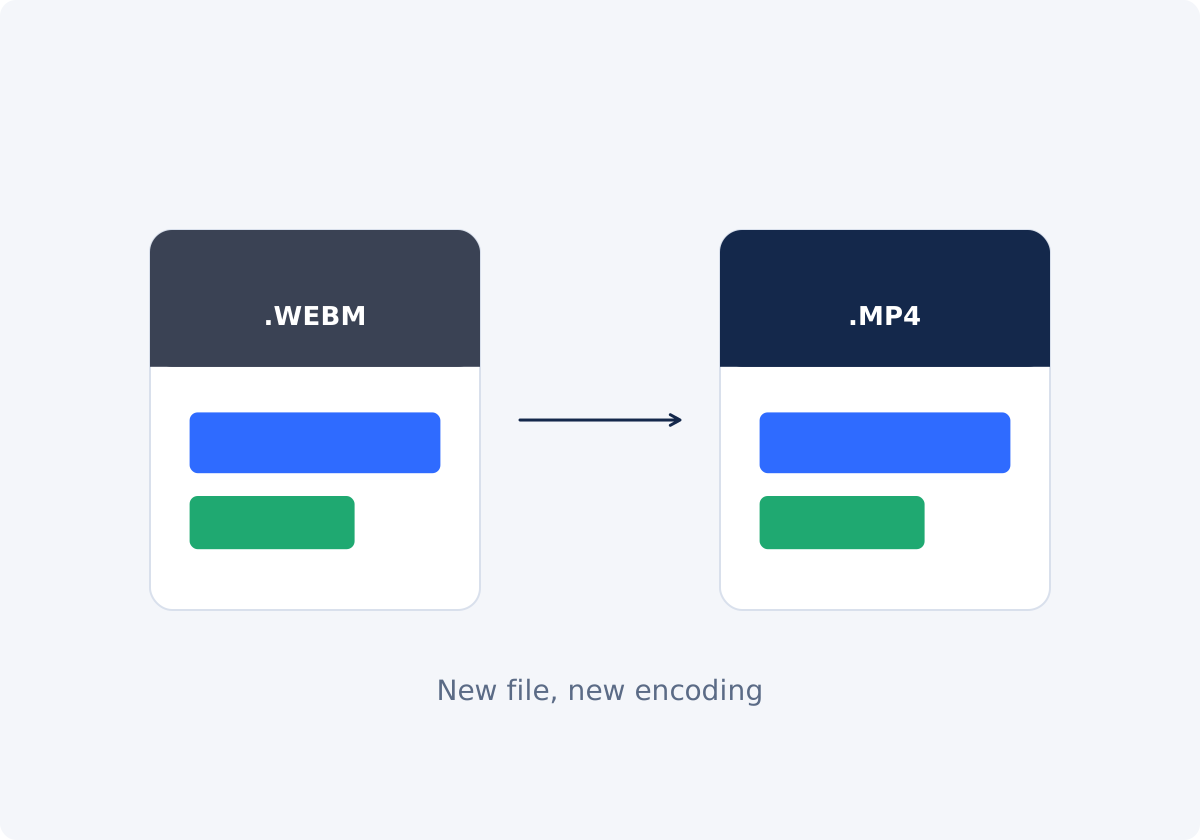
Both are containers, meaning file formats that wrap video and audio streams together. They differ in what they usually carry and in where they are accepted.
WebM is an open format designed for the web. It holds video compressed with the VP8, VP9, or AV1 codecs and audio compressed with Vorbis or Opus. A codec is the method used to compress and decompress the picture or the sound. WebM files typically come from browser-based screen recorders, web apps, online downloads, and some animation and design tools.
MP4 is the general-purpose delivery format. It most often holds H.264 video with AAC audio, a combination that hardware and software have supported for many years.
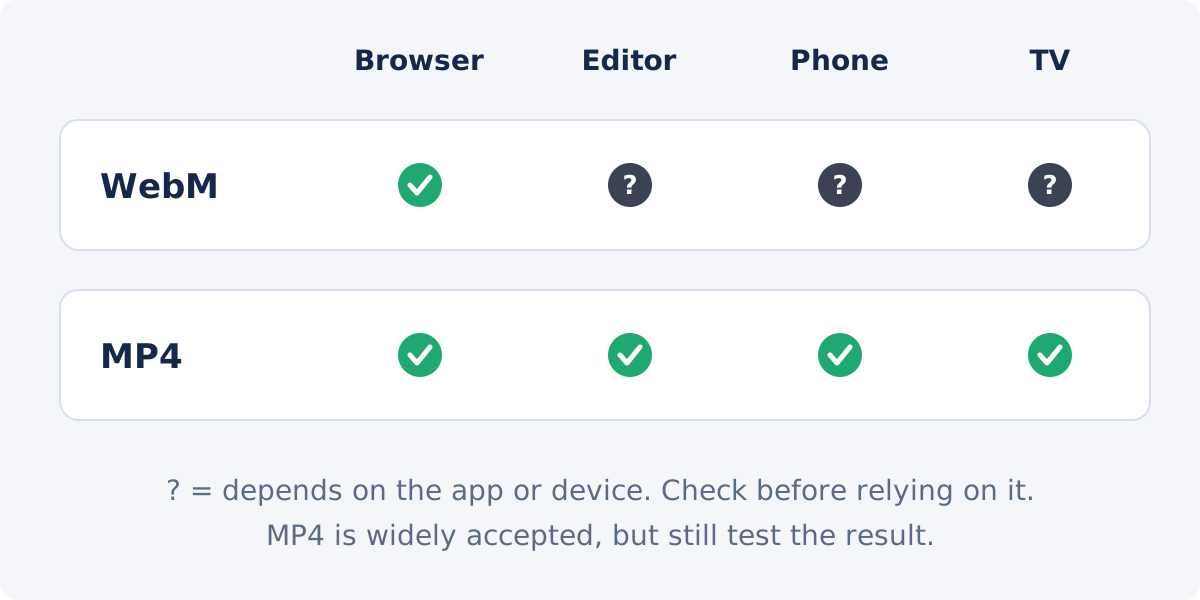
Neither one is "higher quality." The difference is reach. WebM lives comfortably in browsers. MP4 is accepted in many more places.
Why an app, editor, or device may reject WebM
- No decoder for the codec. Playing VP9 or AV1 needs software or hardware support that many TVs, older phones, and older computers lack.
- Import lists. Video editors and presentation programs support a fixed set of formats, and WebM is often missing from it.
- Upload rules. Forms and platforms check the file type and may accept only a short list, commonly MP4 and MOV.
- Audio codec. Opus or Vorbis audio can be the part that fails, which leaves you with a silent video.
- Older Apple software. According to MDN's media container documentation, Safari gained WebM support in version 14.1 on macOS and version 15 on iOS. Earlier systems do not play it, and the built-in gallery and player apps may not handle it even on newer ones.
How to convert WebM to MP4 in Deus.Video
With the Convert Video tool, you can change WebM to MP4 online.
- Upload the WebM file by drag and drop or with the file picker. One video is converted per run.
- Check the Format list. MP4 is the default selection, listed first under Common outputs.
- Click Convert video.
- Watch the status line and progress bar until processing is complete.
- Download the MP4.
- Test it in the destination that rejected the WebM. That is the only test that counts.
- Keep the original WebM until you have confirmed the MP4 works.
The tool has no settings for codec, bitrate, resolution, frame rate, or quality. It produces one output per run and does not convert batches or selected ranges.

Audio and video compatibility checks
- Picture. The video shows, in the right shape and orientation.
- Audio. Sound is present. WebM audio uses different codecs from typical MP4 audio, so the soundtrack is re-created during conversion and deserves its own check.
- Sync. Compare lips and voice at the start and at the end of the file.
- Duration. The MP4 is the same length as the WebM. Browser-recorded WebM files sometimes have incomplete duration information, and players may show an odd length or refuse to seek. A converted file often behaves better, but check it.
- Motion. Screen recordings saved as WebM can have a variable frame rate. Watch for stutter or sync drift in the result.
- Transparency. Some WebM files contain an alpha channel, used for stickers and web animations. Do not expect transparency to survive in an MP4. Transparent areas normally become a solid color.
Browser playback is not editor import support
It is easy to conclude that a file is fine because it plays when you drag it into a browser tab. That tells you the browser can decode it. It tells you nothing about other software.
Browsers include their own decoders for web formats. Video editors, slide tools, messaging apps, and operating system galleries rely on different components, with different lists. A WebM that plays in the browser may be refused by an editor. An MP4 that an editor accepts may, in rare cases, contain a codec that a browser cannot play.
The rule that follows is simple: always test in the destination, not in the nearest program that happens to open the file.
Re-encoding and quality
Encoding is the process of compressing video with a codec. Because WebM and MP4 normally use different codecs, the video cannot simply be moved from one container to the other. It is decoded and encoded again, which is called re-encoding.
Re-encoding is lossy. A little picture information is discarded each time. WebM files are often quite compressed already, especially screen recordings and downloads, so there is less quality in reserve than in a camera original.
- Convert once, from the original WebM.
- Check small text and fine lines in screen recordings, where softening shows first.
- Check dark areas and smooth gradients for blocks or bands.
- If you later need another format, go back to the WebM. Do not convert the MP4 again.
The tool does not state which codec or settings the MP4 uses, and it does not promise to preserve metadata, subtitles, chapters, or additional audio tracks.
File size is not guaranteed to decrease
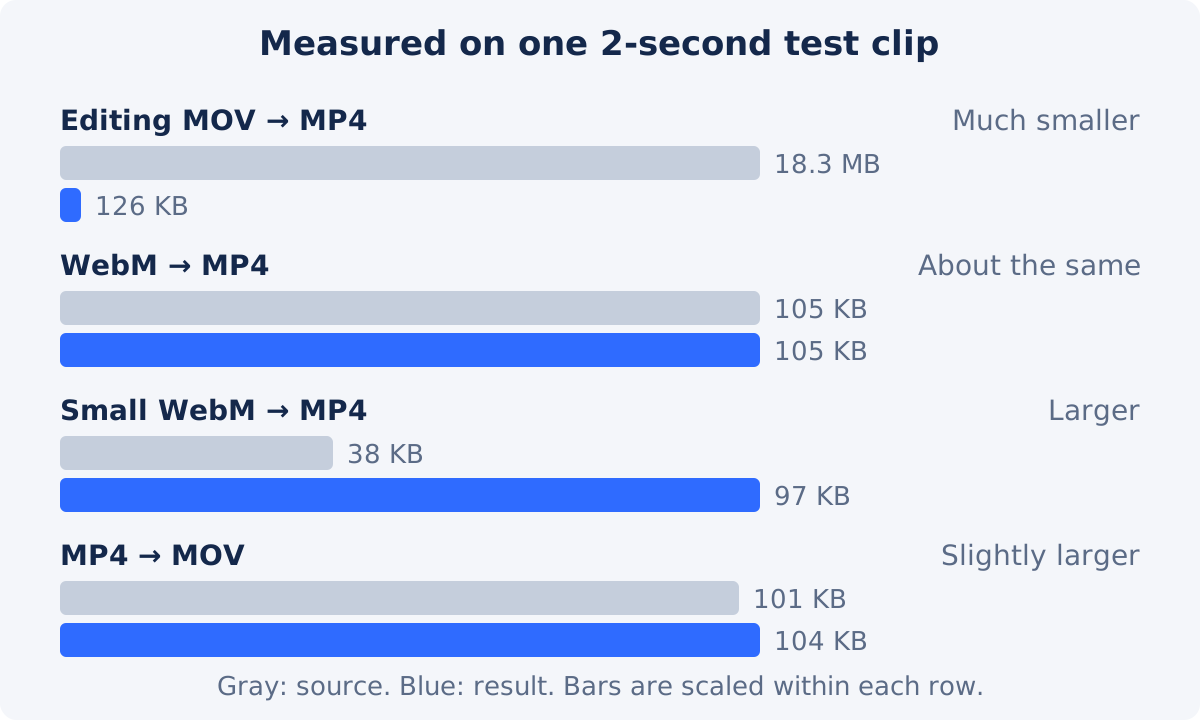
People often expect a conversion to make a file smaller. With WebM to MP4, the opposite is common. The codecs used in WebM are efficient, so a WebM can be small for its quality. A newly encoded MP4 of the same video may need more data to look the same.
In a small test for this guide, a compact 38 KB WebM clip became a 97 KB MP4, and a less compressed 105 KB WebM came out at about the same size. The numbers depend entirely on the source and on how the new file is encoded, so treat them as an illustration.
If the MP4 is too large for its destination, Compress Video offers presets and a target size. It also outputs MP4, so when a WebM is both unsupported and too large, compressing it may solve both problems in one step.
Where MP4 helps, and what to verify
| Destination | Why MP4 may help | What to verify |
|---|---|---|
| Video editor | MP4 is on most import lists | The file imports and scrubs smoothly; audio is present |
| Presentation software | Embedded MP4 is commonly supported | Playback on the actual presentation computer |
| Phone gallery or messaging app | The native player handles MP4 | It opens from the gallery, not only in a browser |
| TV, projector, or media player | Hardware decoders are built around MP4 codecs | Play it from the same USB drive or app you will use |
| Upload form or platform | MP4 is on most accepted lists | Current format, size, and length rules on the help page |
| Email or shared link for other people | Recipients are less likely to need extra software | Playback on at least one device that is not yours |
| Your own web page | MP4 covers older browsers that lack WebM | Whether your site should offer both formats |
Troubleshooting the output
- The MP4 will not play on the target device. Try another player on that device to see whether the app or the device is the limit. Very old hardware may not handle the resolution or frame rate of the video, whatever the format.
- There is a picture and no sound. Play the original WebM and confirm it has sound. If it does, convert again from the original, and test in another player.
- Sound and picture drift apart. This is typical of variable frame rate screen recordings. Convert from the original once more. If it persists, record again with a fixed frame rate if your recorder allows it.
- The duration looks wrong, or seeking fails. Check whether the source WebM has the same problem. Browser recordings often do. The converted file usually fixes it. If not, re-record or re-export the source.
- The background turned black. The WebM had transparency. Keep the WebM for web use, or place the animation over a background in the full Deus.Video editor and export that.
- The file is too large. Use Compress Video on the original.
- You only need the soundtrack. Use Extract Audio from Video instead.
Conclusion
WebM is at home in the browser, and MP4 is accepted in many more places. Converting is a quick fix for an editor, a device, or a form that refuses WebM, as long as you remember that the video is encoded again. Convert once from the original, check the sound and sync with extra care, do not expect a smaller file, and test the MP4 where it will be used.
Stuck with a WebM that will not import? You can convert a video online with Deus.Video, download the MP4, and test it in the app that refused the original.
Frequently asked questions
Why won't my WebM file open?
The app or device probably lacks a decoder for the codecs used in WebM, or WebM is not on its list of accepted types. Browsers support it, but editors, galleries, TVs, and many upload forms often do not. Test the original in a current browser first: if it works there, compatibility is the likely problem.
Does MP4 work everywhere?
No format does. MP4 is accepted very widely, which makes it the practical default, but a particular device or platform can still reject a particular MP4. Test the converted file in the destination.
Will the MP4 be smaller than the WebM?
Often not. WebM codecs are efficient, and a newly encoded MP4 can come out the same size or larger. Use Compress Video if size matters.
Will I lose quality?
Some loss is possible, because the video is re-encoded. One conversion from the original is usually hard to notice at normal viewing size, but the result still needs checking. Look closely at small text in screen recordings, fast motion, and dark or smooth areas.
My WebM has a transparent background. Will the MP4 keep it?
Do not expect it to. The codecs normally used in MP4 do not carry an alpha channel, so transparent areas become a solid color. Keep the WebM as the master, or composite the animation over its final background before exporting.
Can I convert MP4 back to WebM?
Yes. WebM is one of the common outputs in the Format list. Converting back and forth adds a lossy step each time, so always start from the best original you have.


