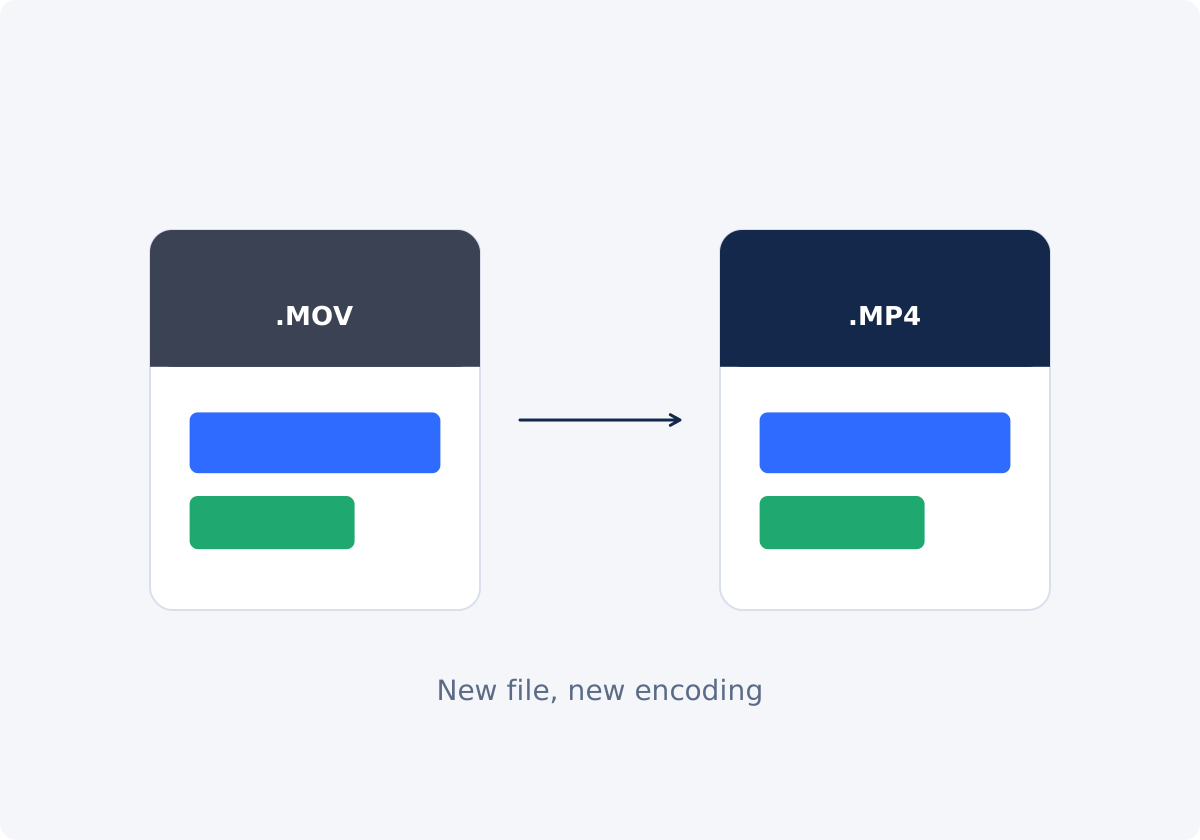
MOV and MP4 are both containers
A container is a file format that wraps a video stream and an audio stream together, along with timing data and other information. MOV is Apple's QuickTime container. MP4 is an international standard that grew out of the same design, which is why the two are closely related.
Neither container decides how the video looks. That depends on the codec, the method used to compress the picture and sound. A MOV from an iPhone typically holds H.264 or HEVC video. A MOV exported from professional editing software may hold a much heavier editing codec. An MP4 usually holds H.264 video with AAC audio, and it can also hold other codecs.
So "MOV vs. MP4" is mostly a question of where the file is going, not of quality.
When you need to convert, and when you do not
Conversion is useful when
- an upload form, a learning platform, or a content system rejects .mov files;
- a Windows program, an Android phone, a TV, or a presentation tool will not open the file;
- a colleague or a client cannot play it;
- the destination's help page names MP4 as the accepted format;
- you want one dependable file for sending to people whose devices you do not know.
Conversion is probably unnecessary when
- the destination already accepts MOV, as many major video platforms and editors do;
- you are staying within Apple devices and software;
- the file is going to an editor who asked for the original;
- the real problem is size, not format. A large MOV that plays fine needs compression, not conversion.
Every conversion is another round of encoding. If the MOV already works where you need it, leaving it alone gives the best quality.
How to change MOV to MP4 in Deus.Video
With the Convert Video tool, you can convert MOV to MP4 without installing software.
- Find the original MOV. Use the file from the camera, phone, or export, not a copy that came back from a messenger.
- Upload it. Drag and drop the file into the upload area, or use the file picker. One video is processed at a time.
- Check the Format list. MP4 is selected by default. The note under the list says MP4 is usually the simplest starting choice for broad modern playback.
- Click Convert video.
- Wait for processing. A status line and a progress bar show what is happening. Longer and larger files take more time.
- Download the converted MP4.
- Test it with the checks in the next section.
- Keep the MOV. Treat the MP4 as a delivery copy.
The tool does not offer manual settings for codec, bitrate, resolution, frame rate, or quality, and it does not convert part of a video or several files at once.

Check playback, audio, duration, and sync
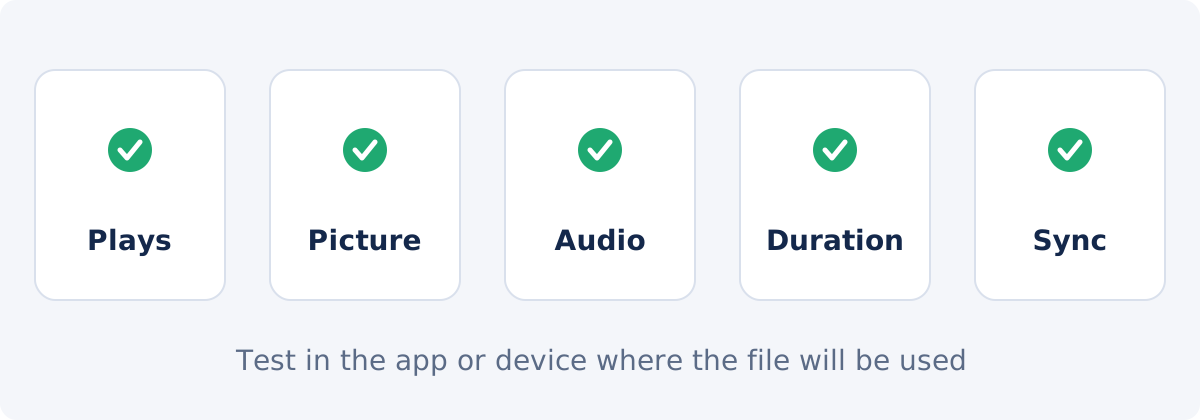
- Playback. Open the MP4 in the app, device, or upload form it is meant for. Opening it on your own computer proves less than you might think.
- Picture. Confirm the orientation and shape. Phone videos carry rotation information, so check that a vertical clip is still vertical.
- Audio. Make sure sound is present and at a normal level. If the MOV had more than one audio track, check which one you are hearing.
- Duration. The MP4 should match the source length to within a fraction of a second.
- Sync. Watch someone speak near the start and again near the end. Drift builds up over time, so the ending is the stricter test.
- Seeking. Jump to a few points in the player and confirm that it responds.
Transparency and alpha channels
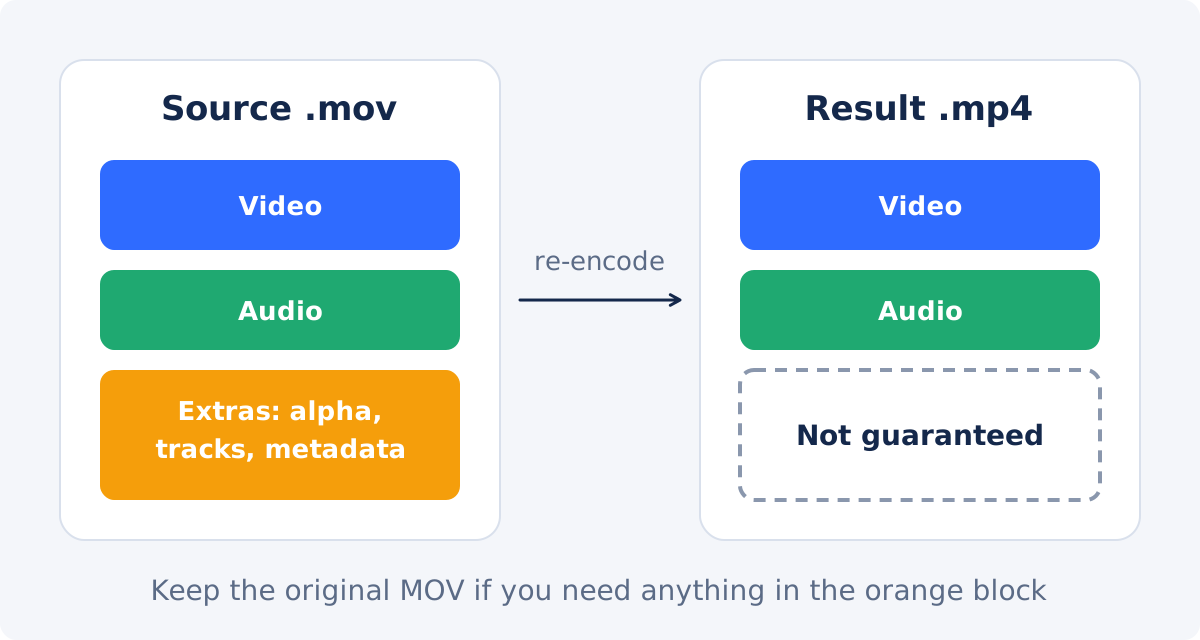
Some MOV files carry an alpha channel, which stores transparency for each pixel. Motion graphics, lower thirds, logo animations, and visual effects elements are often delivered this way, so an editor can place them over other footage.
Do not expect that transparency to survive a conversion to MP4. The codecs normally used in MP4 files do not carry an alpha channel, and transparent areas typically come out as a solid color, usually black. The tool makes no promise about preserving alpha.
If you need the transparency, do not convert the file. Keep the MOV and use it in an editor that supports it. If the destination only accepts MP4, place the graphic over its final background first, for example in the full Deus.Video editor, and export the finished composition.
Quality and re-encoding
Encoding means compressing video with a codec. Re-encoding means decoding an existing file and compressing it again. Converting MOV to MP4 in this tool produces a newly encoded file.
Re-encoding is a lossy step. Some picture information is discarded each time. From a good source, one pass is usually hard to notice. It becomes noticeable when the source was already heavily compressed, when the footage is demanding, with fast motion, water, foliage, grain, or dark scenes, or when the same file is converted several times.
- Convert from the original, once.
- Compare the MP4 with the MOV in the busiest scene, the darkest scene, and on faces and small text.
- If you need a different output later, go back to the MOV.
The tool does not state which codec, bitrate, or settings the output uses, and this guide does not assume them. It also does not promise to preserve editing codecs such as ProRes, HDR information, metadata, chapters, subtitles, or additional audio tracks. If any of those matter, keep the source and check the result carefully.
What happens to file size
File size is set mainly by bitrate, the amount of data used per second, multiplied by the duration. The container has almost no effect on it.
- A MOV with an editing codec is enormous, often gigabytes for a few minutes. Converting it to a delivery MP4 usually produces a dramatically smaller file.
- A MOV from a phone is already compressed for delivery. The MP4 may come out somewhat smaller, about the same, or even larger.
Conversion is not a size tool, and the result is not guaranteed to be smaller. If a specific size matters, convert first if you need to, check the result, and then use Compress Video, which offers presets and a target size. If the MOV plays fine and is only too large, skip conversion and go straight to compression.
What conversion can and cannot solve
| Problem | What conversion may solve | What it may not solve |
|---|---|---|
| Upload form rejects .mov | An MP4 is usually accepted | Other requirements, such as size, length, or resolution |
| MOV will not open on Windows or Android | A newly encoded MP4 often plays | Very old devices with limited decoders |
| Video plays with no picture, or no sound | Re-encoding replaces a codec the player could not handle | Problems that exist in the source itself |
| File is far too large (editing codec) | The size often drops a lot as a side effect | Hitting a specific size; use compression for that |
| File is a little too large (phone MOV) | Possibly nothing | The size may stay similar or grow |
| Transparent background is needed | Nothing | Alpha is not expected to survive in MP4 |
| Need subtitles, chapters, or a second audio track | Nothing | These extras are not guaranteed to carry over |
| Source is damaged or incomplete | Occasionally a playable file | Missing or corrupted footage cannot be restored |
Check the destination's requirements
Before you convert, read what the destination asks for. Look for accepted containers, any mention of codecs, maximum file size, maximum length, and limits on resolution or frame rate. These specifications differ between services and change over time, so use the current help page, not a number you remember or one quoted in an article.
If the requirement is only "MP4," the default output is the natural choice. If the requirement names a specific codec or other technical settings, test one converted file in the destination before you convert a whole batch of work.
A few related tasks have their own tools. If you only need the sound, extract the audio instead of converting the video. If you need a short looping animation, use Convert Video to GIF.
Conclusion
MOV and MP4 are close relatives, and converting between them is mostly about where the file has to work. Check whether you need to convert at all, convert once from the original, and test playback, sound, duration, and sync in the real destination. Do not count on transparency or other extras to survive, do not expect a smaller file, and keep the MOV.
Have a MOV that will not upload or open? Open the Convert Video tool, leave MP4 selected, and test the download.
Frequently asked questions
Is MOV better quality than MP4?
Not inherently. Both are containers. A MOV from professional software may hold a higher-quality codec than a typical MP4, but a MOV from a phone and an MP4 from the same phone are often equivalent. Quality depends on what is inside.
Will converting MOV to MP4 reduce quality?
It can, because the video is encoded again. From a good source, one conversion is usually hard to notice at normal viewing size, but that is not a guarantee. Compare faces, fine detail, gradients, dark scenes, and motion, and do not convert the same file repeatedly.
Can I just rename .mov to .mp4?
Renaming changes the label, not the contents. It occasionally appears to work because the two containers are related, but many players and upload systems will reject the file or behave unpredictably. The codec and container structure remain unchanged. Conversion creates a real MP4 with newly encoded video and audio.
Will the MP4 be smaller than the MOV?
Often, when the MOV uses an editing codec. Not necessarily, when it comes from a phone. There is no guarantee either way. Use Compress Video when size is the goal.
Does the MP4 keep my transparent background?
Do not expect it to. Alpha channels are a feature of certain MOV workflows, and the codecs normally used in MP4 do not carry transparency. Transparent areas may become a solid background. Keep the MOV for compositing, and check a short conversion before committing to the workflow.
Can I convert several MOV files at once?
No. The tool converts one video per run. Reset it after each download, and start the next file.


