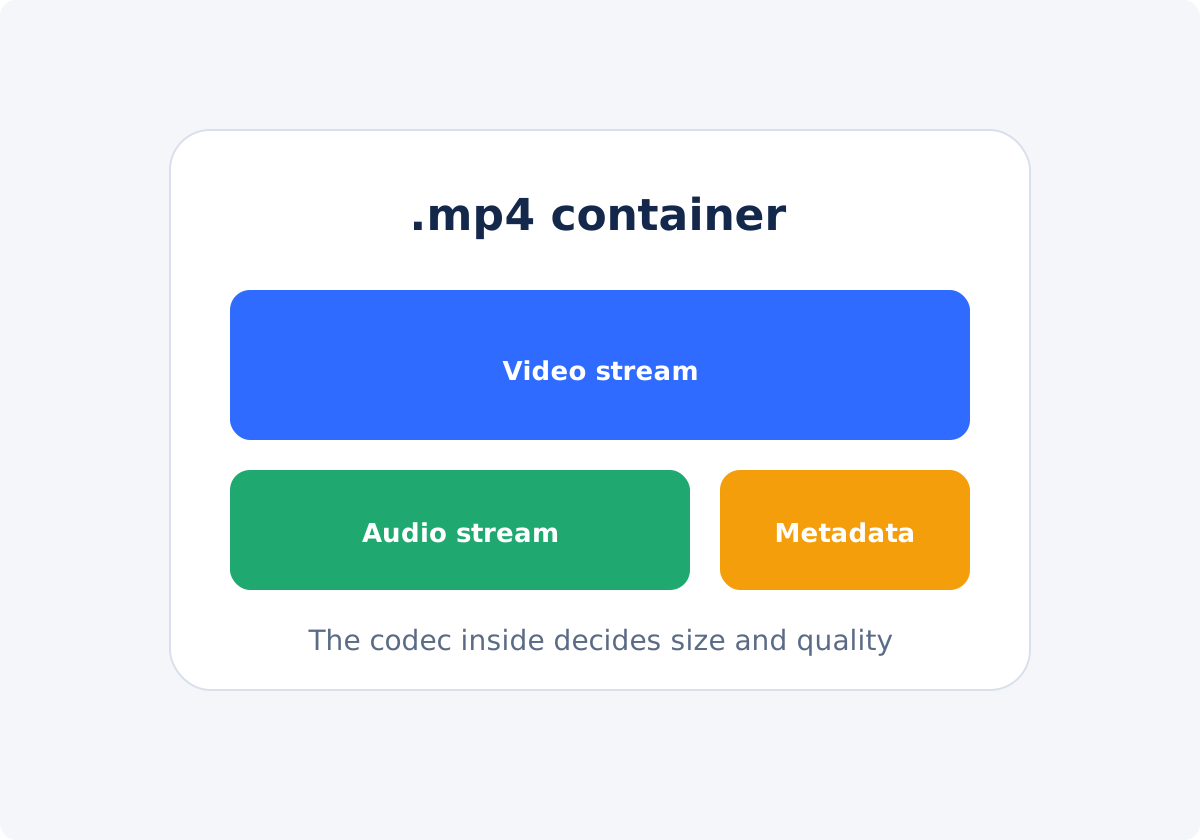
MP4 is a container, not a quality level
An MP4 file is a container: a file format that holds a video stream, one or more audio streams, and supporting information such as timing and metadata. The container does not define how the picture was compressed.
That job belongs to the codec, the method used to encode and decode the video and audio. An MP4 can contain video in several different codecs, at any resolution, at almost any bitrate. Bitrate is the amount of data used for each second of playback, and it is the main thing that drives file size.
So "it's an MP4" tells you very little. It does not tell you whether the file is efficient, whether it will play on an older device, or whether it can be made smaller without visible loss. Those answers depend on what is inside.
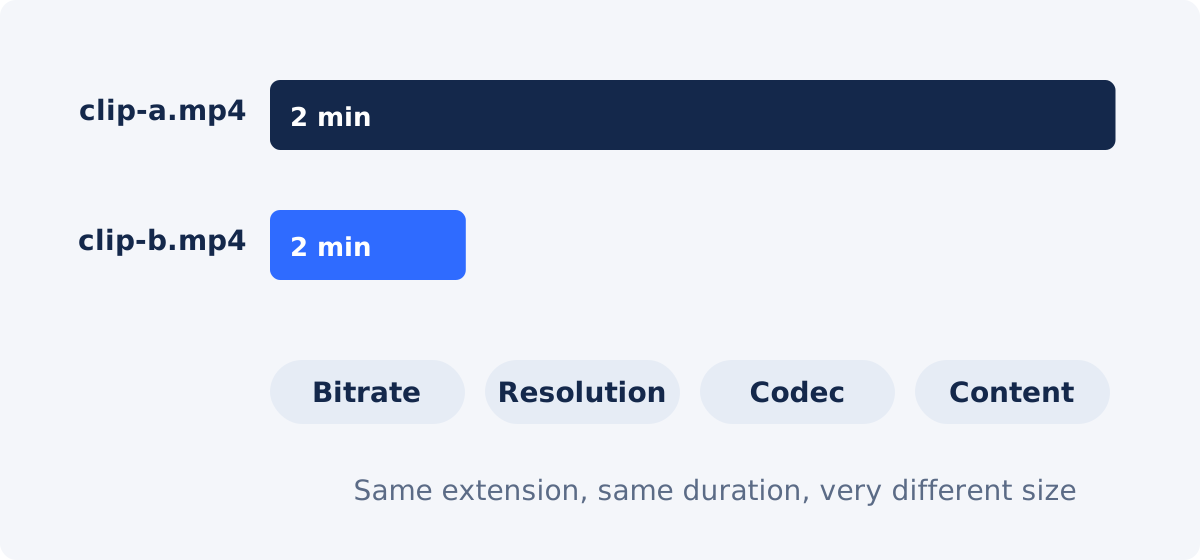
Why two MP4 files of the same length can differ so much
Take two clips, both two minutes long, both ending in .mp4. One is 40 MB and the other is 900 MB. Nothing is wrong with either. They differ in the things that actually determine size.
- Bitrate. A phone or camera often records at a high bitrate to protect quality. A file exported for the web uses far less.
- Resolution and frame rate. A 4K clip at 60 frames per second has many more pixels to describe every second than a 1080p clip at 30.
- Codec. Newer codecs can reach similar visual quality with less data than older ones.
- Content. A static interview compresses far better than footage of waves, leaves, or a crowd.
- Audio. Stereo music at a high audio bitrate takes more room than mono speech.
This has a practical consequence. A large MP4 straight from a camera usually has plenty of room to shrink. An MP4 that was already exported for the web, or downloaded from a messenger, has much less, and compressing it again costs quality for a modest gain.
How to compress an MP4 video: two workflows
With the Compress Video tool, you can reduce a video's file size in two ways. The tool does not ask you to choose a codec, a bitrate, or a resolution. It makes those decisions for you based on the method you select. The processed result is an MP4 file.
Preset workflow: when there is no strict number
- Upload the MP4 by drag and drop or with the file picker.
- Set Compression method to Preset.
- Choose "High quality, medium size" to favor the picture, or "Low quality, small size" to favor a smaller file.
- Click Compress video and wait for processing to finish.
- Download the result and check its size.
- Compare it with the source using the checklist below.
Target-size workflow: when a limit applies
- Look up the current file-size limit of the service you are sharing through.
- Upload the MP4.
- Set Compression method to Target file size.
- Enter a value in MB that is somewhat below the limit. The target is an estimate, and the final file can differ slightly from it.
- Click Compress video, then download the result.
- Check the actual file size and play the file through.
- If it misses, go back to the original MP4 and try a different value. Do not compress the compressed copy.

Sharing scenarios
File-size limits differ between services and plans, and they change over time. This guide does not quote them. Check the current help page of the service before you choose a number.
Email is the tightest case. Attachment limits are small, and the recipient's server may be stricter than yours. Attachments also grow in transit, because email encodes them for transport, so a file just under the stated limit may still bounce. For anything longer than a short clip, a link is usually the better route. If you must attach, use a target size with a generous margin.
Messaging apps
Most messengers accept larger files than email, and many compress video again on their side when you send it as a video. That means two rounds of compression. Compress moderately, and if the app offers a way to send the video as a file or document, use that when quality matters.
Cloud storage and shared links
Here there is normally no hard limit to beat, only upload time and storage space. The higher-quality preset is a sensible default. For material you may need again, upload the original.
Review and approval copies
A client or colleague who only needs to check the edit does not need the master. A lighter copy uploads faster and plays more smoothly on a weak connection. Make sure small text, captions, and graphics remain readable, since those are usually what is being reviewed.
Source vs. compressed: preview checklist
- Open both files in the same player at the same size.
- Compare the busiest scene, the darkest scene, and a close-up of a face.
- Look at small text, logos, and captions for halos or blur.
- Look at skies, walls, and gradients for stripes or blocks.
- Watch a fast movement for smearing or trails.
- Listen to speech and to any music on headphones.
- View the file on a phone if that is where it will be watched.
Verify audio sync and duration
Quality is not the only thing to check. Before you send a file, confirm that it is complete and that picture and sound still line up.
- Compare durations. The compressed file should be the same length as the source, to within a fraction of a second.
- Check sync at the start. Find a moment where someone speaks on camera, or a clear sound such as a clap, and watch the lips or the action.
- Check sync at the end. Drift builds up over time, so a file can be in sync at the start and off at the finish.
- Jump around. Seek to a few points in the player. The file should respond and play from each of them.
- Play the last ten seconds. Confirm the video does not end early or freeze.
- Test on the target device or app when you can.
If something is wrong, compress the original again. If the problem repeats, the source itself may have an unusual structure, such as a variable frame rate from a screen recorder. Try converting the source first, then compressing.
Starting points by sharing constraint
| Sharing constraint | Recommended starting method | Check |
|---|---|---|
| Known hard file-size limit | Target file size, set below the limit | Actual size in bytes; full playback |
| Email attachment | Target file size with a large margin, or a shared link | Size against both your limit and the recipient's |
| Messaging app that re-compresses video | "High quality, medium size" preset | How it looks after the app has processed it |
| Slow connection, no strict limit | Start with "High quality, medium size"; go lower only if needed | Upload time against visible quality |
| Review copy for a client or a team | "High quality, medium size" preset | Readability of text and graphics |
| Cloud storage | Preset, or upload the original | Whether you will need the file again later |
| Recipient cannot play the file | Convert, not compress | Playback on the recipient's device |
| Very long recording | Trim or split first, then compress | That no needed section was removed |
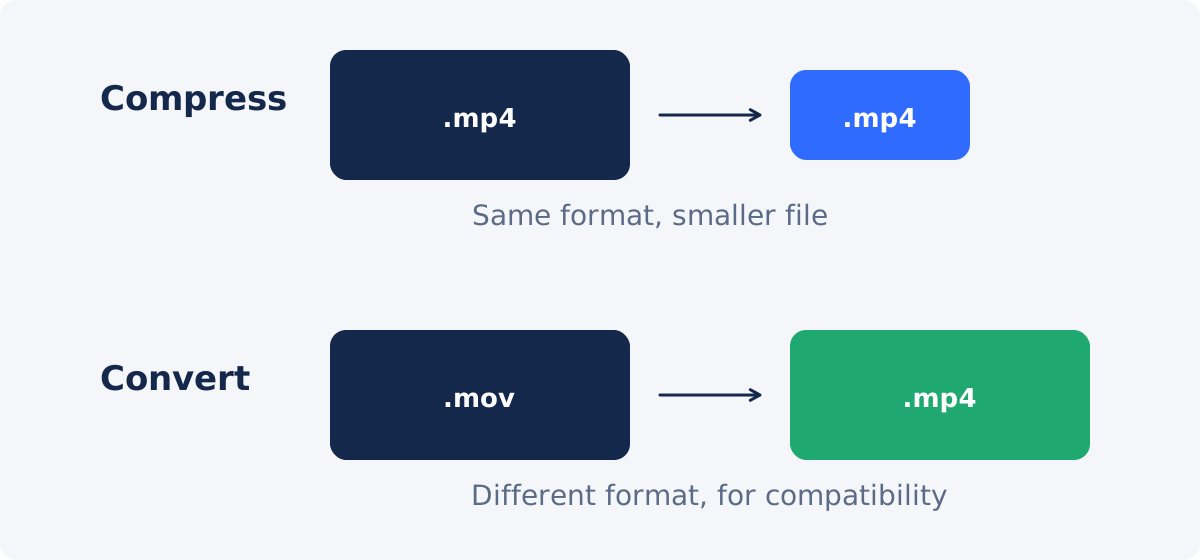
Conversion vs. compression
These two are easy to confuse, because both produce a new file.
Compression aims at size. The goal is a file that takes fewer megabytes, and the cost is some quality.
Conversion aims at compatibility. The goal is a file in a different format that a device, an app, or a website can open. It may come out smaller or larger. Size is a side effect.
If your MP4 will not play on the recipient's device, making it smaller will not help. Use Convert Video. If you have a MOV, AVI, or MKV and wonder whether converting it to MP4 will shrink it, the honest answer is "maybe." The size depends on how the new file is encoded, not on the extension. When size is the goal, use compression. The tool accepts those formats directly and returns an MP4, so you get a smaller file and a widely supported format in one step.
When to share a link instead of overcompressing
Sometimes the limit is simply too small for the video. A 20-minute recording will not fit a small attachment limit in any watchable form. Forcing it produces a file that technically arrives and practically cannot be used.
Choose a cloud link when the needed reduction is extreme, when the recipient has to see detail, when the file will be edited or reused, or when several people need access. Upload the original or a lightly compressed copy, set the sharing permissions, and send the link. If the video is simply longer than it needs to be, cut it first with Trim Video. For multiple edits in one pass, use the full Deus.Video editor.
Conclusion
MP4 is a wrapper, and what is inside decides how much a file can shrink. Find the real constraint, use a preset when there is none and a target size when there is one, and verify size, quality, duration, and sync before sending. When the limit is too small for the video, share a link and keep the quality.
Have an MP4 that is too big to send? You can compress a video online with Deus.Video, using a preset or a target size, and check the result before you share it.
Frequently asked questions
Why is my MP4 so large?
Usually because it was recorded at a high bitrate, a high resolution, or a high frame rate, or because it is long. Cameras and phones favor quality over size. The .mp4 extension does not limit how large a file can be.
Will converting my video to MP4 make it smaller?
Not necessarily. Size depends on how the new file is encoded, not on the extension. Conversion is for compatibility. If the goal is a smaller file, use compression.
How much smaller can an MP4 get?
It depends on the source. A high-bitrate camera file can often shrink a lot with little visible change. A file that was already compressed for the web has less room. There is no universal percentage, and the tool does not show a predicted reduction.
Can I compress several MP4 files at once?
No. The tool processes one video at a time. Compress each file separately, and reset the tool between files.
Will the compressed file still be an MP4, with everything the original had?
The processed file is an MP4. Do not assume that extras in the source, such as additional audio tracks, embedded subtitle tracks, HDR information, or metadata, are carried over. Keep the original if any of those matter.
The audio is out of sync after compression. What can I do?
Compress the original again and recheck. If the drift repeats, the source may use a variable frame rate or have another unusual property. Convert the source first, then compress the converted file.


