How FPS, width, and duration work together
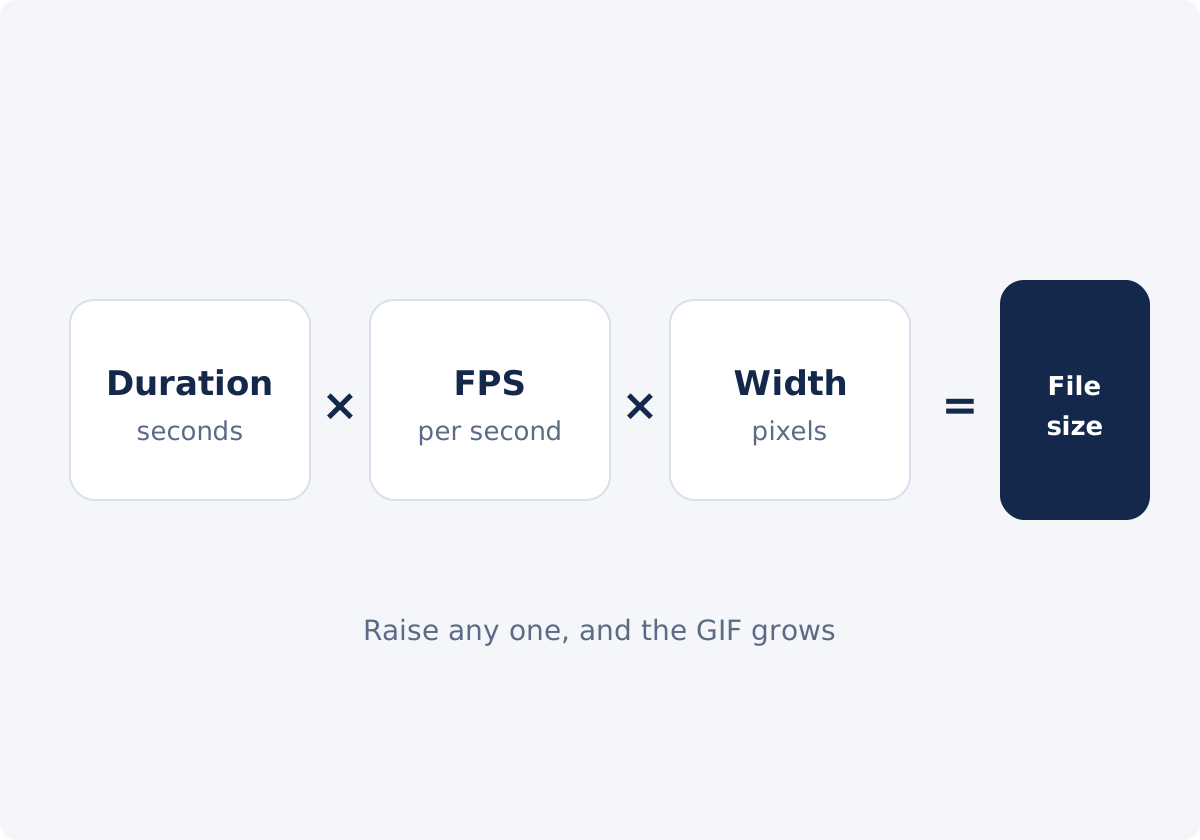
A GIF stores one image per frame. The number of frames is the duration multiplied by the frame rate. FPS means frames per second. The data in each frame depends on its pixel count, which is set by the width, with the height following in proportion.
So the three settings multiply:
- twice the duration means about twice the file;
- twice the FPS means about twice the file;
- twice the width means about four times the file, because the height doubles too.
In a test with one grainy clip, a six-second GIF at 30 FPS and 1280 pixels wide came to 86.7 MB. Halving all three settings brought it down to 4.8 MB. The exact figures depend on the content, but the multiplication is always there. It also works in your favor: a modest cut in each setting adds up to a large saving.
What changes at low and high FPS
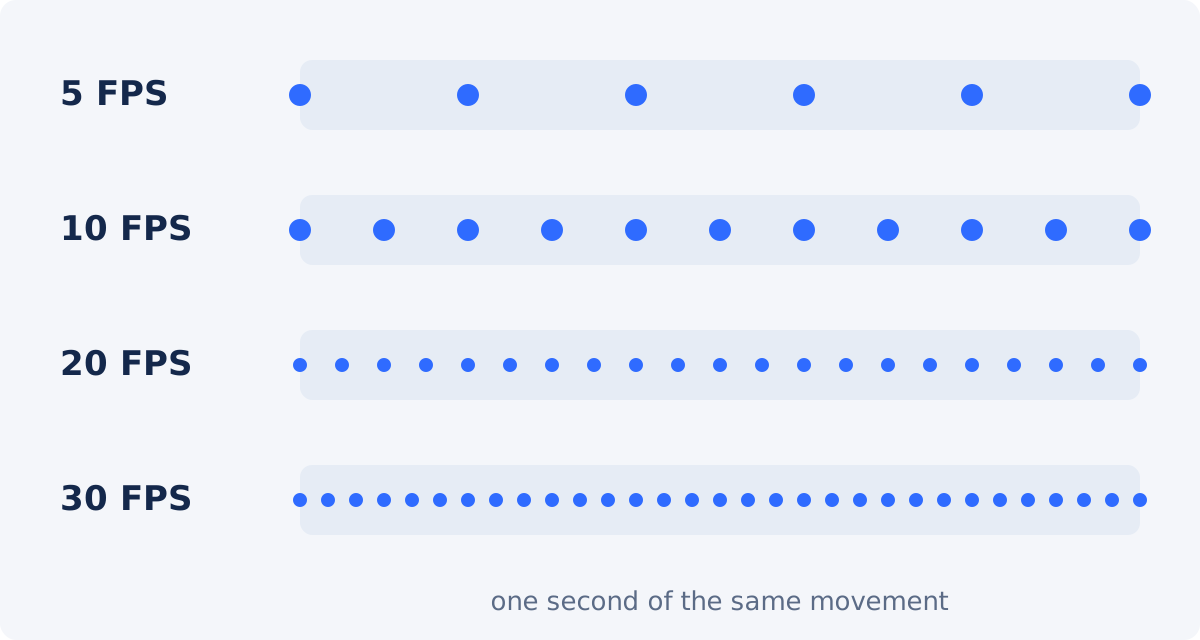
Frame rate controls how motion feels.
- 1–5 FPS looks like a slideshow. That can be useful for a sequence of stills, or a step-by-step series of screens, and it is unpleasant for real motion.
- 6–10 FPS is clearly animated and a little steppy. It is fine for cursors, menus, typing, and slow pans.
- 10–15 FPS is the practical middle. Most everyday motion reads as smooth enough.
- 15–20 FPS handles faster movement, such as gestures, sports, and game clips.
- 20–30 FPS approaches the smoothness of video at a high cost in size. In a GIF, the improvement over 20 is often hard to see.
GIF timing is coarse. Delays between frames are stored in hundredths of a second, and players vary in how they treat very short delays, so the top of the range may not play back at exactly the speed you expect. If you need true 30 FPS smoothness, a video file is the better container.
The tool's Frame rate field starts at 20. For most clips, lowering it to 12–15 is the first easy saving.
How to choose the width for where the GIF will be used
There is no universal standard width. The useful question is how many pixels wide the GIF will appear on screen.
- Find the display width. Measure the content column of the page, the chat bubble, or the slide area. If you cannot measure it, find a similar image that is already there, and check its dimensions.
- Match it. A GIF wider than its display area is scaled down by the browser. The extra pixels cost file size and show nothing.
- Consider high-density screens only if sharpness matters. On such screens, a GIF at exactly the display width looks slightly soft. A somewhat larger width sharpens it, at a steep cost in size. For most GIFs, it is not worth it.
- Let the content set the floor. If the GIF contains interface text, the smallest letters must stay readable. That often means 600 pixels or more for a full-window screen recording. Alternatively, record or zoom a smaller area of the screen, so the text is larger in the frame.
- Do not exceed the source. Entering a width larger than the video's own width enlarges the picture, which adds size without adding detail.
In the tool, "Original" keeps the source width, which is rarely right for HD or 4K video. Choose "Custom," and type the width in pixels.

Starting presets by content type
| Content type | Starting FPS range | Width approach | What to inspect |
|---|---|---|---|
| UI demo or screen recording | 8–12 | Match the content column; keep the smallest text readable | Text legibility; cursor movement; whether one action per GIF is clear |
| Reaction or meme | 12–15 | Small; sized for a chat bubble or a feed | Facial expression still reads; loop point |
| Simple motion: logo loop, flat animation, diagram | 10–15 | Display width; "Original" if the source is already small | Clean edges; no flicker in flat colors |
| Detailed footage: product, nature, people | 12–15 | Moderate; smaller hides color banding | Gradients, skin tones, dark areas |
| Fast action: sports, dance, gameplay | 15–20 | Smaller, to pay for the extra frames | Stutter; motion clarity; total file size |
| Step sequence or slideshow of stills | 1–3 | Display width | Each step stays on screen long enough to read |
All values stay within the 1–30 FPS range the tool supports. They are starting recommendations to test on your own clip, not guarantees of a particular look or size.
A step-by-step test
Open the tool to convert a video to GIF, and iterate on a short range before you commit to the full clip.
- Upload the video, and set Extraction mode to "Selected time range."
- Pick a two-to-three-second test range that contains the hardest part: the fastest motion, or the smallest text. Times are entered as hh:mm:ss.
- Enter your starting preset: the Frame rate from the table, and a Custom width equal to the display width.
- Click Create GIF, and watch the preview several times.
- Download it, and note the file size. Since size scales with duration, you can estimate the full clip. A two-second test of 1.5 MB suggests about 4.5 MB for six seconds.
- Adjust one setting at a time. Click Reset, change the width or the FPS by a step, and create the GIF again. Changing one thing lets you see what it did.
- Reduce gradually. Go from 15 to 12 to 10 FPS, or from 640 to 560 to 480 pixels, and stop at the last version that still looks right.
- Convert the final range with the settings that passed, and check the result in its real destination.
The tool has no target file size, quality slider, palette, or dithering controls, and it does not crop or add text. If the clip needs cutting more precisely than whole seconds allow, use Trim Video first.

Common mistakes
30 FPS without a reason
The maximum is tempting, because it sounds like the best quality. In a GIF, it doubles the file compared with 15 FPS, for an improvement most viewers will not notice, and playback timing at that rate is not dependable.
Too much width
Keeping the original width of a 1080p recording produces a GIF that is scaled down wherever it is shown. Width is the most expensive setting, so this is the costliest mistake.
A fragment that is too long
Thirty seconds of GIF is a large download that few people will wait for. Show one thing per GIF. If the content needs thirty seconds, it needs a video. Convert Video can produce an MP4 or a WebM when the format is the obstacle.
Small text
A full-screen recording squeezed to 480 pixels turns menus into smudges. Capture a smaller region, enlarge the interface before recording, or accept a wider GIF with a lower frame rate to compensate.
Judging at the wrong size
The preview on the tool page, a full-screen view, and the final embed can all differ. Always look at the GIF at the size, and in the place, where it will be used.
Changing everything at once
If you halve the FPS and the width together and dislike the result, you will not know which change caused it. Move one setting per attempt.
Conclusion
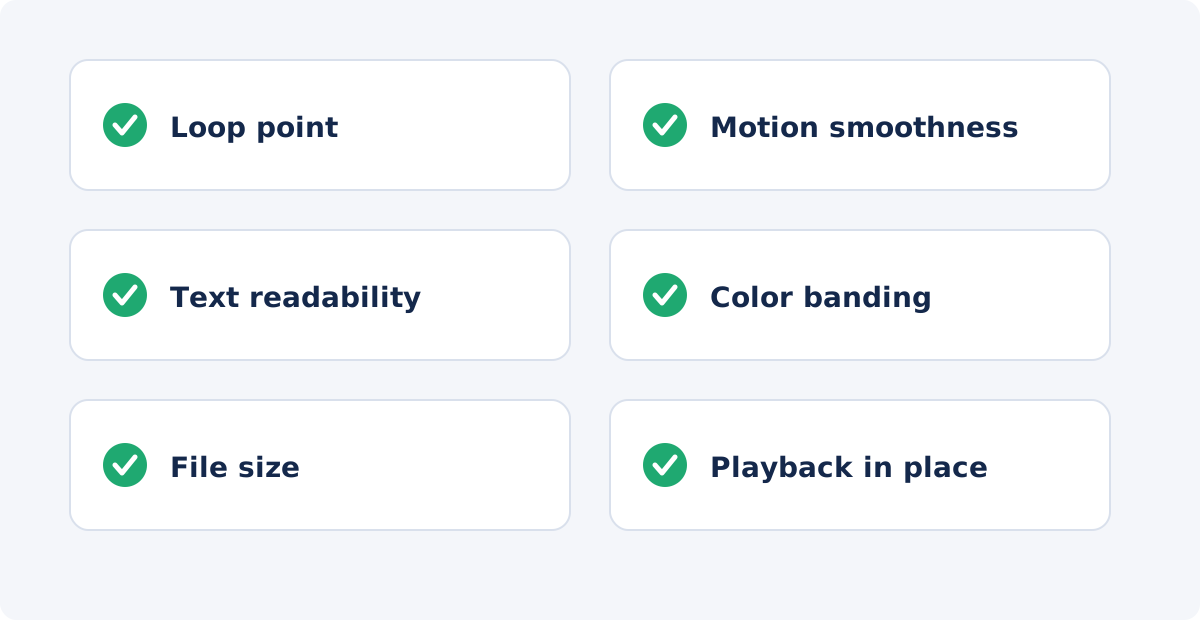
Duration, frame rate, and width multiply, so moderate choices in all three beat an extreme cut in one. Start at 10–15 FPS and the real display width, test on a short and difficult part of the clip, and change one setting at a time. Let the content decide the rest: text wants width, action wants frames, and everything wants to be short.
Ready to test your settings? Create a GIF from your video with a short range, and compare two or three versions before you settle.
Frequently asked questions
What is the best FPS for a GIF?
For most content, 10 to 15 FPS gives acceptable smoothness at a reasonable size. Screen recordings and slow scenes work at 8–10, and fast action benefits from 15–20. Values near 30 rarely look better in a GIF and roughly double the file compared with 15. Treat any number as a starting point, and check the preview.
Is 30 FPS too much for a GIF?
Usually, yes. The tool allows it, but each extra frame is a full image in the file, and GIF timing is too coarse to guarantee true 30 FPS playback in every viewer. If the clip really needs that smoothness, a muted looping video will deliver it at a fraction of the size.
What size should a GIF be for a website or documentation?
Match the width of the area where it will be displayed, which is often somewhere between 480 and 800 pixels for a content column. Wider than that wastes data, since the browser scales the image down. If the GIF includes interface text, make sure the smallest text is still readable at that width.
Does the tool change the height when I set a width?
You enter only the width. The height follows from the proportions of your video, so the picture is not stretched. A 1920 × 1080 source converted at a width of 640 pixels comes out at about 640 × 360. To change the shape of the frame itself, crop or resize the video before converting it.
How do I keep text readable in a GIF?
Give the text more pixels. Use a larger width, record a smaller region of the screen, or increase the interface zoom before recording. Then offset the extra size with a lower frame rate, since interface recordings tolerate 8–10 FPS well. Check legibility at the final display size, not in a full-screen view.
Why does my GIF play slower or faster in some apps?
GIF stores frame delays in hundredths of a second, and viewers handle very short delays differently. Some enforce a minimum delay, which slows high-frame-rate GIFs down. Staying at or below about 20 FPS makes playback speed more consistent across browsers and apps.


