When manual subtitling is the right approach
Manual subtitling is slower than automatic transcription and more accurate whenever the automatic result would need heavy correction anyway.
- Short videos. A one- or two-minute clip has perhaps twenty to forty lines. Typing them is quicker than fixing a generated transcript.
- You have the script. A voice-over that was read from a text, a product demo with a written outline, or a lesson with notes. The transcript already exists; only the timing is missing.
- Names, terms, and accents. Product names, technical vocabulary, and speakers with strong accents are where automatic systems stumble. Writing the line yourself gets it right the first time.
- Non-speech content. A video with little dialogue and important sounds needs someone to decide what to describe. That is an editorial job.
- Full control of phrasing. You choose where each line breaks and how much text is on screen, rather than fixing a stream of words.
For a long interview or a lecture, manual work becomes a project. Consider trimming to the part that matters first, or using a workflow with automatic transcription and then editing.
Preparing a transcript or a draft
Do the writing before the timing. Open a plain text editor and write down what is said, in the order it is said, as it is said. Then turn the text into lines.
- Listen once through and type the words. Keep filler words out unless they matter to the meaning.
- Break the text into subtitle lines, which are the units that appear on screen together. One line is one thought: a sentence, a clause, or a short question and its answer.
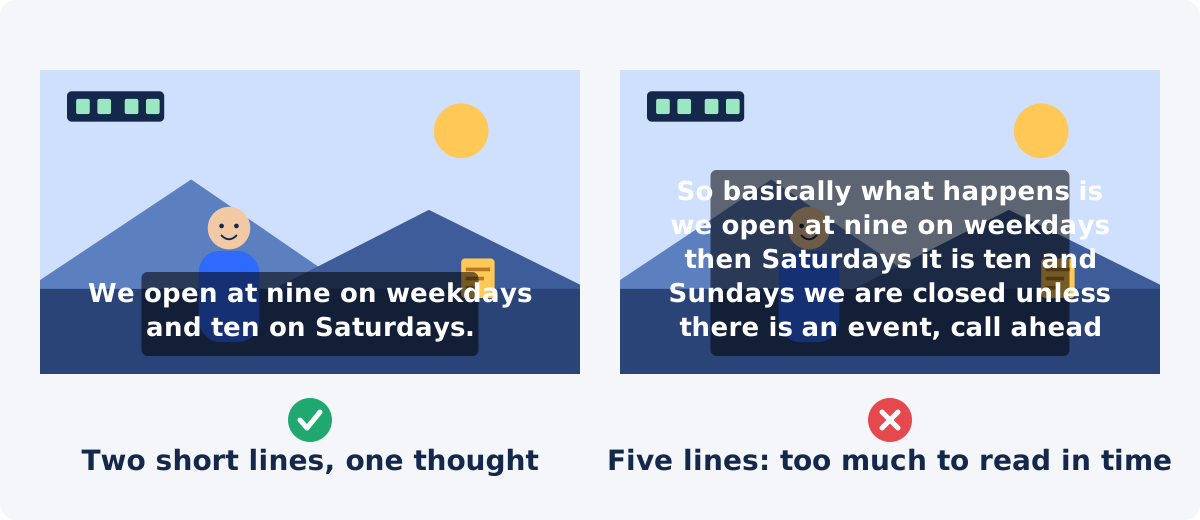
- Keep each line short. One or two on-screen rows of text, roughly up to 40 characters per row, is a comfortable target for most screens. Longer text takes longer to read than it stays on screen.
- Note speaker changes and important sounds as you go, so you do not have to listen again later.
- Check spelling and names now. The tool has no spelling check; what you type is what gets rendered.
The result is a list of lines in order. Timing comes next.
Workflow in Deus.Video
The tool lets you add subtitles to a video online, one line at a time.
- Upload one video. Common inputs include MP4, MOV, AVI, WebM, and MKV.
- Keep Manual mode selected. SRT file mode is for importing a prepared subtitle file, which the second guide in this series covers.
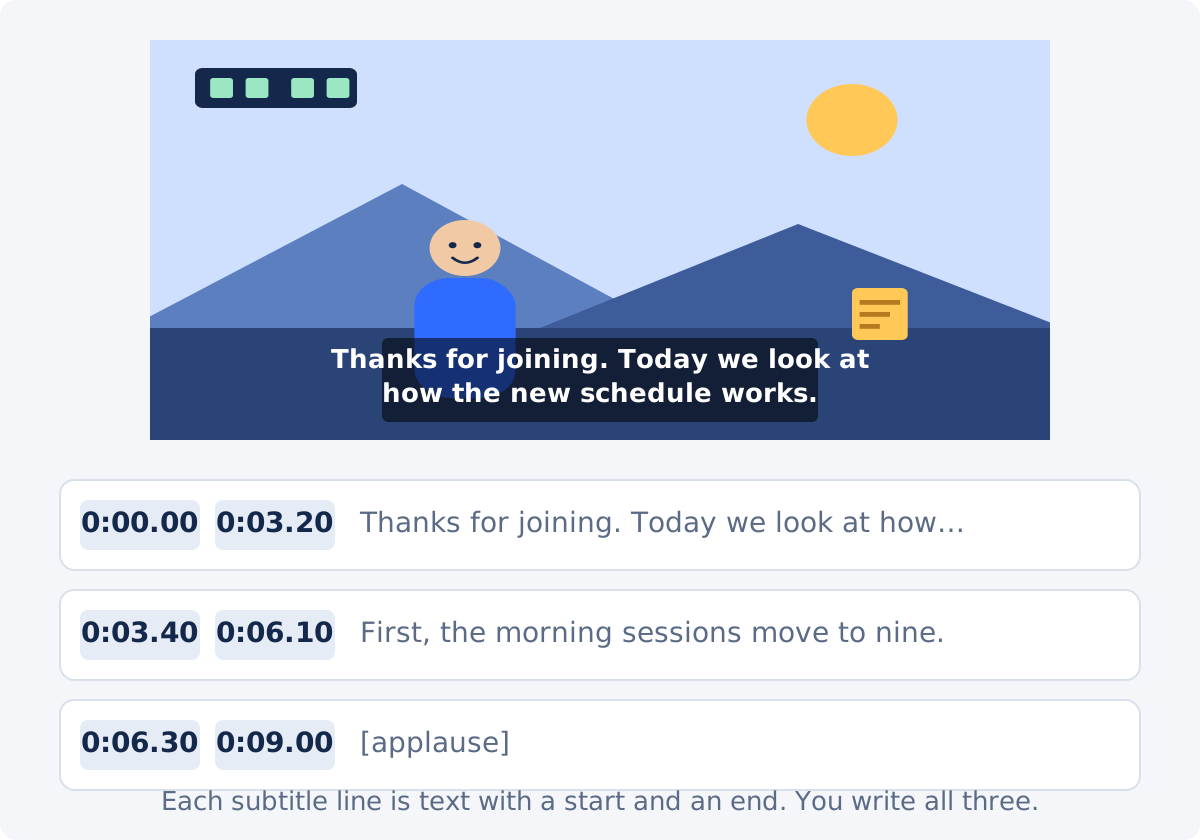
- Type the first line into New subtitle line and click Add line. The line appears in the list below the player with a start time, an end time, and its text.
- Set its Start and End. Type the times in the fields; the tool accepts seconds and the minutes:seconds notation shown in the fields. The end must be later than the start.
- Add the next line and repeat. Each line has its own start and end and can be edited or deleted at any time.
- Press Play and watch. The preview shows the line that is active at the current time over the video, so you can see whether it appears when the words are spoken.
- Set Font size and Bottom offset, which apply to all lines together.
- Click Add subtitles and wait for processing.
- Download the result, or continue in the full editor.
The processed file has the subtitles burned in: they are part of the picture, visible in every player, and cannot be switched off. The source video is not changed, and the result is a newly processed file whose size and fine detail can differ from the original.

Creating lines and setting start and end times
A subtitle line has three parts: the text, the moment it appears, and the moment it disappears. The tool shows them as three fields per line.
- Start is when the line appears. Set it to the moment the first word is spoken, or a fraction of a second before. A line that appears slightly early reads as natural; one that appears late reads as a mistake.
- End is when the line disappears. Set it at or just after the last word. Leave it up long enough to read, but take it down before the next line needs the space.
- Text is what is shown. Press Enter inside the text box to break a line into two rows; the break is kept in the rendered result.
Two practical points. Lines should not overlap in time unless you intend it: if two lines are active at once, both are drawn, one above the other. And the tool renders exactly what you type, including brackets, punctuation, and capitalization, so consistency is up to you.
Previewing and checking synchronization
Timing cannot be judged from the numbers alone. Play the video from a little before each line and watch two things: does the line appear as the words start, and does it leave as they end? The preview draws the active line over the video at the current position, which is the same information the finished file will show.
Work in passes. On the first pass, place every line roughly by ear. On the second, play each section and adjust starts by a few tenths of a second where a line feels early or late. On the third, watch the whole video without stopping; that is the pass that catches lines you thought were fine. If the tool's timing controls are not fine enough for a tricky section, the third guide in this series covers synchronization in detail, and the full editor gives each subtitle its own element on the timeline.

Line length, phrase breaks, and reading time
A subtitle is read while the viewer is also watching the picture, so it has to be quick to take in.
- Length. Keep lines to one or two rows. Around 40 characters per row is a common working limit; on a phone, shorter is safer.
- Breaks. Break at natural phrase boundaries: after a comma, before a conjunction, between a question and its answer. Do not split a name, a number, or an article from its noun across two rows.
- Reading time. Give the viewer enough time to read the line. There is no single correct rate, and audiences differ, but a line that is on screen for less than a second is rarely readable, and a short line held for five seconds feels stuck. Match the duration to the speech, then lengthen lines that are dense with names or numbers.
- Consistency. Use the same style for numbers, quotes, and capitalization throughout.
The tool does not check any of this. If a line is too long, it is rendered too long, in smaller rows or wrapping as the picture allows. Judge it in the preview at the size where the video will be watched.
Speaker labels and sound descriptions
Subtitles serve viewers who cannot hear the audio, or who are watching with the sound off. Two conventions help them.
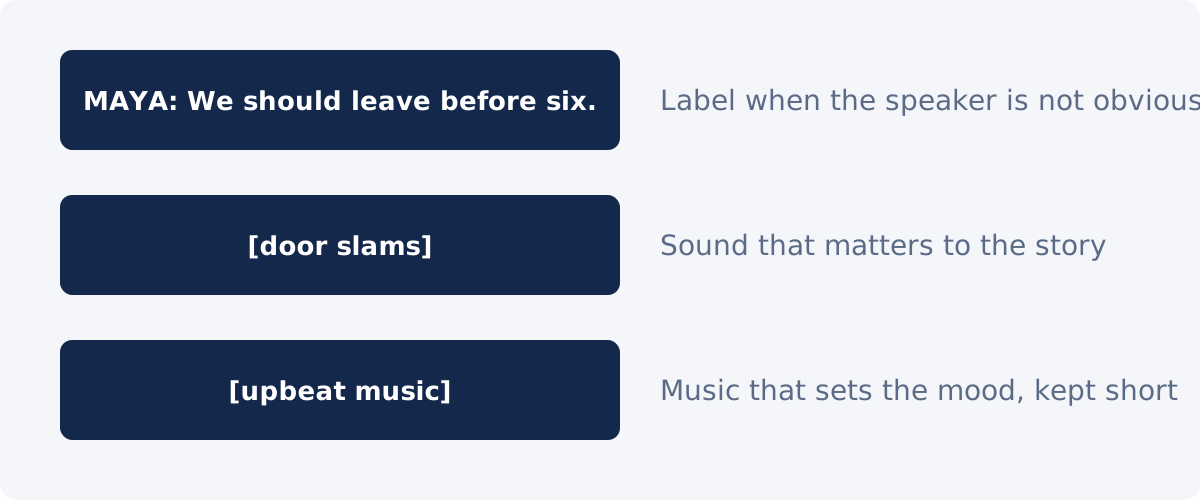
- Speaker labels identify who is speaking when it is not clear from the picture: an off-screen voice, two people in a wide shot, a phone call. Write the name in capitals followed by a colon, such as
MAYA: We should leave before six., or use a dash at the start of each speaker's line when two people alternate. Use labels only when they add information; a single visible speaker does not need one. - Sound descriptions in square brackets note sounds that matter to the story or the mood:
[door slams],[phone rings],[upbeat music],[laughter]. Keep them short and describe the sound, not the source's brand or the exact song unless it matters. Do not caption every sound, only those a hearing viewer would react to.
Both are typed as ordinary text in the tool. There is no speaker detection or automatic sound tagging; you decide what to include.
Problems and corrections
| Problem | What to check | How to correct it |
|---|---|---|
| A line appears after the words | Its Start time against the audio | Move the Start earlier by a few tenths of a second |
| A line disappears mid-sentence | Its End time, and the Start of the next line | Extend the End; move the next Start if they now overlap |
| Two lines on screen at once | Overlapping Start and End values | End the first before the second starts, unless the overlap is intended |
| Text is cut into odd rows | Line length and where you pressed Enter | Shorten the line or add a break at a phrase boundary |
| Nothing appears for a line | Whether the text is empty, or the End is not later than the Start | Type the text; make the End later than the Start |
| Text covers something important | Bottom offset and Font size | Raise the offset or reduce the size; both apply to all lines |
| A word is misspelled in the result | The text field of that line | Fix it and process again; the tool has no spelling check |
| Subtitles do not show in the download | Whether you downloaded the processed result rather than the source | Download after processing finishes |
Common mistakes
- Timing from the numbers, not the preview. Every line needs to be watched at least once.
- Whole paragraphs in one line. Split by thought, not by pause in your typing.
- Transcribing every filler word. "Um," "like," and false starts slow the reader down without adding meaning.
- Inconsistent labels. Switching between "MAYA:" and "Maya:" or dropping labels halfway through.
- Descriptions of unimportant sounds. "[keyboard typing]" in every line of a screen recording.
- Forgetting the phone. A font size that reads well on a monitor can be small on a phone. Check both.
- Expecting styling per line. Font size and bottom offset are shared by all lines. Per-line styles, colors, and positions belong to the full Deus.Video editor.
Conclusion
Manual subtitling is a writing job followed by a timing job. Prepare the text as short, well-broken lines; enter each one with a start and an end; watch the preview in passes; and add speaker labels and sound descriptions where a viewer without sound would need them. The tool renders exactly what you give it, so the quality of the result is the quality of your lines.
Have the transcript ready? Create timed subtitle lines in the Add Subtitles to Video tool, check them in the preview, and download the captioned copy.
Frequently asked questions
Does the tool transcribe the speech for me?
No. It is a manual line editor. You type each line and set its start and end, or import a prepared SRT file. It does not listen to the audio, generate text, or translate.
How long should a subtitle line be?
One or two rows, around 40 characters per row as a working limit, and one thought per line. Shorter lines are easier to read on phones. Break at phrase boundaries rather than in the middle of a name or number.
How do I write speaker names and sounds?
Type them as part of the line: a name in capitals with a colon for a speaker, and a short description in square brackets for a meaningful sound, such as [door slams]. Use them only when a viewer without sound would otherwise miss something.
Can I style individual lines differently?
Not in the standalone tool. Font size and bottom offset apply to all lines. The full editor treats each subtitle as its own element with its own style and position.
Can viewers turn the subtitles off?
No. The tool burns the subtitles into the picture, so they are visible in every player and cannot be hidden. If viewers need a switchable track, keep your lines as an SRT file and use a platform that supports separate caption tracks.
What happens if two lines overlap in time?
Both are drawn, one above the other, for as long as they overlap. Adjust the first line's end or the second line's start unless the overlap is intended.


