What an SRT file is
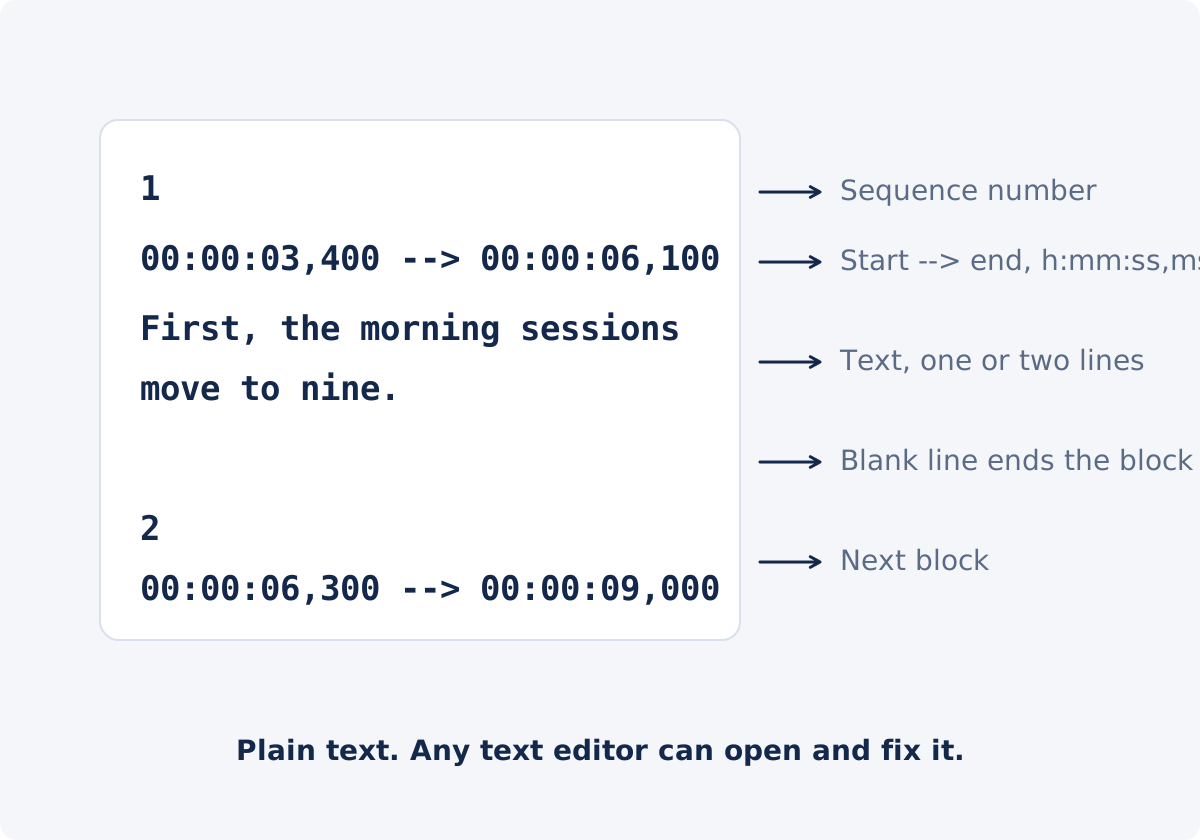
SRT is the simplest common subtitle format. It is a text file, usually with the .srt extension, made of blocks separated by blank lines. Each block has three parts.
- A sequence number: 1, 2, 3, and so on, in order.
- A timestamp line: the start time, an arrow made of two dashes and a greater-than sign, and the end time. Times are written as hours:minutes:seconds,milliseconds, with a comma before the milliseconds, for example
00:00:03,400 --> 00:00:06,100. - The text: one or more rows of subtitle text, shown together while the block is active.
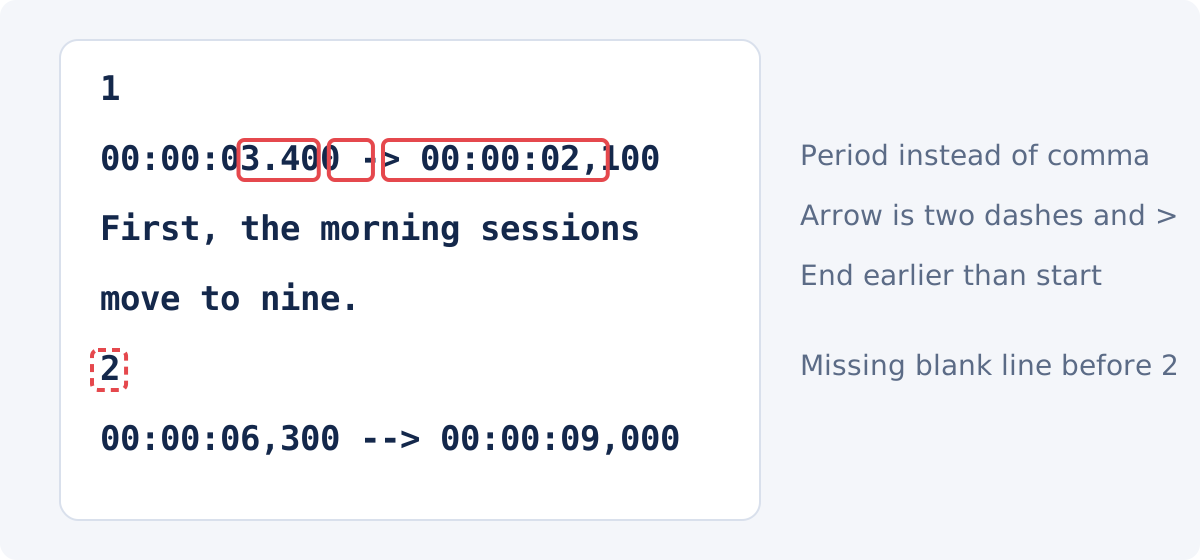
Because it is plain text, any text editor can open it, and any mistake is visible. That is also why small typing errors, such as a period instead of a comma in a timestamp, are the usual cause of import trouble.
Selectable subtitles vs. burned-in subtitles
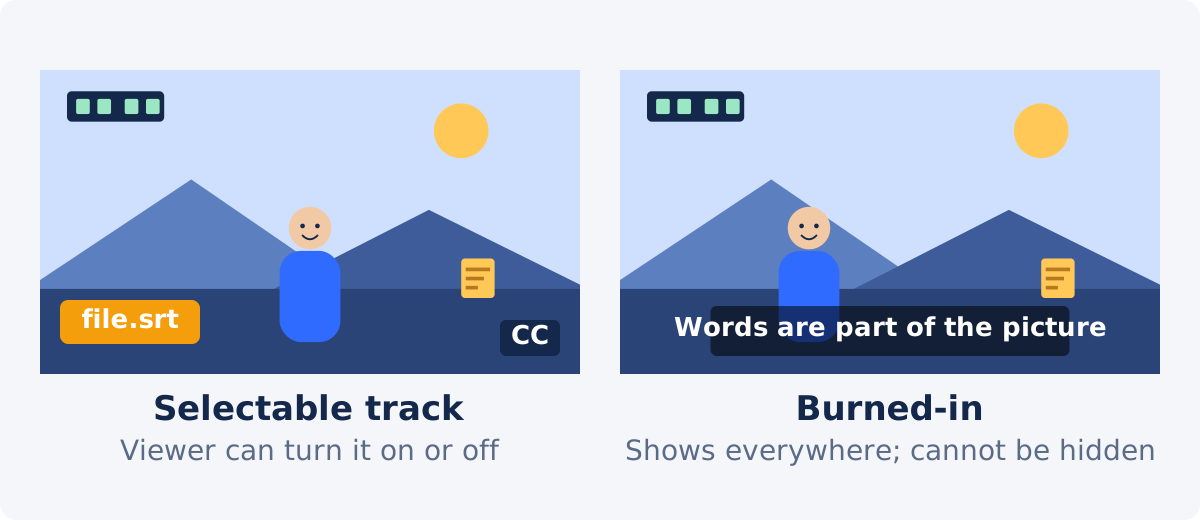
An SRT file can be used in two ways, and they produce different things.
Attaching, or selectable subtitles, keeps the SRT as a separate track alongside the video, in a player or on a platform that supports it. The viewer turns the subtitles on or off, and the platform may offer several languages. The video file itself is unchanged. This route depends on the destination: a player without subtitle support shows nothing.
Burning in, or open subtitles, renders the text into the frames of a new video file. The subtitles are part of the picture, visible in every player, on every platform, and impossible to hide. This is what the Deus.Video tool does. It does not attach a track or export a subtitle file.
Checking the SRT before import
Open the file in a text editor and look at these points. Five minutes here saves confusion later.
- Timestamp format. Every timestamp line should read
hh:mm:ss,mmm --> hh:mm:ss,mmm: two-digit hours, minutes, and seconds, a comma before three digits of milliseconds, and the arrow exactly as shown. - Order. Blocks should be in time order, and each end should be later than its start.
- Blank lines. Exactly one blank line between blocks. A missing blank line merges two blocks; extra blank lines inside a block split it.
- Encoding. Save as UTF-8 so that accented letters, quotation marks, and non-Latin scripts survive. A file saved in another encoding can import with odd characters in place of accents.
- Language and offset. Confirm the file matches the video: same language, same cut of the video. An SRT made for a version with a different intro is offset from the first line.
- Formatting tags. Some SRT files carry tags such as
<i>for italics. The tool renders text as text, so remove tags you do not want to see.
Importing the SRT in Deus.Video
The tool lets you import an SRT file into a video and edit every line before rendering.
- Upload the video. Common inputs include MP4, MOV, AVI, WebM, and MKV.
- Switch Mode to SRT file.
- Click Select .srt file and choose the subtitle file. Only SRT is accepted.
- Review the imported lines in the list under the player. Each shows its start, end, and text.
- Press Play and watch the active line over the video at a few points: the first line, something in the middle, the last line.
- Edit where needed. Change text, Start, or End in any line, or delete a line. Imported lines are ordinary lines.
- Set Font size and Bottom offset, shared by all lines.
- Click Add subtitles, wait for processing, and download the result, or continue in the full editor.
The result is a newly processed video with the subtitles burned in. The source video and the SRT file are unchanged; the tool does not write an updated SRT.

Editing imported text and timing
After import, the SRT is no longer needed for the edit. Every line is in the list with its own fields.
- Text. Fix typos, rewrite a clumsy line, shorten a long one, or add a speaker label or a sound description. Press Enter in the text box to break a row.
- Start and End. Nudge a line that appears early or late. The fields accept seconds and the minutes:seconds notation shown; the end must be later than the start.
- Delete. Remove lines that are empty, duplicated, or unwanted, such as a credit block at the end of a downloaded file.
Edits are per line. If the whole file is late by the same amount, every line has to be adjusted; the tool has no bulk shift. For a large constant offset, it is quicker to correct the SRT in a subtitle editor first and import again.
Common parsing and timing problems
An SRT that looks fine can still import wrongly. The symptoms are usually one of these.
- Import stops partway, or lines are missing. A malformed timestamp or a missing blank line at that point.
- All lines are early or late by the same amount. The SRT was made for a different cut of the video.
- Lines start in sync and drift later. The SRT was made for a version at a different frame rate or speed.
- Lines out of order. Blocks in the file are not in time order.
- Two blocks merged into one line. No blank line between them.
- Strange characters. Encoding other than UTF-8.
UTF-8, punctuation, and multiline captions
Three things about the text itself, kept simple.
- UTF-8. It is the text encoding that stores every letter and symbol reliably. Most editors save as UTF-8 by default; if yours offers a choice, pick UTF-8, and avoid options with "ANSI" or a regional code page.
- Punctuation and symbols. Ordinary punctuation renders as typed. Curly braces are shown literally rather than interpreted as formatting. Keep quotation marks and dashes consistent through the file.
- Multiline captions. A block with two rows of text is rendered as two rows, with the break where the file has it. Keep two rows as the maximum; three or more cover the picture and take too long to read.
SRT issues, symptoms, and fixes
| SRT issue | Likely symptom | Fix |
|---|---|---|
| Period instead of comma before milliseconds | Line missing, or import stops at that block | Replace the period with a comma in a text editor |
| Arrow written wrongly (single dash, no spaces) | Block not recognized | Use two dashes and a greater-than sign, with a space each side |
| End time earlier than start time | Line missing or never shown | Swap or correct the times |
| Missing blank line between blocks | Two captions merged into one, with a stray number in the text | Insert a blank line |
| File saved in a non-UTF-8 encoding | Accented letters shown as odd symbols | Re-save as UTF-8 and import again |
| SRT made for a different cut | Every line early or late by the same amount | Shift all timestamps in a subtitle editor, then import; or adjust lines individually |
| SRT made for a different frame rate | Lines drift further out as the video plays | Get an SRT for this version, or retime in a subtitle editor |
| Formatting tags in the text | Tags visible on screen | Remove the tags before import, or edit the lines after |
| Blocks out of order | Captions appear at the wrong moments | Sort the blocks by time, or fix the timestamps |
Why to keep the original SRT
The burned-in video is a delivery copy. It cannot be un-captioned, translated, or corrected without processing the source again. The SRT is the editable source of your subtitles, and it is worth keeping in three situations.
- Platforms with caption support. Upload the clean video with the SRT as a separate track there, so viewers can toggle captions, while the burned-in copy goes to places without support.
- Translations. A translator works from the SRT, not from the video.
- Corrections and re-edits. A typo found next week is fixed in the SRT and rendered again.
Since the Deus.Video tool does not export your edits as an SRT, make text corrections in the file as well as in the tool when they matter for the future, or treat the tool's edits as delivery-only fixes.
Conclusion
An SRT file is a readable list of numbered, timed blocks, and importing it is mostly a matter of making sure the file is clean, matches the video, and is saved as UTF-8. In Deus.Video, the imported lines become editable, so small fixes happen in the tool and the video is delivered with the subtitles burned in. Keep the SRT: it is the version you will translate, correct, and attach elsewhere.
Have a checked SRT and the video it belongs to? Open the Add Subtitles to Video tool, switch to SRT file mode, review the lines in the preview, and download the captioned copy.
Frequently asked questions
Which subtitle formats does the tool import?
SRT only. Other formats such as VTT, ASS, or SSA have to be converted to SRT in another program first. The tool also does not export a subtitle file.
Will the subtitles be a separate track or part of the video?
Part of the video. The tool renders the lines into the picture, so they show in every player and cannot be turned off. For a selectable track, use a platform that accepts SRT alongside the video, and keep the original file.
My SRT imported with strange characters. What happened?
The file was probably saved in an encoding other than UTF-8, so accented letters and symbols were misread. Re-save it as UTF-8 in a text editor and import it again.
The subtitles are all late by two seconds. Can I shift them at once?
Not in the tool, which edits one line at a time. Shift the timestamps in a subtitle editor, or a text editor with a find-and-replace for simple cases, and import the corrected file.
Can I edit the imported lines?
Yes. Every imported line has editable text, start, and end fields and can be deleted. The edits apply to the rendered video; the SRT file itself is not changed.
Does the tool create the SRT from the audio?
No. It reads a prepared SRT or takes lines you type. It does not transcribe speech, generate text, or translate.


