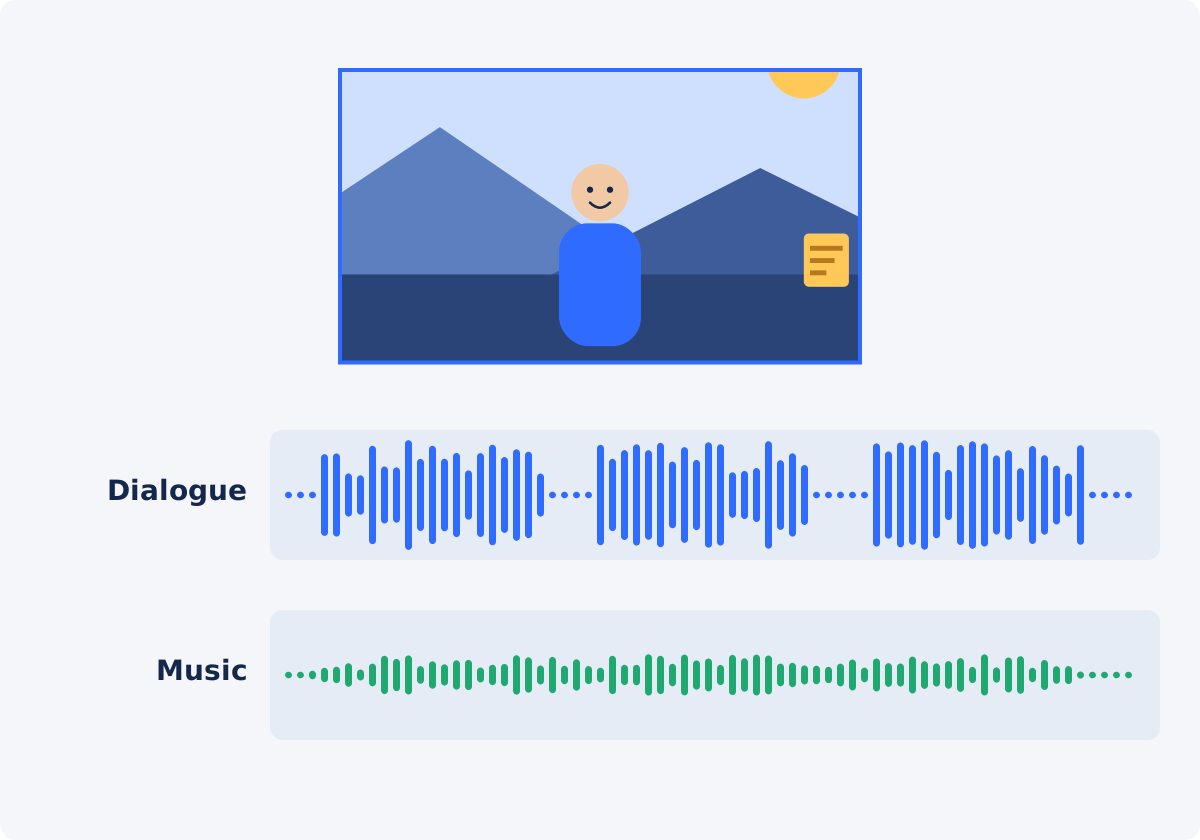
The short answer: music supports, speech leads
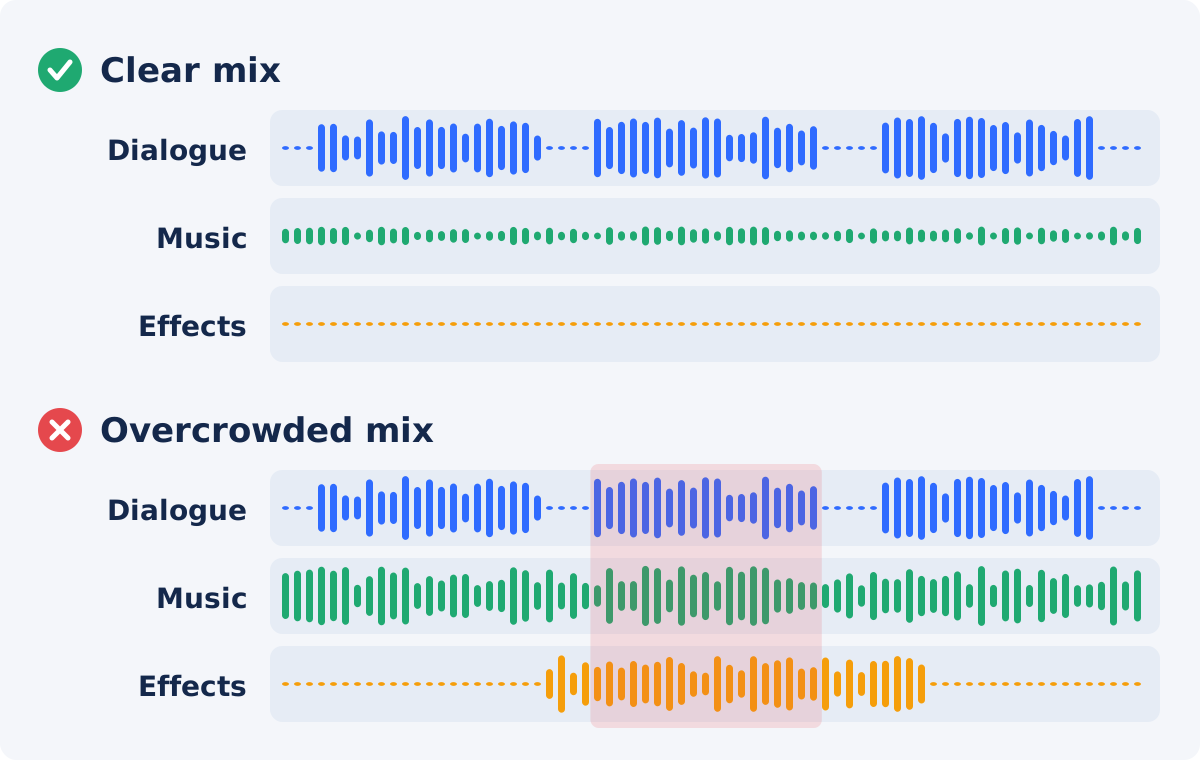
Viewers forgive a plain soundtrack. They do not forgive missing words. When music and a voice compete, the ear has to work to separate them, and many people simply stop watching. This effect is called masking: one sound hides another that occupies the same range at the same time.
Two things control masking in a simple mix. The first is level, meaning how loud the music is compared with the voice. The second is the character of the music. A busy track with vocals, bright guitars, or a lead melody sits right where speech sits. A sparse track with soft pads or a low pulse leaves that space open.
A mix is the combined sound of all tracks playing together. Your goal is a mix where the voice is easy to follow on a phone speaker, and the music is felt more than noticed.
How to choose a track
Mood
Decide what the viewer should feel, then pick the calmest track that delivers it. A product demo usually needs light, steady energy. A personal story may need something warm and slow. If you catch yourself listening to the music instead of the speaker, the track is too interesting for this job.
Pacing
Match the tempo to the rhythm of the edit and the speech. Fast cuts and an energetic presenter can carry a quicker track. A slow tutorial with long explanations works better with a gentle, even pulse. Avoid tracks with big drops or sudden builds unless they line up with a moment in your video.
Instrumentation
Instrumental music is the safe default under dialogue. Sung lyrics compete directly with spoken words. Prominent solo instruments in the middle range, such as saxophone or lead guitar, can have a similar effect.
Duration
Check the length of the track against the length of the video. A short audio file does not automatically repeat to fill a longer video. Choose a track that is at least as long as the section it needs to cover, or plan for the music to play only in part of the video, such as the intro and outro. If the video is too long for the material you have, you can trim the video first.
Licensing reminder
Use only music you have the right to use. That can mean a track you created, a track licensed from a music library, or music released under terms that allow your type of project. Read the license for limits on commercial use, platforms, and attribution.
Buying a song or streaming it does not grant the right to publish it in a video. Platforms may mute, restrict, or remove videos that contain music without permission. This guide is not legal advice, so check the license text or ask the rights holder when you are unsure.
How to add background music in Deus.Video
The Add Audio to Video tool lets you mix music with a video by placing uploaded audio files on the video's timeline as separate tracks.
- Upload the video. Common formats such as MP4, MOV, AVI, WebM, and MKV are accepted.
- Add the music file. Use Add audio files after the video upload is complete. The file appears as its own track.
- Set where the music plays. Track start and Track end define the part of the video timeline where the music is heard. For music under the whole video, the Full preset sets the start to 0 and the end to the full available duration. Intro covers the first 10 seconds, and Outro covers the last 10.
- Choose where the music begins inside the file. Audio source offset skips the beginning of the audio file. Use it to jump past a long intro.
- Lower the music volume. Select the music track and reduce Volume. The Quiet preset sets the track volume to 0.5, which is a reasonable starting point that you then adjust by ear. Note that the 50% preset is not a volume setting. It sets the track range to the first half of the timeline.
- Set a fade. Enter a duration in Fade in/out (sec) so the music does not start or stop abruptly. The default is 0, and the Fade preset sets it to 1.5 seconds.
- Keep the dialogue. Leave the Keep original video audio checkbox checked so the speech recorded in the video stays in the mix.
- Preview, then process. Play the preview, focusing on the sections with speech. The preview reflects track position, source offset, and volume. Fades are applied when the video is processed, so listen for them in the download. Click Add audio to video, download the result, and listen to it again.

Original audio and individual track volume
The original soundtrack is the audio already inside your video file: dialogue, room sound, and anything else the camera or screen recorder captured. The Keep original video audio checkbox decides whether that sound stays in the final mix. For a video with dialogue, it stays checked.
Each uploaded track has its own Volume value, from 0 to 4, with 1 as the default. The control affects only the selected track, so you can bring the music down without touching anything else. Values above 1 make a track louder, which is rarely what background music needs. The browser preview plays a track at up to level 1, so judge any higher setting in the processed download.
There is no universal number that works for every video. Voices are recorded at different levels, and music files are mastered at very different loudness. Start low, play a section with speech, and raise the music until you notice it. Then take it back down a step. Most people set background music too loud on the first pass, because they already know what the speaker is saying.
The tool does not lower the music automatically when someone speaks. If you need the music to dip under speech and rise in pauses, plan for it manually. One approach is to keep the music at a constant low level throughout. Another is to play music only where nobody talks, such as the intro and the outro.
Fade at the entrance and exit
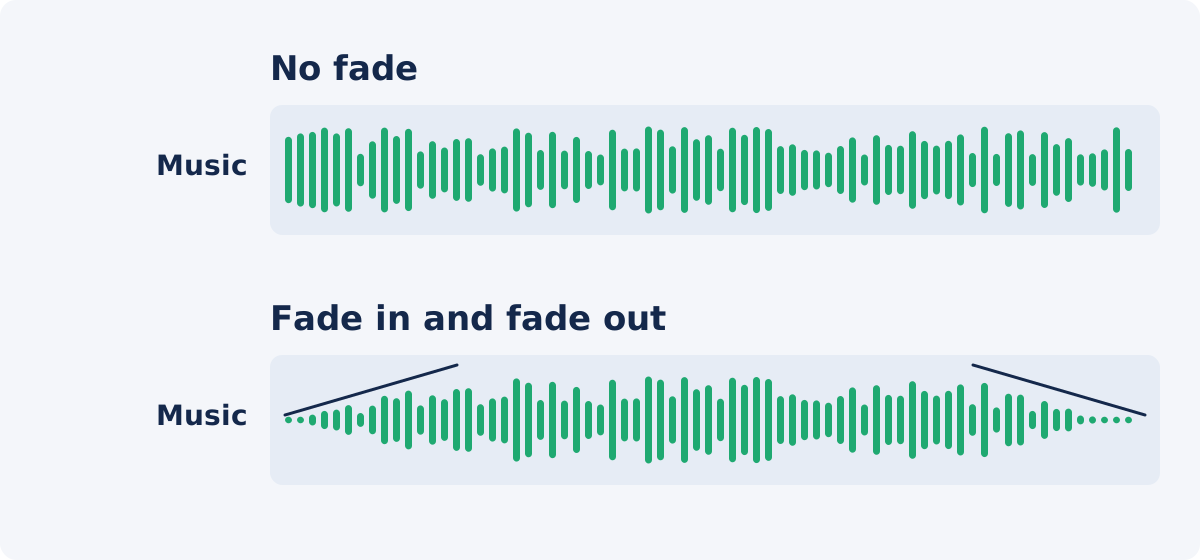
A fade is a gradual change in volume at the start or end of a track. A fade in raises the music from silence, and a fade out lowers it back. Without a fade, music that begins mid-phrase or ends before the song is over sounds like a mistake.
Short fades of about one second suit quick social clips. Longer fades of two to four seconds feel calmer and suit tutorials and interviews. If the music starts while someone is already talking, use a longer fade in, so the entrance does not pull attention from the words.
When the music should end with the video, set Track end to the end of the video and let the fade out finish the track there. Check that the fade does not start so early that the last sentence plays over a nearly silent bed. Because fades are added during processing, this is a check to make in the downloaded file, not in the preview.
How to check overlapping loud sections
Problems hide in the loudest moments. When a raised voice, a musical peak, and a sound effect arrive together, the combined level can exceed what the file can hold. The result is clipping, a harsh crackling distortion caused by peaks being cut off.
- Find the busiest moment. Look for the place where the speaker is most animated and the music is at its fullest.
- Listen on small speakers. Phone speakers reveal masking quickly. If words are hard to catch there, lower the music.
- Listen on headphones. They reveal distortion, abrupt entrances, and fades that are too short.
- Lower, do not raise. If the voice is hard to hear, reduce the music before you consider boosting anything. Boosting adds to the total level and moves you toward clipping.
- Test with fresh ears. Ask someone who has not heard the script, or take a break and listen again later.
Starting points by content type
| Content type | Music role | Starting mix approach | What to check |
|---|---|---|---|
| Talking-head video or interview | Subtle warmth under the voice | Instrumental track, clearly quieter than speech, constant level | Every word is clear on a phone speaker |
| Tutorial or screen recording | Keeps long explanations from feeling empty | Very quiet, steady track, or music only in intro and outro | Music does not distract during detailed steps |
| Product demo | Energy and pace | Light rhythmic track, lower during narration | Musical peaks do not land on key product claims |
| Vlog with mixed speech and b-roll | Carries the sections without speech | Level set for the speech sections, accepted as modest in b-roll | Transitions between speech and b-roll feel even |
| Montage with no dialogue | Main audio element | Music at a full level, original audio on or off as needed | No distortion at the loudest musical moment |
| Short social clip with a hook | Immediate mood | Short fade in, music under the spoken hook | First sentence is understandable without captions |
Checklist after processing
The preview is a guide to timing and balance. The processed file is what your audience hears, so always review the download.
- Play the full video once without skipping.
- Confirm the dialogue is clear from the first word to the last.
- Listen to the music entrance and exit. This is the first time you hear the fades, so confirm their length feels right.
- Check the loudest overlapping section for distortion.
- Confirm the music ends where you intended and does not stop early.
- Listen on at least two devices, such as a phone and headphones.
- Confirm you have the right to publish the music you used.
If the video also needs cuts, captions, or different music levels in different sections, continue in the full Deus.Video editor, where you can arrange clips and audio together.
Conclusion
Good background music is mostly restraint. Choose an instrumental track that fits the mood, keep it well under the voice, fade it in and out, and test the busiest moment on a small speaker. Then review the processed download before you publish.
Ready to try it on your own footage? Open the Add Audio to Video tool, add your music as a separate track, and set its volume and fade before you export.
Frequently asked questions
How loud should background music be under dialogue?
Quiet enough that a first-time listener catches every word on a phone speaker. There is no single value that fits all recordings, because voices and music files vary widely in loudness. Start low, raise the music until you notice it, and then step back slightly.
Does the tool lower the music automatically when someone speaks?
No. The volume you set applies to the track for its whole range. Keep the music at a constant low level, or place it only in sections without speech. For different levels in different sections, use the full editor.
What happens if my music is shorter than the video?
The music plays once and then stops. Short audio is not repeated automatically. Choose a longer track, limit the music to part of the video, or build a repeated arrangement in the full editor.
Can I use a song with lyrics?
You can, but sung words compete with spoken words. Lyrics work better in sections without dialogue, such as an intro or a montage. You also need the right to use the song.
Why does the mix sound distorted in loud moments?
Several loud sounds are probably overlapping and causing clipping. Lower the music volume, and check that no track has been boosted above its default level. Then process the video again and listen to the same moment.
Can I add music and keep the original sound of the video?
Yes. Leave Keep original video audio checked. The uploaded music is mixed with the sound already in the video. Uncheck it only when you want the new audio to replace the original soundtrack.


