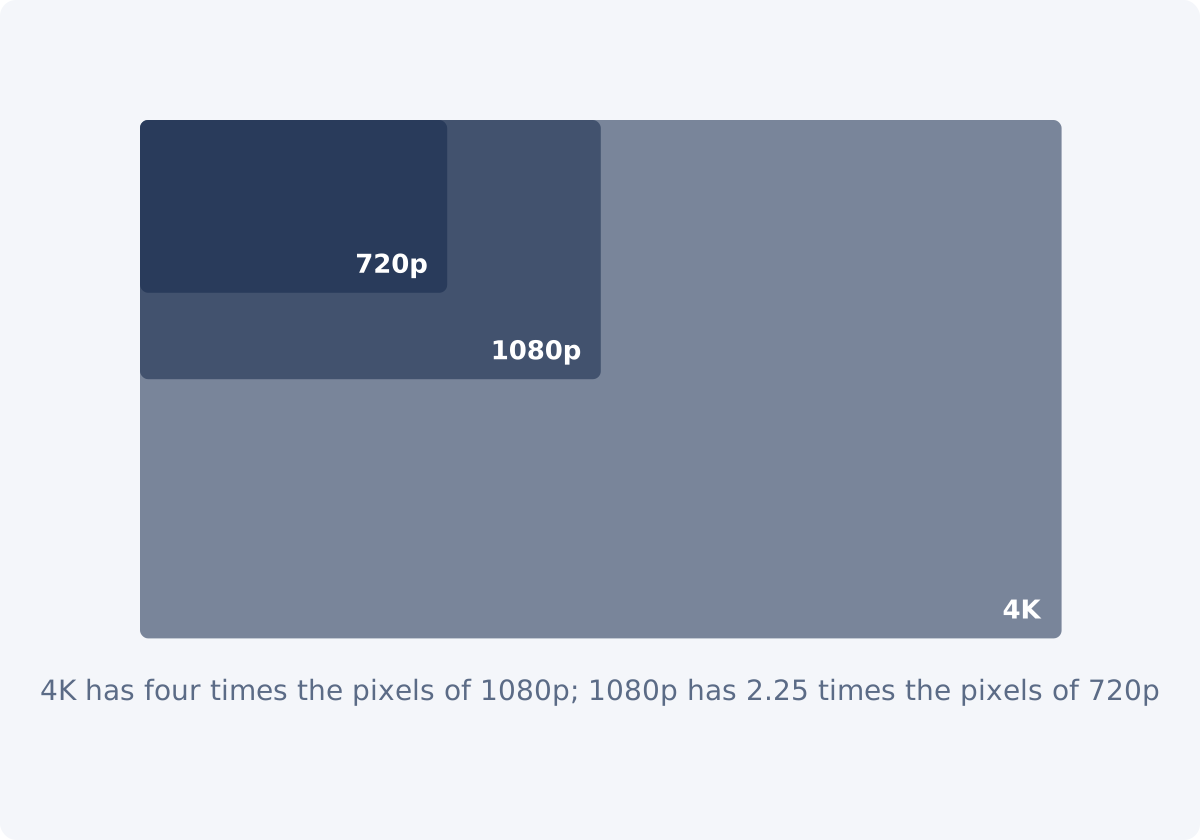
What 720p, 1080p, and 4K mean
The names refer to the number of pixel rows in the frame. 720p has 720 rows, 1080p has 1,080. The "p" stands for progressive scan, meaning every frame is a complete picture, which is how nearly all modern video works. 4K is named differently, for a width of roughly four thousand pixels. The consumer standard is 3840 × 2160, which is also called 2160p or UHD, and it has exactly twice the width and height of 1080p.
The pixel counts grow faster than the names suggest. 1080p has 2.25 times the pixels of 720p. 4K has four times the pixels of 1080p, and nine times the pixels of 720p.
Typical dimensions and the aspect ratio caveat
The dimensions above assume a 16:9 horizontal frame. The names say nothing about shape. A vertical clip of 1080 × 1920 has 1,080 pixels across and 1,920 rows, and people call it "1080p" as well, though its rows would technically make it 1920p. A square 1080 × 1080 clip is also loosely called 1080p.
When a requirement says "1080p," check whether it means a height of 1,080 pixels, a width of 1,080, or the specific frame 1920 × 1080. The three are different files. The resolution name and the aspect ratio are separate facts, and both are needed to describe a video.
| Resolution | Dimensions (16:9) | Strengths | Tradeoffs | Typical use |
|---|---|---|---|---|
| 720p | 1280 × 720 | Small files, fast uploads, quick processing | Visibly soft on large screens; small text struggles | Small embeds, previews, low-bandwidth delivery, older devices |
| 1080p | 1920 × 1080 | Sharp on laptops, phones, and most monitors at a manageable size | Not enough for large 4K screens viewed up close | Standard for web, social, presentations, courses |
| 4K | 3840 × 2160 | Very high detail; room to crop or reframe without loss | Large files, slow uploads, long processing; often downscaled by the player | Large screens, archival masters, footage that will be cropped |
What resolution affects: detail, time, upload, and storage
- Visual detail. Higher resolution can show finer detail, if the camera captured it and the screen can display it. On a phone, 1080p and 4K are hard to tell apart. On a large TV a few feet away, the difference is clear.
- Processing time. Every operation, from resizing to background removal, works on every pixel of every frame. A 4K clip has four times the pixels of 1080p, and processing takes correspondingly longer.
- Upload time. Files grow with resolution at the same quality level. At the same bitrate they do not, but then the higher resolution is being starved of data and gains little.
- Storage. A 4K master can be several times the size of a 1080p one. Multiply by every version and every backup.
Why the intended screen matters more than "bigger is better"
A video is always displayed at some size, and the player scales the file to fit. If the page shows the video 640 pixels wide, a 4K file is reduced to 640 pixels of width on the fly, and the extra 3,200 columns did nothing except slow the download. If the destination is a large screen at a trade show, 4K is worth it.
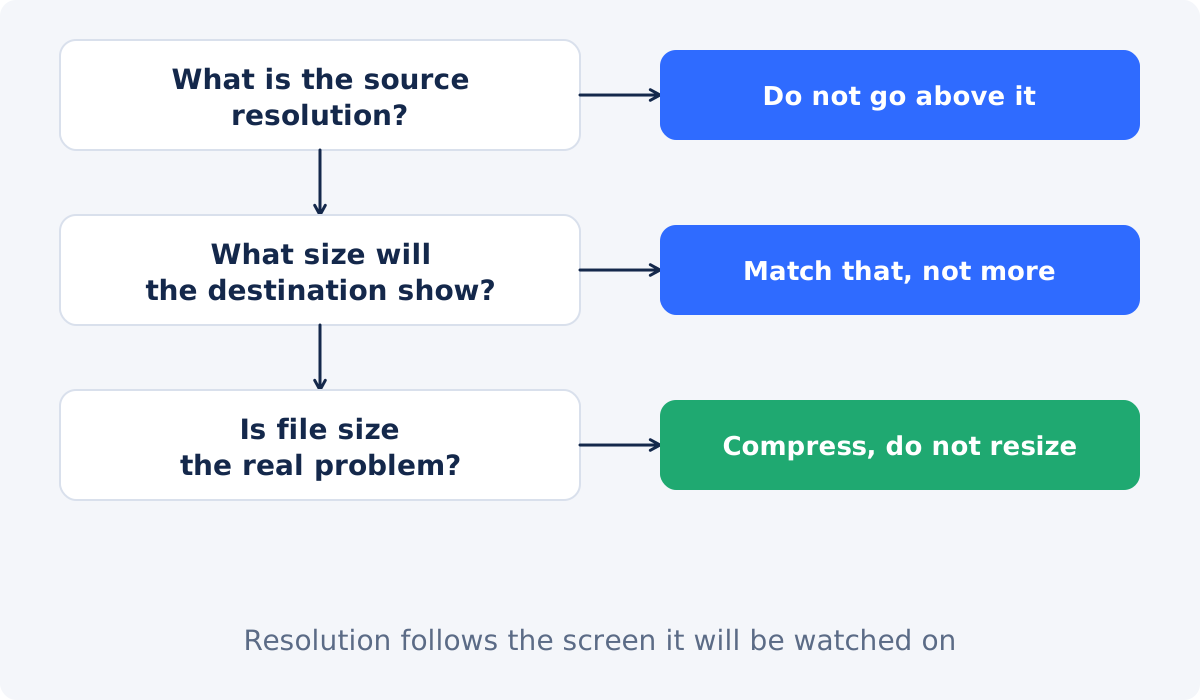
Ask three questions. Where will most people watch this? At what size will the player show it? Can the source support that size? The answer is usually 1080p for horizontal web and social video, 720p when bandwidth or file limits are tight and the video is shown small, and 4K when the screen is large or the footage will be cropped later.
Why a 720p source does not become true 4K
Upscaling, meaning increasing the dimensions, spreads the recorded pixels over a larger grid and fills the gaps by estimation. A 720p frame has about 0.9 million pixels of real information. Resized to 4K, it becomes an 8.3-million-pixel frame in which nine out of ten pixels are guesses based on their neighbors. The result plays as 4K and looks like softened 720p, and the file is much larger. Deus.Video does not include AI upscaling or detail restoration; the resizer changes dimensions only.
Downscaling is the opposite and behaves well. A 4K source reduced to 1080p averages four recorded pixels into each output pixel, which removes fine detail but keeps the picture clean and often hides noise.

How to choose an output without exceeding the source
- Find the source resolution. In the resizer, the Input line under Current size shows it after upload.
- Find the display size. The player's size on the page, the platform's typical playback size, or the screen in the room.
- Take the smaller of the two, or the nearest standard size to it. That is the output.
- If the destination demands more than the source, enlarge mildly, up to about 1.5×, and accept a softer picture. Beyond that, the better fix is a higher-resolution recording.
- If the file is too large at that resolution, the problem is bitrate, not pixels.
Workflow in Deus.Video
Use the tool to change the video dimensions to the resolution you chose.
- Upload one video. Common inputs include MP4, MOV, AVI, WebM, and MKV.
- Read Input under Current size.
- Choose the preset that matches the plan: Full HD 16:9 1920×1080 or HD 16:9 1280×720 for horizontal video. For 4K output from a 4K source, use Custom and enter 3840 × 2160.
- Keep Preserve proportions selected. The second dimension is recalculated automatically, and the shape stays the same. If the shape differed, you would choose Fit or Fill; the picture is never stretched.
- Check New and Ratio, and the preview of the target frame.
- Click Resize video, and download the result, or continue in the full editor.
- Play the result on the kind of screen it is meant for, and compare it with the source.
The full Deus.Video editor has no separate resize function, but its Download video dialog offers 360p, 480p, 720p, 1080p, and 2160p output, so a project can be exported at the resolution you need after other edits.

Three quick examples
A 4K phone recording headed for a course platform that plays at 1080p: resize to 1920 × 1080, and keep the 4K original as the master. A 1080p webinar recording that will be embedded 800 pixels wide on a help page: 1280 × 720 is plenty, and it uploads faster. A 720p clip from an older camera that a client wants "in 4K": explain that the detail is not there, offer a 1080p version as a mild enlargement, and suggest re-recording if 4K is a real requirement.
When you need Compress Video instead
Resolution and file size are different problems. If a 1080p file is too heavy for an upload limit or an email, reducing it to 720p may or may not get it under the limit, and it costs detail either way. Compress Video keeps the dimensions and reduces the data, and it can aim at a target size. Resize first only when the video is genuinely larger than it will be shown, then compress if the file is still too large.

Conclusion
720p, 1080p, and 4K are sizes, not grades. Choose by the screen and the source: the resolution the video will be shown at, and no larger than what was recorded. Downscale freely, upscale mildly and only when required, and treat file size as a separate question with its own tool.
Decided on the size? Open the Video Resizer, pick the matching preset with the proportions locked, and compare the result with the original on the screen it is meant for.
Frequently asked questions
Is 4K always better than 1080p?
Only when the screen is large enough to show the difference and the source was recorded in 4K. On phones and most laptops the two look alike, while the 4K file is several times larger and slower to process and upload.
Can I make my 720p video 1080p?
You can produce a 1920 × 1080 file from it, and the resizer will do that with the ratio locked. The picture will have 720p detail spread over a larger frame, which looks slightly soft. It is acceptable for a 1.5× step and not a substitute for recording in 1080p.
What is the difference between 4K and 2160p?
In consumer video they mean the same frame, 3840 × 2160. "2160p" names the rows, and "4K" names the approximate width. Cinema 4K is slightly wider, at 4096 pixels, but that is rare outside film production.
Which resolution should I use for social media?
1080p for horizontal video, and 1080 pixels wide for vertical and square posts, is a safe choice on most platforms. Platforms scale uploads to their own player sizes, and their recommendations change, so check the current guidelines of the platform you use.
Does the Video Resizer support 4K?
The presets go up to 1920 × 1080, and Custom accepts other dimensions, so 3840 × 2160 can be entered by hand. Use it to keep a 4K source at 4K, or with a 4K source that needs a different 4K-class size. Enlarging a smaller source to 4K produces a large, soft file.
Why is my resized video still a big file?
Because file size is set mainly by bitrate and duration, not by dimensions alone. The resizer has no bitrate control. If megabytes are the problem, use Compress Video.


